
Best Way to Fix Harmful Programs Error in WordPress
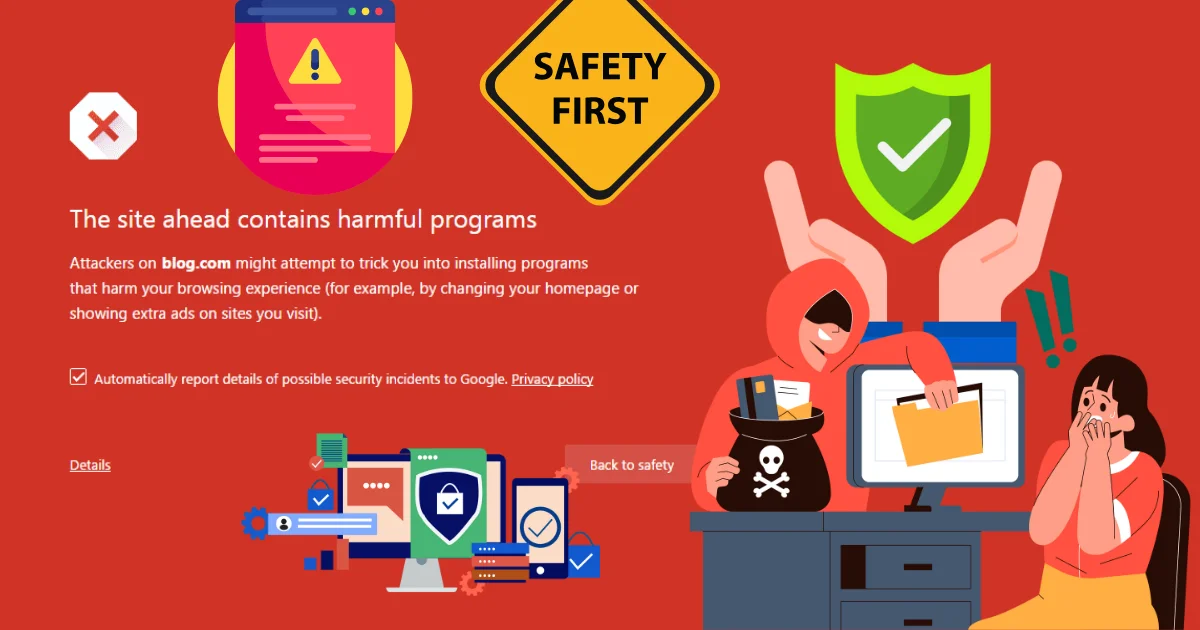
Seeing the Harmful Programs error on WordPress Error? Our 2025, 2026 guide shows how to scan, clean malware, and request a Google review to get your site back. One common error that many WordPress users encounter is the “This Site Ahead Contains Harmful Programs” message. WordPress is an excellent platform to create and manage websites. It’s user-friendly, flexible, and has a plethora of plugins and themes to customize your site. However, like any other platform, WordPress can run into issues that need to be resolved promptly. This error can be daunting and may affect your site’s traffic and search engine ranking. Seeing a bright red warning screen from Google that says “This Site Ahead Contains Harmful Programs” is one of the most terrifying moments for a website owner. This message, part of Google’s Safe Browsing feature, means your site has been blacklisted. It’s actively warning visitors—and your potential customers—to stay away. Your traffic will vanish, your reputation will suffer, and your SEO rankings will plummet. This error is triggered when Google’s crawlers detect malware, unwanted software, or phishing elements on your pages. But don’t panic. This is fixable, and this guide will walk you through the exact steps to clean your site and get back in Google’s good graces.
Step 1: Immediately Verify the Infection
Before you start deleting files, you need to confirm the threat and find out where it is. A “false positive” is rare but possible; it’s more likely the infection is real.
- Use an External Scanner: Do not rely on your own browser, which might have your site cached. Use a free, external malware scanner like Sucuri SiteCheck. You just enter your website’s URL, and it will scan your site from the outside, checking for known malware, blacklist status, and malicious code.
- Check Google Search Console: This is the most important step. Log in to your Google Search Console (GSC) account. If you haven’t verified your site, you must do this immediately.
- Navigate to the “Security & Manual Actions” tab on the left.
- Click on “Security Issues.”
- This dashboard is Google’s official report. It will tell you exactly what pages are infected and what type of threat it found (e.g., “Deceptive content,” “Malware,” “Unwanted Software”). This report is your cleanup checklist.
Step 2: Clean and Secure Your Website
Now that you’ve confirmed the hack, it’s time to remove it. You have two main paths: using a plugin or a manual approach.
The Plugin Method (Recommended)
This is the fastest and most reliable method for most users. You’ll use a dedicated security plugin to do the heavy lifting.
- Install a Top-Tier Security Plugin: If you don’t already have one, install a reputable scanner like Wordfence Security or Sucuri Security.
- Run a Full, Deep Scan: Launch a high-sensitivity, full-site scan. This will comb through all your WordPress core files, themes, plugins, and database.
- Quarantine or Delete: The scanner will provide a list of infected files. Most plugins will allow you to “Repair” files (if they are core WordPress files) or “Delete” files that are clearly malicious (like new, strange
.phpfiles in your/uploads/folder).
The Manual Method (Advanced)
If a plugin can’t find the issue, you may need to dig in manually:
- Check
.htaccessandwp-config.php: These two files are high-value targets. Open them in your cPanel File Manager and look for any suspicious code you don’t recognize. - Inspect Your
wp-content/uploadsFolder: Hackers love to hide malicious scripts here. Sort by “Last Modified” and look for any.php,.js, or other executable files that shouldn’t be there. - Replace Core Files: Download a fresh copy of WordPress. Manually replace your
wp-adminandwp-includesfolders. This ensures your core files are 100% clean.
A security plugin is your best first defense, but cleaning a hacked site isn’t just about deleting bad files; it’s about closing the security hole that let the hacker in. The instant you regain access, you must change every single password associated with your site. This includes your WordPress admin password, all other user passwords, your cPanel/hosting password, your FTP password, and especially your database password. Failing to do this is like kicking an intruder out but leaving your front door unlocked for their return. This is the most critical step in preventing an immediate re-infection.
Step 3: Request a Review from Google
Once you are 100% confident your site is clean, you must officially tell Google.
- Go back to your Google Search Console dashboard.
- Navigate to the “Security Issues” report.
- You will see a button labeled “Request Review.”
- Click it and fill out the simple form. You must briefly explain what steps you took to fix the problem (e.g., “I used a security plugin to scan and remove all malicious files, updated all plugins, and changed all passwords.”).
Google will then re-crawl your site. If it finds the site is clean, the “Harmful Programs” warning will be removed, usually within 24 to 72 hours.
How to Prevent This from Ever Happening Again
Fixing a hacked site is a stressful, time-consuming lesson. Learn from it by “hardening” your WordPress security to make your site a much more difficult target.
- Use a Web Application Firewall (WAF): Services from Cloudflare, Wordfence, or Sucuri can block malicious traffic before it even reaches your server.
- Enable Two-Factor Authentication (2FA): This makes a stolen password useless to a hacker.
- Keep Everything Updated: Your WordPress core, plugins, and themes must be kept up-to-date. This is the #1 way hackers get in.
- Limit Login Attempts: Install a plugin that locks users out after three failed login attempts to block “brute force” attacks.