Home Blog Page 2

Customized Web Solutions Using WooCommerce Online Store

Customized Web Solutions Using WooCommerce Online Store
#image_title

Customized Web Solutions Using WooCommerce Online Store: A Comprehensive Guide for Building Your Online Store.

Learn and Complete Guide Build Your Online WooCommerce Store 2026 to create a customized online shopping Website cover guide setup, customization, and products. Building Your Online businesse Store with WooCommerce popular e-commerce platforms best Online Shop. WooCommerce has become one of the most popular e-commerce platforms on the internet, offering businesses a flexible and scalable solution to create and manage online stores. Customized Web Solutions Using WooCommerce Online Store as a WordPress plugin, WooCommerce allows users to turn their websites into fully functional e-commerce platforms. Whether you’re launching a small business or scaling up an existing online store, WooCommerce provides all the tools and customization options you need to build a robust e-commerce website tailored to your brand’s needs.

1. Install and Set Up WooCommerce

The first step in building your online store with WooCommerce is to install and configure the plugin on your WordPress website.

WooCommerce online store creation begins with understanding this powerful WordPress plugin that transforms websites into fully functional e-commerce platforms. Whether you’re launching a new business or scaling an existing one, WooCommerce offers flexible tools to build a store perfectly tailored to your brand’s unique needs and vision.

To install WooCommerce:

  • Go to your WordPress dashboard and navigate to Plugins > Add New.
  • Search for “WooCommerce” in the search bar, and click Install Now.
  • Once installed, click Activate, and WooCommerce will prompt you with an easy setup wizard. During this setup, you’ll configure essential settings like store location, currency, payment gateways, shipping methods, and tax rates.
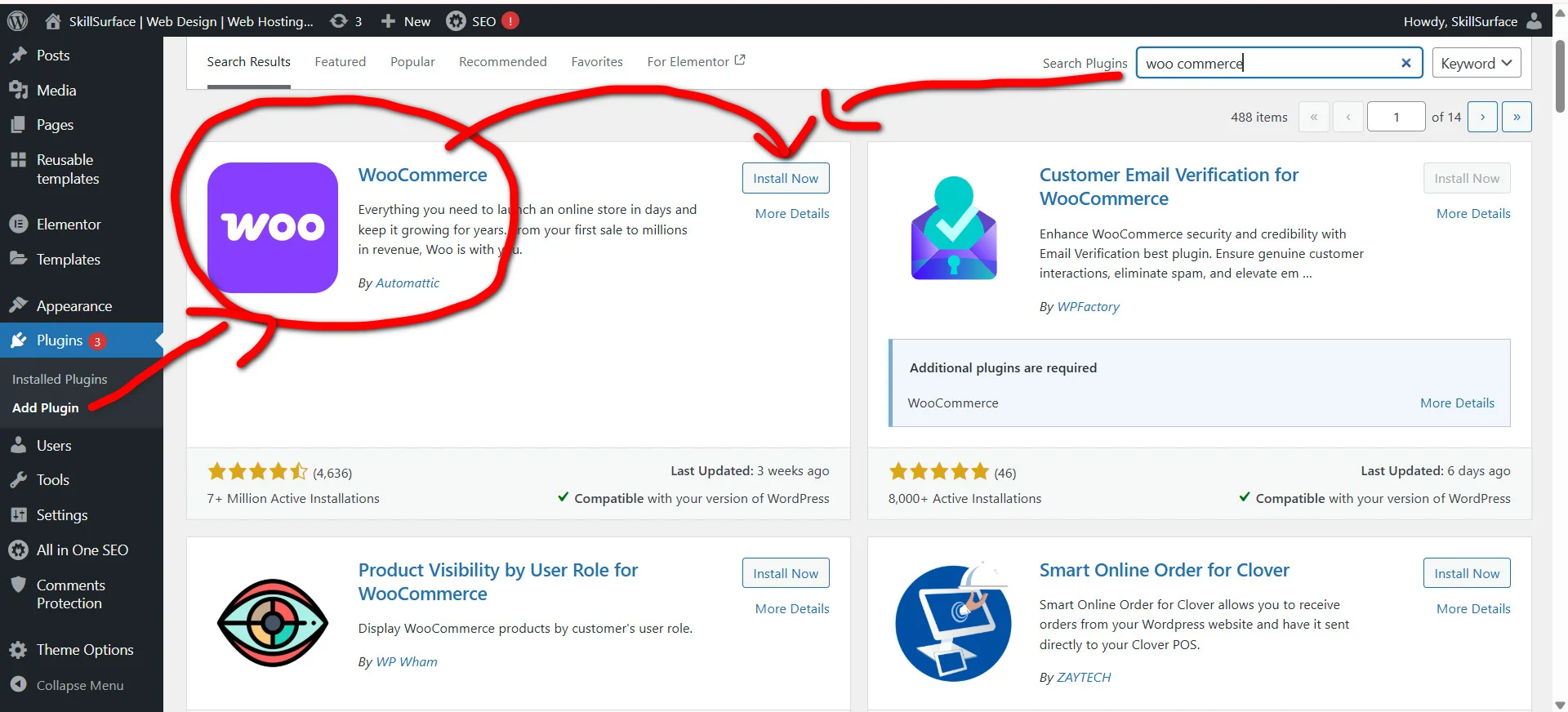
woocommerce plugin and online shopping store pakistan


For an in-depth guide, check out WooCommerce’s official documentation.

Click here GO to Official Documention for Install Step by Step

2. Customize Your Online Store (Customized Web Solutions)

Customization is where WooCommerce truly shines. From the look and feel of your store to the functionality, you can tailor nearly every aspect to meet your needs. Some key customization options include:

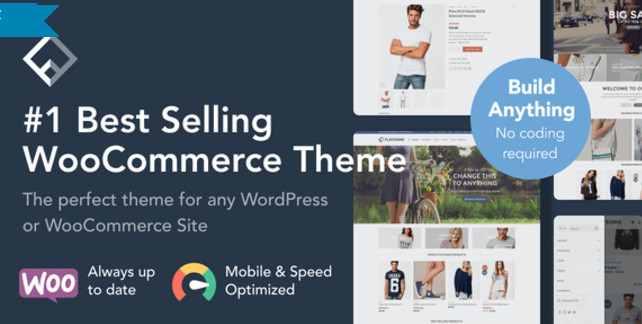
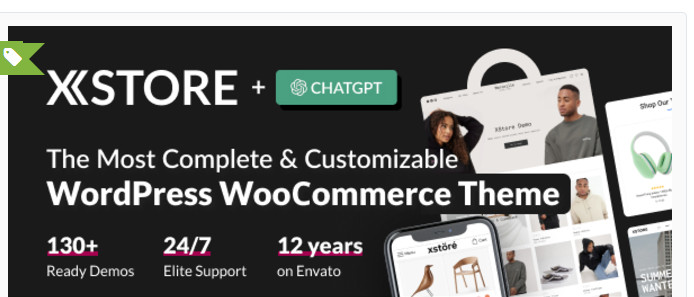
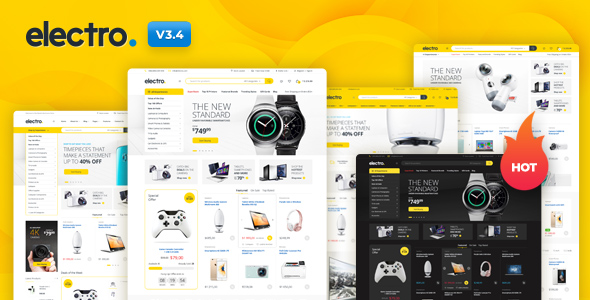
  • Choose a Theme: Select a theme that is compatible with WooCommerce. You can either use a pre-built WooCommerce theme or create a custom theme that reflects your brand’s identity. Popular themes like Astra or Flatsome are highly customizable and come with built-in WooCommerce support.
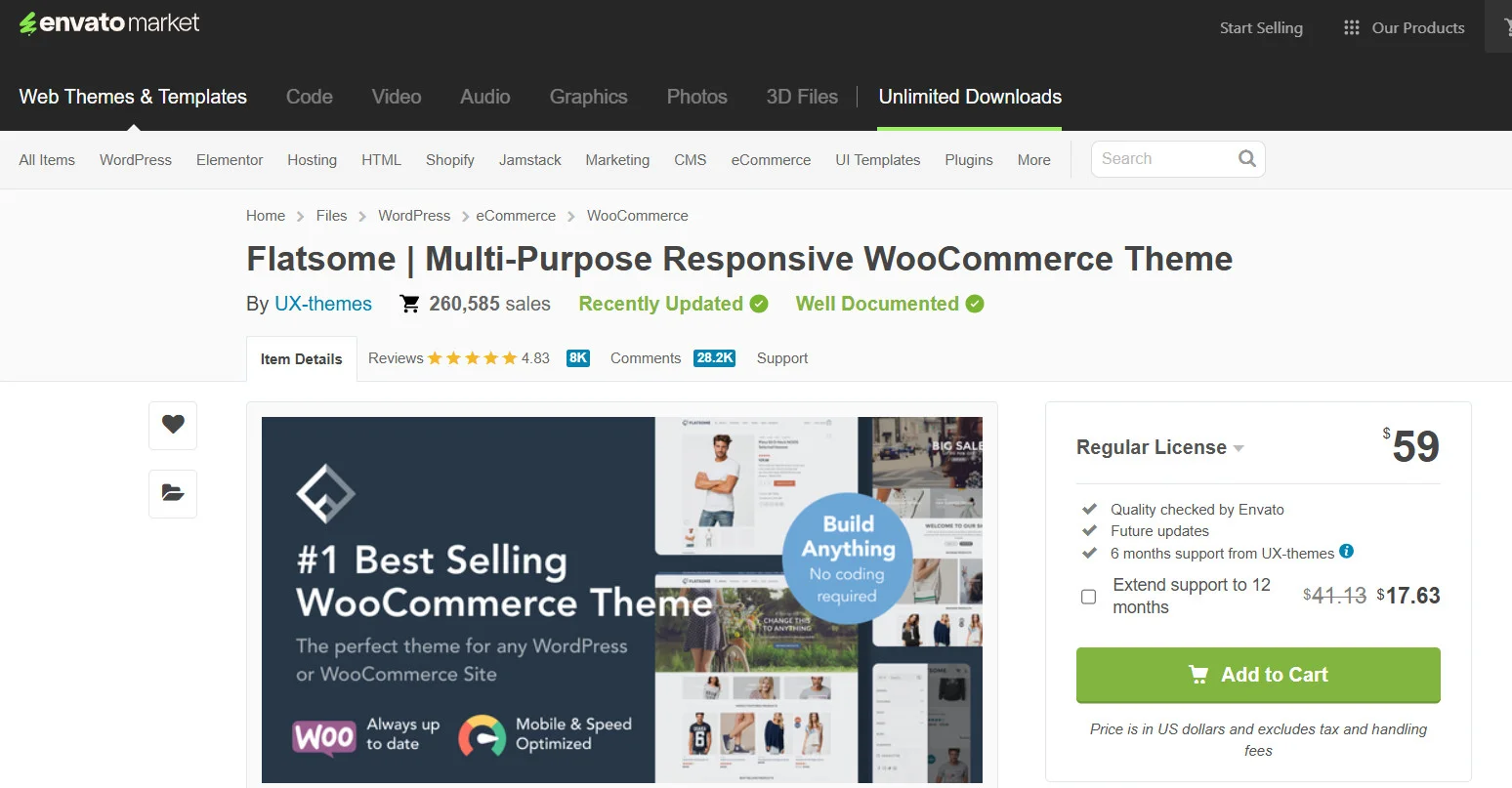
flatsome theme woocommerce theme Customized Web Solutions
flatsome Woocommerce theme
astra theme woocommerce theme Customized Web Solutions
flatsome Woocommerce theme
  • Design Product Pages: Customize product pages by adding high-quality images, custom descriptions, and clear calls to action. Many themes allow for easy drag-and-drop page builders like Elementor or WPBakery, which simplify the customization process.
  • Branding: Personalize your store’s design by uploading your logo, adjusting colors, and selecting fonts that align with your brand guidelines. WooCommerce themes typically offer various customization tools, so you can easily adjust these elements without any coding knowledge.

For advanced customization, consider using WooCommerce Customizer or hiring a developer to create a truly unique experience.

3. Product Management best for online store Customized Web Solutions

Managing products is central to your WooCommerce store. WooCommerce allows you to add and organize your products in several ways:

  • Product Types: WooCommerce supports a variety of product types, including simple products, variable products (with different sizes or colors), grouped products, and downloadable or virtual products (like digital downloads or subscriptions).
  • Attributes and Variations: You can add product attributes (like size, color, or weight) and set variations (for products that have multiple options). This allows for more flexibility when selling products.
  • Stock Management: WooCommerce provides stock management tools to track product availability. You can set up low stock notifications, allow backorders, and set product visibility based on stock levels.
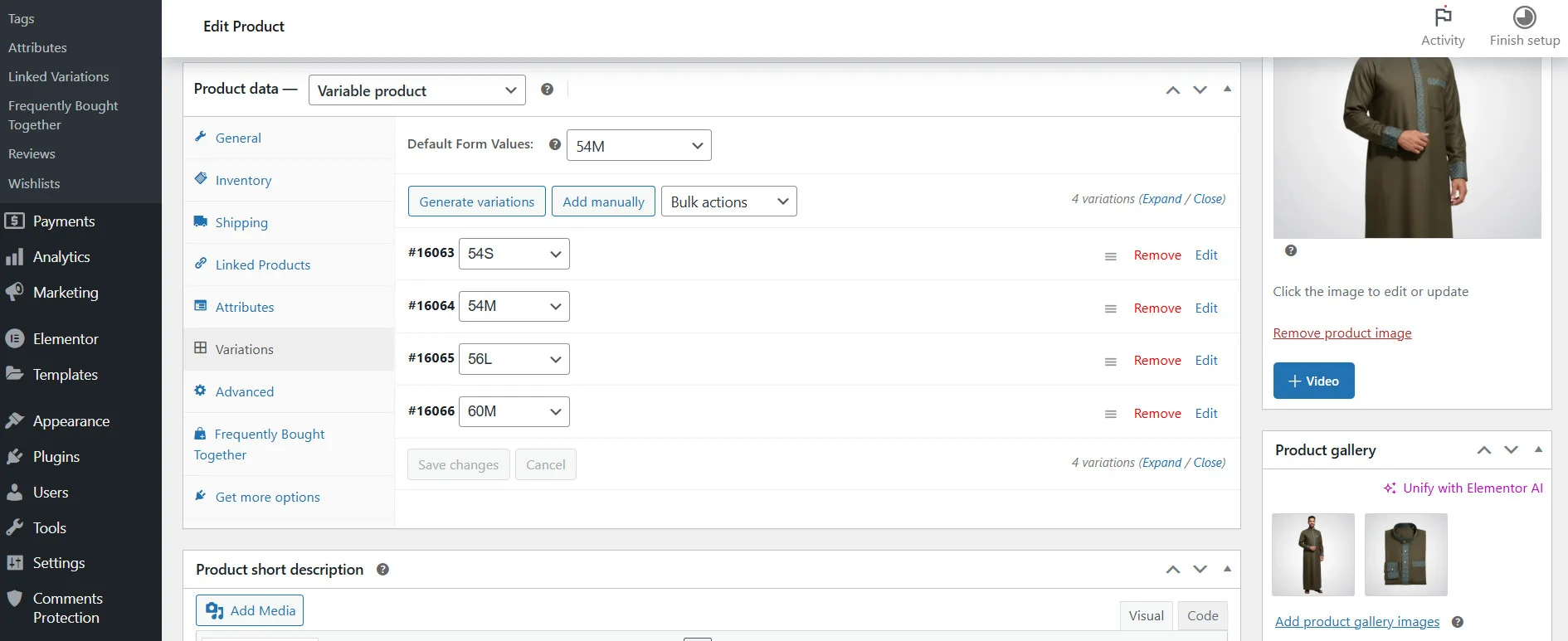
Customized Web Solutions - Woocommerce Product Management
Product Management-Product Types-Attributes and Variations-Stock Management

4. Extensions and Pluginsfor Customized Web Solutions

WooCommerce’s functionality can be expanded through its wide range of extensions and plugins. These add features like customer reviews, product filtering, SEO optimization, and payment integrations. Some popular WooCommerce plugins include:

  • Payment Gateways: WooCommerce integrates with major payment providers like PayPal, Stripe, and Square. You can also extend it with WooCommerce Payments, which simplifies credit card transactions.
  • Shipping Plugins: WooCommerce offers various extensions for integrating shipping providers such as ShipStation or Table Rate Shipping, allowing you to set complex shipping rules.
  • Subscription Management: If you plan to offer subscription-based products, plugins like WooCommerce Subscriptions allow you to manage recurring payments and billing.

For more extensions, visit the WooCommerce Extensions Store.

5. Payment Gateway Integration

A critical element of any e-commerce website is the payment gateway. WooCommerce supports a wide range of payment gateways for secure transactions:

  • PayPal and Stripe are among the most commonly used options.
  • WooCommerce Payments, a service developed by WooCommerce, integrates directly with your store for easy transaction management.

When selecting a payment gateway, ensure that it supports the countries and currencies in which you operate. Consider using WooCommerce Payment Gateway Plugins to simplify the integration of multiple payment options.

For more information on payment gateway integrations, visit WooCommerce Payment Options.

6. Shipping Options

Shipping is a critical aspect of e-commerce. WooCommerce provides several tools to help you manage shipping logistics:

  • Shipping Zones: Define shipping zones based on geographical regions (countries, states, or postcodes). You can set different shipping methods and rates for each zone.
  • Shipping Methods: WooCommerce allows you to set flat-rate shipping, free shipping, or local pickup options. Additionally, you can integrate with services like UPS, FedEx, or USPS to automatically calculate shipping costs.
  • Tracking: Many shipping plugins, such as WooCommerce Shipment Tracking, allow customers to track their orders in real time.

For more advanced shipping features, check out WooCommerce Shipping.

7. Security and Performance

Ensuring your online store is secure and performs efficiently is paramount. Here are some key areas to focus on:

  • SSL Certificates: Install an SSL certificate to secure sensitive customer data, such as credit card information and personal details. This also helps improve your store’s SEO ranking.
  • Regular Updates: Keep WooCommerce, your WordPress installation, and all plugins up to date to protect against vulnerabilities.
  • Site Speed: Use tools like WP Rocket or W3 Total Cache to optimize your store’s speed. Caching helps reduce load times and improve user experience.

For security, consider using a plugin like Wordfence or Sucuri to protect your store from potential threats.

8. SEO and Marketing

A well-optimized WooCommerce store can help you attract more traffic and convert visitors into customers. Some key strategies include:

  • SEO Plugins: Use tools like Yoast SEO or RankMath to optimize product pages, categories, and metadata for search engines.
  • Email Marketing: Integrate with platforms like Mailchimp or Klaviyo to build your email list and send targeted marketing campaigns.
  • Social Media Promotion: Share your products on social media platforms like Instagram, Facebook, and Pinterest. Use WooCommerce Social Media Integration tools to make it easier for users to share products.

Learn more about eCommerce SEO with resources like Moz’s eCommerce SEO Guide.

9. User Experience (UX)

A smooth and intuitive user experience is critical to the success of your online store. Consider the following:

  • Mobile Responsiveness: Ensure that your WooCommerce store is mobile-friendly. WooCommerce themes are generally responsive, but it’s important to test your store on multiple devices.
  • Fast Loading Time: Speed is key to reducing bounce rates and improving conversion rates. Tools like GTmetrix can help you test and optimize your site’s performance.
  • Navigation: Create a simple, clear, and intuitive navigation menu that makes it easy for customers to find products, categories, and checkout.

10. Analytics and Reporting

Understanding how your store is performing is essential for growth. WooCommerce provides built-in reporting tools that help you track sales, inventory, and customer activity. You can also integrate with Google Analytics for deeper insights into user behavior.

Additionally, plugins like WooCommerce Google Analytics Integration can help you track key metrics such as conversion rates, average order values, and customer lifetime value.

11. Customer Support

Providing top-notch customer support can make a significant difference in your business’s success. Offer multiple channels such as email, live chat, and phone support. Consider using support tools like Zendesk or Freshdesk for managing customer inquiries.

12. Legal and Compliance

Ensure that your store complies with relevant e-commerce laws, including privacy policies, terms of service, and GDPR (General Data Protection Regulation) compliance. Plugins like WooCommerce EU VAT Assistant can help ensure compliance with tax regulations.

Customized Web Solutions Short Explanation

WooCommerce is a powerful and flexible platform for creating customized web solutions for your online store. By leveraging its wide array of features and extensions, you can build a fully functional and visually appealing e-commerce website that meets your unique business needs. Whether you’re selling physical products, digital goods, or services, WooCommerce gives you the tools to succeed in the competitive world of online retail.

For more tips and tools to optimize your WooCommerce store, visit WooCommerce’s official site.
Cross-Browser Compatibility Ensuring Website Works Everywhere

Cross-Browser Compatibility Ensuring Website Work Everywhere

Cross-Browser Compatibility Ensuring Website Works Everywhere

In today’s digital landscape, ensuring that your website works seamlessly across all web browsers is essential for delivering a consistent user experience. Whether users access your site via Google Chrome, Mozilla Firefox, Safari, Microsoft Edge, or other browsers, your website must display and function correctly on all of them. Failure to optimize your website for cross-browser compatibility can lead to broken layouts, features that don’t work, or elements that appear differently, negatively impacting your site’s usability and user satisfaction.

Cross-browser compatibility is your secret weapon for creating websites that work flawlessly everywhere. Imagine users on Chrome, Firefox, Safari, or Edge all enjoying the same smooth experience—that’s what proper compatibility delivers. Let’s explore how to make your site shine across every browser.

Cross-Browser Compatibility Ensuring Website Work Everywhere

Cross-Browser Compatibility Ensuring Website Work Everywhere

1. Test in Multiple Browsers

One of the most effective ways to ensure cross-browser compatibility is through regular testing. Cross-browser testing helps identify potential issues caused by differences in how browsers render pages. It’s important to test not only popular desktop browsers like Google Chrome, Mozilla Firefox, and Safari but also mobile browsers such as Chrome for Android, Safari for iOS, and Microsoft Edge mobile.

To save time, you can use tools like BrowserStack or CrossBrowserTesting, which allow you to test your website on real devices and various browser versions simultaneously. These platforms simulate the most common browser and device environments, enabling you to identify rendering issues and compatibility problems before your website goes live.

2. Adhere to Web Standards

Web standards, such as HTML, CSS, and JavaScript, are universally recognized by all modern browsers. By coding your website in accordance with these standards, you ensure greater browser compatibility. The W3C (World Wide Web Consortium) provides guidelines on best practices for web design, which you can follow to avoid common mistakes.

Semantic HTML is particularly crucial for accessibility and SEO, while valid CSS ensures that your styles are rendered consistently across different browsers. Tools like W3C HTML Validator and CSS Validator can help ensure that your code adheres to industry standards.

3. Progressive Enhancement

Progressive enhancement is a development strategy that prioritizes basic functionality across all browsers and devices while progressively enhancing the experience for users with more advanced capabilities. For example, ensure that core features, such as text content and navigation, work on all browsers, and then add advanced functionalities, such as animations or modern CSS styles, for browsers that support them.

This approach ensures your website is accessible and functional for all users, regardless of the browser or device they use, while still offering an enhanced experience to users with modern browsers.

4. Responsive Design

With the variety of devices and screen sizes in use today, responsive web design is crucial for cross-browser compatibility. A responsive website adapts to different screen sizes and orientations, ensuring that your website looks great and functions properly whether viewed on a smartphone, tablet, or desktop computer.

Responsive design uses fluid grids, flexbox layouts, and media queries to adjust the layout and content for different devices. Tools like Google’s Mobile-Friendly Test can help you verify how well your website performs on mobile devices.

5. Feature Detection

Instead of relying on browser detection (which can be unreliable), use feature detection to check if a browser supports a specific functionality. Feature detection identifies whether a browser can handle a particular feature and applies the relevant code if supported. This method helps prevent compatibility issues by ensuring that older browsers receive fallbacks.

Popular libraries like Modernizr enable feature detection and allow you to specify alternative solutions for unsupported features, ensuring your website works on a wide range of browsers and devices.

6. Vendor Prefixes

Some CSS properties, especially experimental or cutting-edge features, require vendor prefixes (e.g., -webkit-, -moz-, -ms-) to function properly across different browsers. While vendor prefixes are essential in certain cases, be sure to also include the standard property without the prefix for future compatibility. For instance, use display: grid; without a prefix in addition to -webkit-display: grid;.

Using tools like Can I Use helps you check which CSS properties require prefixes for various browsers and versions.

7. Testing Tools for Automation

Automated testing tools can significantly speed up the process of ensuring cross-browser compatibility. Platforms like Sauce Labs and LambdaTest allow you to run tests on various browsers and operating systems, automating the checking process and allowing you to catch bugs early.

These tools also offer integrations with your Continuous Integration (CI) workflow, allowing you to run tests automatically whenever you push new changes to your website.

8. Avoid Relying on User-Agent Strings for Cross Browser Compatibility

User-agent strings can be easily manipulated or spoofed, making them unreliable for detecting a user’s browser. Instead of relying on user-agent detection, use feature detection to determine if a browser supports specific features and implement fallbacks for unsupported ones.

Libraries like Bowser or UAParser.js can help with detecting user devices and browsers without being overly reliant on user-agent strings.

9. Stay Updated with Browser Changes

Web standards and browser features evolve constantly. As new browser versions are released, they may introduce breaking changes or deprecated features. Stay informed by following updates from major browser vendors, such as:

Regularly updating your website ensures compatibility with the latest browser changes and prevents issues from arising due to deprecated features.

10. Engage with the Development Community for Cross Browser Compatibility

The web development community is a valuable resource for learning best practices, finding solutions to common issues, and staying informed about emerging techniques for cross-browser compatibility. Join platforms like:

Regularly engaging with these resources can help you stay ahead of the curve in web development best practices.


Final Thoughts

Ensuring cross-browser compatibility is not just about avoiding design issues, it’s about providing a consistent, high-quality experience for all users, no matter which browser or device they use. By following the tips outlined above — from testing and using web standards to implementing progressive enhancement and staying updated with browser changes — you can ensure that your website works flawlessly across all browsers.

For a seamless experience, consider incorporating automated testing tools, feature detection libraries, and responsive design. By focusing on these best practices, you’ll provide an exceptional user experience that keeps visitors engaged and improves your site’s SEO performance.

Best Premium WordPress Plugins with AI Innovation

Explore Our Premium WordPress Tools with AI Innovation
#image_title

Best Premium WordPress Plugins with AI Innovation

As digital landscape power of best premium wordpress plugins with AI Innovation for websites in transforming how to design websiteswith WordPress AI Tools. and, optimized, and managed. For WordPress website owners, developers, and content creators, AI-powered tools are now essential for enhancing productivity, improving user experience, and maximizing site performance. AI innovations have taken center stage, with a new generation of premium WordPress tools designed to streamline workflows, optimize SEO, and automate processes, saving you time and effort while delivering superior results. This article dives into the top AI-powered WordPress tools, highlighting their advanced features and practical applications for your website. Whether you’re looking for intuitive page builders, automated SEO solutions, or AI-driven analytics, these tools can help you stay ahead of the competition.

AI-powered WordPress tools are revolutionizing how we build and manage websites, making complex tasks simpler and more efficient. For WordPress users at any level, these innovative solutions help create stunning designs, boost SEO rankings, and optimize performance—all while saving valuable time and effort.

Explore Our Premium WordPress Tools with AI Innovation

1. Elementor Pro – AI-Powered Page Builder

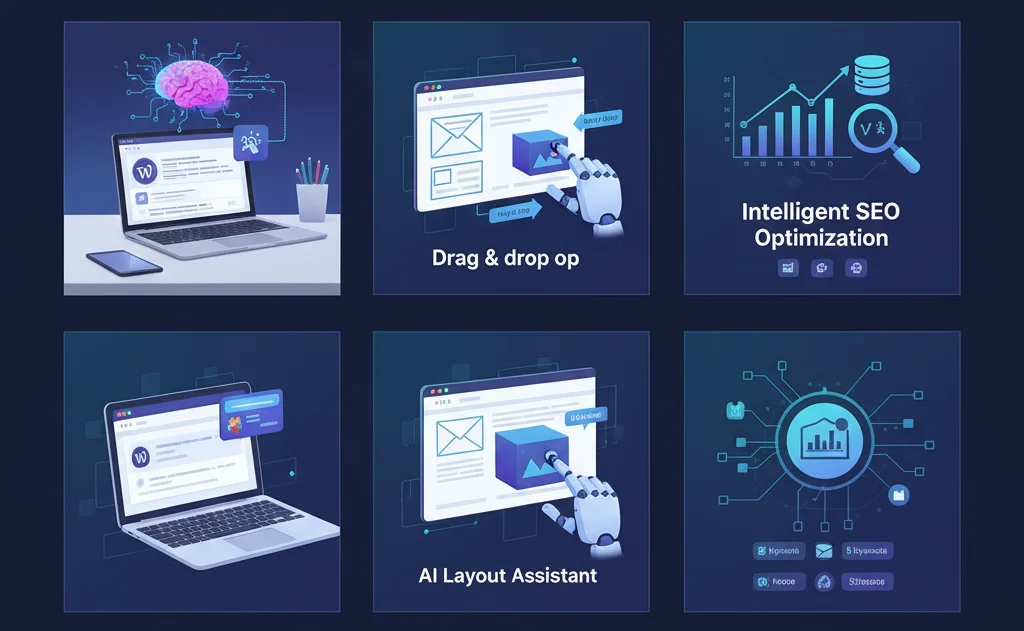
Elementor has long been the leader in drag-and-drop page builders for WordPress. With Elementor Pro, it takes a giant leap forward by integrating AI to enhance the design process. The AI assistant in Elementor Pro now automatically suggests the best layout for your content, optimizing it based on user preferences and behavior patterns. It also includes AI-based content placement and recommendations, helping you create high-conversion pages with minimal effort.

Key Features:

  • AI-powered design suggestions and auto-layout generation
  • Advanced content targeting using AI-driven user behavior data
  • Seamless integration with WooCommerce and other major plugins
  • Real-time performance optimization suggestions powered by AI

Click here to visit the tool.

2. Yoast SEO – AI-Driven SEO Optimization

Yoast SEO continues to be a go-to SEO plugin for WordPress, But its AI-powered tools take SEO optimization to new heights. The AI in Yoast SEO provides automated keyword analysis, on-page SEO suggestions, and even content readability improvements, allowing you to optimize your content with minimal manual effort. The AI also provides actionable insights, such as the ideal keyword density and structure for search engine ranking.

Key Features:

  • AI-driven keyword optimization and content recommendations
  • Automated readability improvements with AI suggestions
  • Advanced technical SEO tools, including AI-powered internal linking
  • Real-time analysis of content performance with AI-backed insights

Click here to visit the tool.

3. WP Rocket – AI-Powered Performance Optimization

Speed is critical for user experience and SEO rankings, and WP Rocket uses AI to boost your website’s performance. The tool’s AI-enhanced caching system automatically identifies the most common bottlenecks and applies optimizations such as lazy loading, file minification, and smart cache preloading. This ensures your website runs smoothly and quickly, even as traffic spikes.

Key Features:

  • AI-driven caching and performance enhancements
  • Automatic image compression and file optimization
  • AI-based lazy loading for faster page rendering
  • Real-time performance analysis with actionable AI insights

Click here to visit the tool.

4. WooCommerce – AI-Driven eCommerce Optimization

For eCommerce websites, WooCommerce continues to be the preferred platform, and with AI innovations, it’s more powerful than ever. AI tools in WooCommerce can now optimize product recommendations based on user behavior, dynamically adjust pricing, and even offer AI-powered inventory management. This ensures that your eCommerce site stays competitive and offers the best possible shopping experience.

Key Features:

  • AI-powered product recommendations and personalized shopping experiences
  • Dynamic pricing and discounting based on AI analysis
  • AI-driven inventory management and order predictions
  • Integration with popular AI-powered marketing tools like Google Ads and Facebook Ads

Click here to visit the tool.

5. RankMath – Advanced AI SEO Analytics

RankMath has risen to popularity due to its powerful SEO features and its seamless integration with WordPress. With the addition of AI, RankMath now offers enhanced keyword analysis, automated SEO audits, and recommendations based on machine learning. The AI analyzes competitor performance, helping you adjust your SEO strategy to rank higher in search results.

Key Features:

  • AI-based keyword research and optimization tools
  • Automated SEO audit with actionable suggestions
  • Machine learning-based competitor analysis for smarter content strategies
  • Real-time ranking predictions powered by AI

Click here to visit the tool.

6. LiveChat – AI-Powered Customer Support for Premium WordPress Tools

Customer support is vital for any website, and LiveChat leverages AI to deliver a next-level service. The tool’s AI-driven chatbot helps to instantly engage visitors, answer frequently asked questions, and guide them through the buying process. As it learns from user interactions, it continuously improves its responses, offering a more personalized experience over time.

Key Features:

  • AI-powered chatbot that handles customer queries 24/7
  • Personalized customer support suggestions based on user behavior
  • Integration with popular CRMs for advanced customer profiling
  • Real-time analytics on customer support effectiveness

Click here to visit the tool.

7. Akismet Anti-Spam – AI-Powered Spam Protection

Akismet Anti-Spam has been a trusted plugin for spam protection, but its version is empowered with AI to detect and block more advanced forms of spam. By using machine learning, Akismet can better understand spam patterns, reducing the likelihood of false positives and ensuring that only genuine comments and form submissions make it through.

Key Features:

  • AI-driven spam detection and filtering
  • Real-time adaptation to new spam trends
  • Reduced false positives due to machine learning
  • Detailed reporting on spam activity with AI-powered insights

Click here to visit the tool.

8. SeedProd – AI-Powered Landing Page Builder

Landing pages are a critical component of any marketing campaign, and SeedProd makes it easy to create high-converting pages with AI. By analyzing user intent, SeedProd offers suggestions on the best layout, content, and design elements to use, ensuring that your landing page resonates with your audience. It also provides detailed performance metrics to optimize conversion rates.

Key Features:

  • AI-powered conversion optimization for landing pages
  • Automated design and content suggestions based on user data
  • Real-time performance analysis with AI-backed insights
  • Built-in A/B testing for landing page optimization

Click here to visit the tool.

9. Grammarly – AI-Enhanced Writing and Content Optimization

Grammarly is not just a writing tool but a comprehensive AI-driven platform for content creators. Its integration with WordPress allows you to automatically check grammar, style, and tone, while also providing SEO-based content suggestions. The AI can analyze your content for readability and help you align your posts with SEO best practices, ensuring your content performs well on search engines.

Key Features:

  • AI-powered grammar, punctuation, and style suggestions
  • Real-time content optimization for SEO and readability
  • Tone analysis to ensure appropriate messaging
  • Integration with WordPress for seamless editing

Click here to visit the tool.

10. Fasterize – AI-Driven Site Speed Optimization

For WordPress users focused on improving website speed, Fasterize offers AI-powered optimization tools that can significantly boost loading times. By analyzing your website’s performance in real-time, Fasterize uses AI to automatically adjust caching, load balancing, and compression techniques, ensuring that your site loads faster on all devices.

Key Features:

  • AI-based performance optimizations for faster page loads
  • Real-time performance monitoring and actionable insights
  • Automatic application of best practices for site speed
  • Advanced caching and file compression with machine learning

Click here to visit the tool.

Best Short Hint Premium WordPress Tools with AI Innovation


As WordPress continues to evolve, the integration of AI-driven tools will offer unprecedented opportunities to streamline workflows, optimize SEO, enhance user experience, and automate tasks that once required manual effort. These premium WordPress tools provide the cutting-edge solutions you need to stay competitive in a digital-first world. From AI-enhanced page builders like Elementor Pro to powerful SEO tools like Yoast SEO and RankMath, these tools make it easier than ever to build high-performing websites that engage users and drive conversions. Incorporating these AI-driven tools into your WordPress workflow will not only save you time but also improve the quality and performance of your website.


Premium WordPress Tools for Crafting Stunning Websites

Premium WordPress Tools for Crafting Stunning Websites

Premium WordPress Tools for Crafting Stunning Websites

Creating a visually stunning and fully functional website is easier than ever with Premium WordPress Tools for Crafting Stunning Websites, the world’s most popular content management system (CMS). WordPress provides an extensive range of tools, themes, and plugins that can help you design, optimize, and secure your website. By leveraging premium WordPress tools, you can significantly enhance your site’s appearance, functionality, and performance, making it stand out from the competition. Whether you’re running a business site, blog, or e-commerce store, the right combination of themes and plugins is essential for success.

Premium WordPress tools are your secret weapon for building stunning websites that truly stand out. Whether you’re launching a blog, business site, or online store, these powerful themes and plugins make it easy to create a professional, high-performing site without needing to be a tech expert.

Here are some key steps to crafting a stunning website with premium WordPress tools:

Premium WordPress Tools for Crafting Stunning Websites

Premium WordPress Tools for Crafting Stunning Websites

1. Choose a High-Quality Premium Theme

The first step in building a beautiful WordPress site is selecting a premium theme. Premium themes provide higher quality design, better customization options, and ongoing support compared to free themes.

  • ThemeForest is one of the most popular marketplaces for premium WordPress themes. Here, you’ll find themes that are specifically designed for different niches, from blogs to e-commerce.
  • Elegant Themes offers the widely acclaimed Divi theme, which is known for its versatility and intuitive drag-and-drop page builder. It’s perfect for users of all skill levels.
  • StudioPress offers themes that are lightweight, SEO-friendly, and designed to work seamlessly with Genesis Framework, ensuring fast load times and excellent performance.

When selecting a theme, make sure it’s responsive, meaning it adapts to all screen sizes, from desktops to mobile devices. Also, ensure the theme offers plenty of customization options to match your brand’s style.

2. Install Essential Premium Plugins

Plugins are essential to extend the functionality of your website. With premium plugins, you can integrate features that help improve site performance, increase security, and enhance user experience. Here are some must-have premium plugins:

SEO Plugins:

Search engine optimization (SEO) is crucial for increasing your website’s visibility. Popular premium SEO plugins include:

  • Yoast SEO – One of the most powerful SEO tools, Yoast helps you optimize your site for search engines with tools for content analysis, keyword management, and schema markup. Click here to visit Yoast SEO.
  • Rank Math – A robust SEO plugin offering features like advanced schema support, keyword tracking, and optimization tips. Click here to visit Rank Math.

Page Builders:

A page builder plugin allows you to design custom layouts and complex pages without writing code. Some of the best options include:

  • Elementor Pro – A premium drag-and-drop page builder plugin with a variety of design elements, widgets, and templates. Click here to visit Elementor.
  • Divi Builder – Another highly popular page builder, Divi lets you design professional websites using its visual editor. Click here to visit Divi.

E-Commerce Plugins:

If you’re planning to run an online store, WooCommerce is the most popular e-commerce plugin for WordPress. It allows you to sell both physical and digital products, manage inventory, and accept payments online. Click here to visit WooCommerce.

Security Plugins:

Security is a top priority for any website. To protect your site from potential threats, invest in premium security plugins:

3. Customize Your Design

After selecting a theme and installing plugins, the next step is customizing your site’s design. Many premium WordPress themes come with extensive customization options such as:

  • Typography – Adjust fonts to reflect your brand’s personality.
  • Color Schemes – Set color palettes to align with your brand’s visual identity.
  • Layouts – Modify the layout of pages using a page builder like Elementor or Divi.

By customizing your theme, you ensure your website aligns with your brand and provides a consistent user experience. Additionally, premium page builders often come with pre-built templates and demo content, making the design process faster and easier.

4. Optimize Your Website for Performance with Premium WordPress Tools

Site speed and performance are critical for user experience and SEO. Here are some premium tools to optimize your WordPress website:

  • WP Rocket – A premium caching plugin that helps improve load times by caching static files, compressing images, and reducing the number of HTTP requests. Click here to visit WP Rocket.
  • Smush Pro – An image optimization plugin that compresses images without sacrificing quality, ensuring faster load times. Click here to visit Smush Pro.

5. Focus on High-Quality Content with Premium WordPress Tools

Content is the foundation of any successful website. Whether you’re creating blog posts, product pages, or landing pages, quality content should always be your priority. You can use premium content tools like:

  • WPForms – A versatile form builder that allows you to create contact forms, surveys, and more. Click here to visit WPForms.
  • Elementor – With Elementor’s extensive content widgets, you can easily insert buttons, pricing tables, testimonials, and more. Click here to visit Elementor.

Additionally, consider using premium blog templates to design engaging posts and incorporate effective calls-to-action (CTAs).

6. Ensure Mobile Optimization

Since mobile traffic accounts for more than half of web visits, ensuring your website is mobile-friendly is crucial. Fortunately, most premium themes are responsive out of the box, meaning they adjust to various screen sizes automatically. Test your site on multiple devices using tools like Google’s Mobile-Friendly Test to ensure it looks and functions perfectly on smartphones and tablets.

7. Test, Debug, and Monitor Performance with Premium WordPress Tools

Testing your site regularly helps you catch bugs and resolve issues before they impact your users. Use these premium tools to monitor and debug your WordPress site:

8. Optimize for SEO and Analytics with Premium WordPress Tools

To track your website’s performance and make data-driven decisions, set up Google Analytics and integrate it with your WordPress site. For additional SEO insights, consider using premium SEO tools like Yoast SEO or Rank Math.

Additionally, leverage tools like Google Search Console to track your site’s search performance and identify areas for improvement.

9. Security and Backups with Premium WordPress Tools

A secure website is essential to protect both your content and user data. Invest in a premium security plugin like Wordfence and ensure you regularly back up your site using UpdraftPlus.

  • UpdraftPlus Premium – A powerful backup plugin that lets you schedule automatic backups and store them in remote locations like Dropbox or Google Drive. Click here to visit UpdraftPlus.

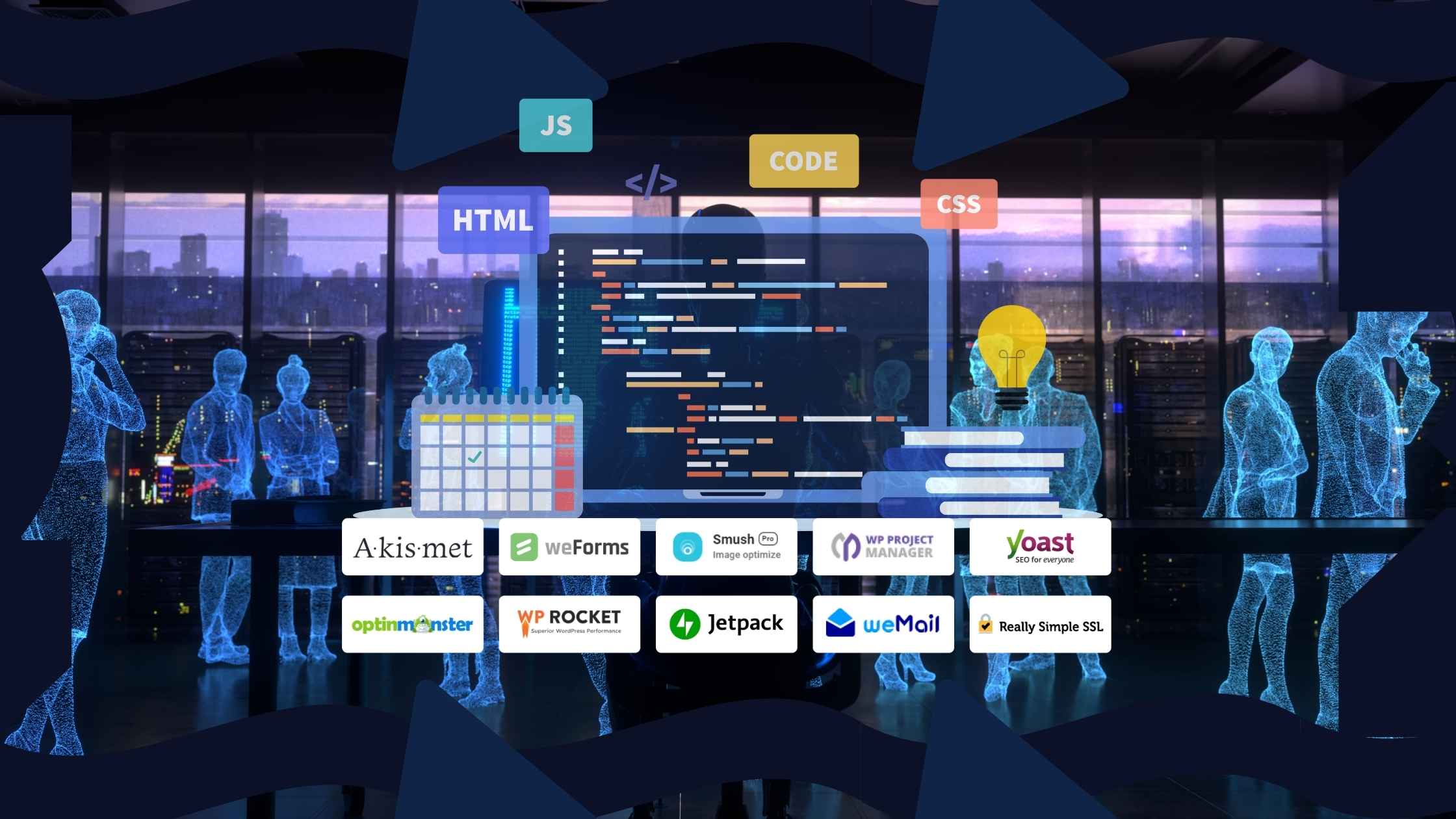
Some more Powerfull and must famous Plugins Why These Plugins Are the Best!

Each of these plugins excels in their respective fields, offering specific features that are integral to maintaining a successful WordPress site. They stand out because of their user-friendly interfaces, strong support systems, and proven effectiveness. Whether you’re managing security, enhancing user experience, or boosting your marketing efforts, these plugins offer reliable, time-saving solutions that streamline complex tasks and optimize site performance.

Akismet

  • What It Does: Akismet is a powerful anti-spam plugin that filters out spammy comments, contact form submissions, and other forms of content from your website.
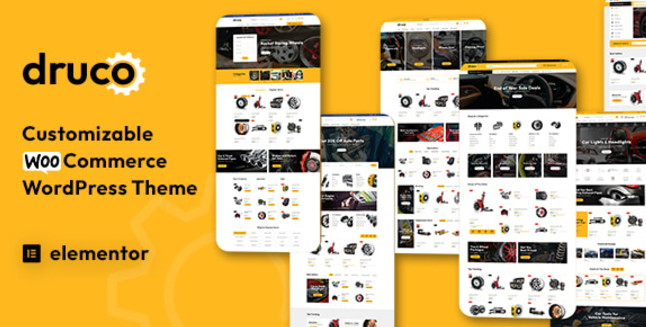
  • Why Use It: It’s crucial for maintaining a clean, professional site by preventing spam from cluttering comment sections and contact forms. This helps with both user experience and SEO.

  • Why It’s the Best: Akismet is widely regarded as one of the most reliable spam filters for WordPress. It’s developed by Automattic, the team behind WordPress.com, ensuring a high level of support and continuous improvement. It’s effective, easy to use, and requires minimal setup.

2. WeForms

  • What It Does: WeForms is a user-friendly form builder plugin for WordPress that allows you to create custom forms like contact forms, registration forms, and surveys.

  • Why Use It: It’s ideal for anyone who needs a simple, drag-and-drop form builder that integrates seamlessly with WordPress. It’s useful for lead generation, customer feedback, or basic data collection.

  • Why It’s the Best: WeForms offers an intuitive interface, great customization options, and powerful integrations with third-party services. It’s lightweight and fast, which ensures a smooth experience for both site admins and users.

3. WP Project Manager

  • What It Does: WP Project Manager is a plugin designed to help businesses and teams manage projects, tasks, and workflows within WordPress. It includes features like task management, to-do lists, deadlines, file sharing, and more.

  • Why Use It: It’s a great tool for organizing and tracking projects directly from within your WordPress dashboard. Ideal for teams working on multiple tasks and projects in a collaborative environment.

  • Why It’s the Best: WP Project Manager is one of the most comprehensive project management plugins for WordPress. It offers a range of features similar to high-end project management tools, making it a great solution for managing projects without needing to leave your WordPress site.

4. OptinMonster

  • What It Does: OptinMonster is a lead generation plugin that helps you convert website visitors into subscribers or customers by displaying personalized pop-ups, floating bars, and other opt-in forms.

  • Why Use It: If you’re focused on growing your email list or increasing sales, OptinMonster is perfect for capturing leads through customizable, non-intrusive campaigns.

  • Why It’s the Best: OptinMonster is the most robust lead generation tool for WordPress. It comes with powerful targeting options, advanced analytics, and A/B testing, making it easy to optimize campaigns for better conversions. Its versatility and high conversion rates make it a go-to solution for marketers.

5. Jetpack

  • What It Does: Jetpack is an all-in-one plugin that provides various features, including site performance enhancements, security features, backups, and more. It’s developed by Automattic.

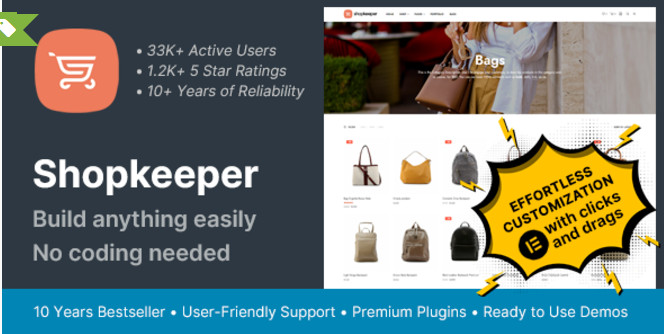
  • Why Use It: Jetpack simplifies website management by consolidating several essential tools into one plugin. It’s useful for site security, performance, and marketing, all from a single platform.

  • Why It’s the Best: It offers an impressive range of features, including real-time backups, spam protection, performance optimization, and security features, making it one of the most comprehensive plugins. Its deep integration with WordPress ensures ease of use and reliability.

6. WeMail

  • What It Does: WeMail is an email marketing plugin for WordPress that helps you send newsletters, automated emails, and promotional messages.

  • Why Use It: It’s a good solution for businesses or bloggers who want to manage email campaigns directly from their WordPress dashboard, without using an external email marketing service.

  • Why It’s the Best: WeMail offers an intuitive user interface, powerful automation tools, and easy integration with popular email list providers. Its seamless integration with WordPress and WooCommerce makes it an excellent choice for site owners looking to build a direct relationship with their audience.

7. Really Simple SSL

  • What It Does: Really Simple SSL automatically detects your website’s SSL certificate and configures your WordPress site to run over HTTPS. It helps with securing your website and ensuring your visitors’ data is encrypted.

  • Why Use It: SSL certificates are essential for any modern website to ensure security, privacy, and trustworthiness. This plugin automates the process of switching to HTTPS without requiring technical knowledge.

  • Why It’s the Best: It’s one of the easiest and most effective plugins for converting your site to HTTPS. With minimal configuration required, it ensures your site complies with security standards and offers improved SEO rankings due to the added security.

Premium WordPress Tools use for Build Your Stunning WordPress Website Today

By leveraging premium WordPress themes and plugins, you can create a beautiful, secure, and high-performing website that drives traffic and enhances user engagement. Whether you’re designing a simple blog, an e-commerce store, or a business website, these premium tools will help you unlock your site’s full potential.

10 Advanced Free Graphics Design Software for All Skill Level

Free Graphics Design Software
#image_title

10 Advanced Free Graphics Design Software for All Skill Levels

10 advanced, free graphics design software tools that cater to all skill levels. These tools, including GIMP, Inkscape, Krita, Canva, and more, provide a wide array of features for photo editing, vector design, digital painting, 3D modeling, and UI/UX design. Whether you’re a beginner or a professional, these tools are perfect for creating stunning graphics, illustrations, and layouts without the need for expensive software. By offering powerful, accessible, and cost-effective options, these free tools enable designers to unleash their creativity and enhance their work efficiently. Free graphics design software opens up incredible creative possibilities without breaking the bank. Whether you’re just starting out or you’re a seasoned pro, these powerful tools let you edit photos, create stunning vector graphics, and paint digital masterpieces—all completely free. Let’s explore the best options available!

10 Advanced Free Graphics Design Software

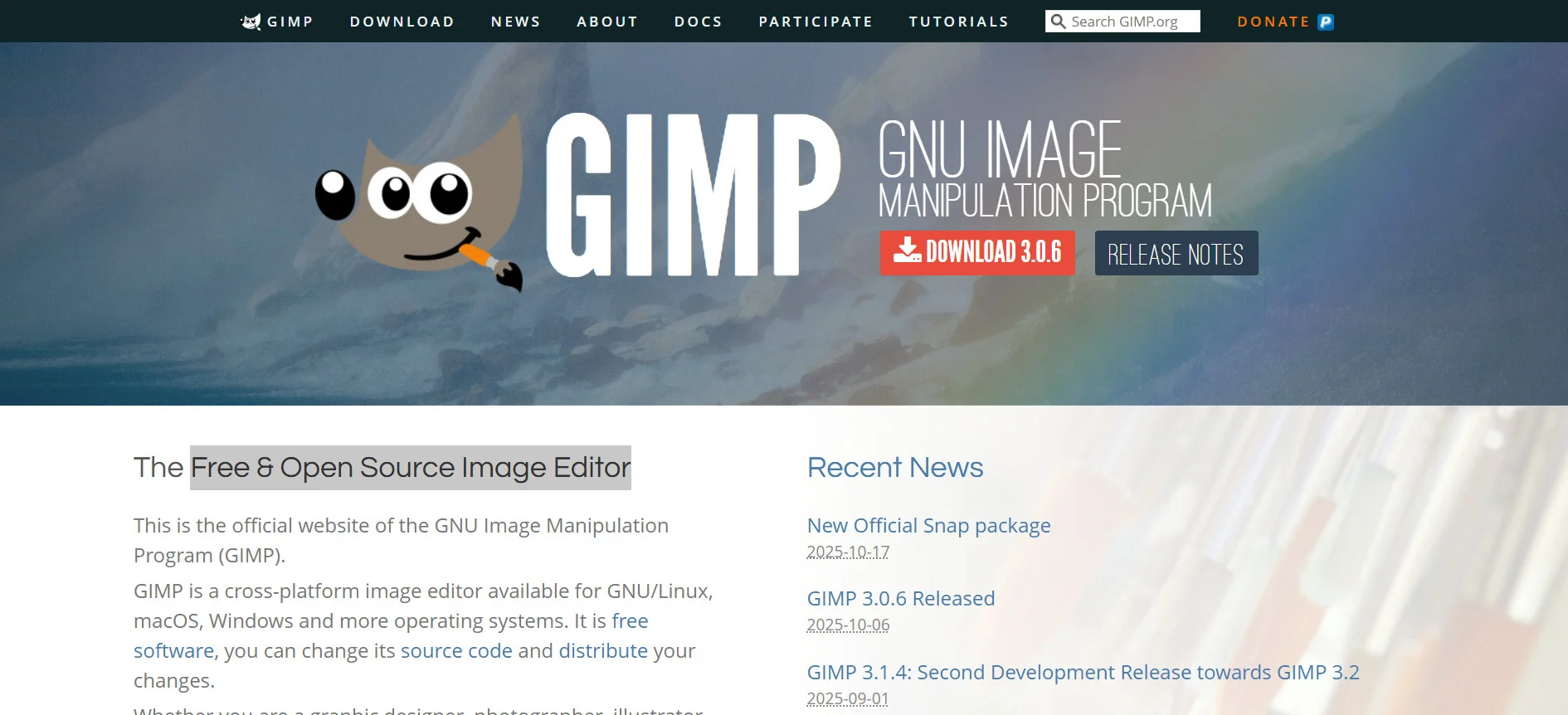
1. GIMP (GNU Image Manipulation Program) Free Graphics Design Software

GIMP is one of the most popular open-source free graphics design software tools available. Offering a wide range of features similar to Adobe Photoshop, GIMP allows you to work with raster graphics, retouch photos, and create detailed artwork. The advanced features include layer masks, filters, advanced color management, and support for various file formats. It’s perfect for those who need a versatile tool with a high learning curve and want to dive deep into photo editing or digital painting.

GNU-Image-Manipulation-Free-Open-Source-Image-Editor

Click here to visit the tool.

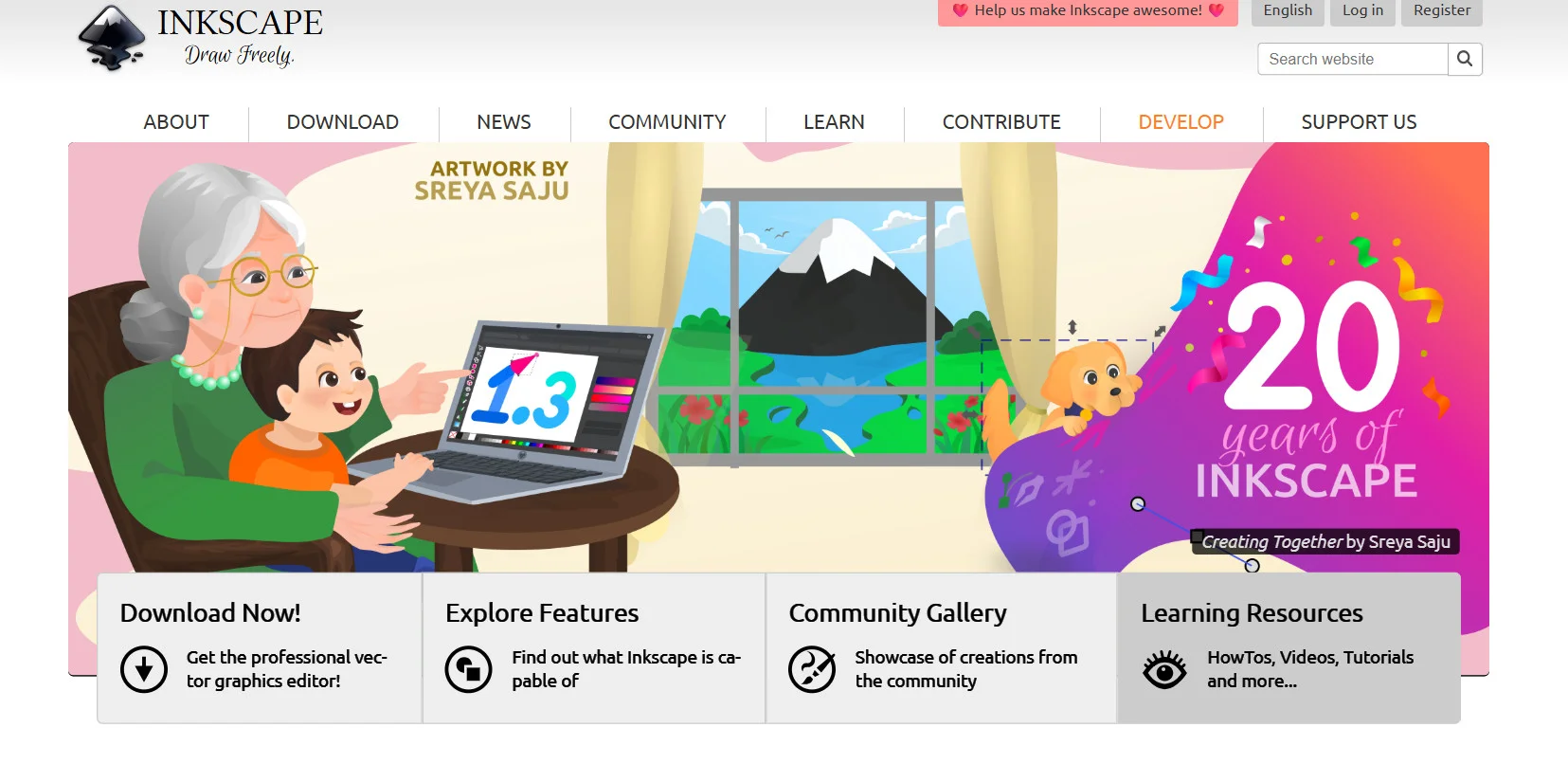
2. Inkscape Free Graphics Design Software

Inkscape is a top-tier vector free graphics design software editor that is fully open-source and free. It’s an excellent alternative to Adobe Illustrator, with features that support node editing, object manipulation, path editing, and even advanced gradient meshes. Inkscape is used by professionals in fields such as illustration, logo design, and typography. It’s perfect for anyone working with scalable graphics, and it offers an intuitive interface with endless creative possibilities.

Inkscape-is-powerful-free-design-tool

Click here to visit the tool.

3. Krita Free Graphics Design Software

Krita is a free, open-source painting program made by artists for artists. Known for its stunning brush engine and powerful painting tools, Krita is ideal for creating digital art, concept art, and illustrations. Krita’s advanced features include a full suite of brushes for free graphics design software, stabilizers for smooth strokes, and tools for creating texture and patterns. Whether you’re a beginner or an expert, Krita can handle everything from simple sketches to high-resolution illustrations.

Krita-professional-FREE-opensource-painting-program

Click here to visit the tool.

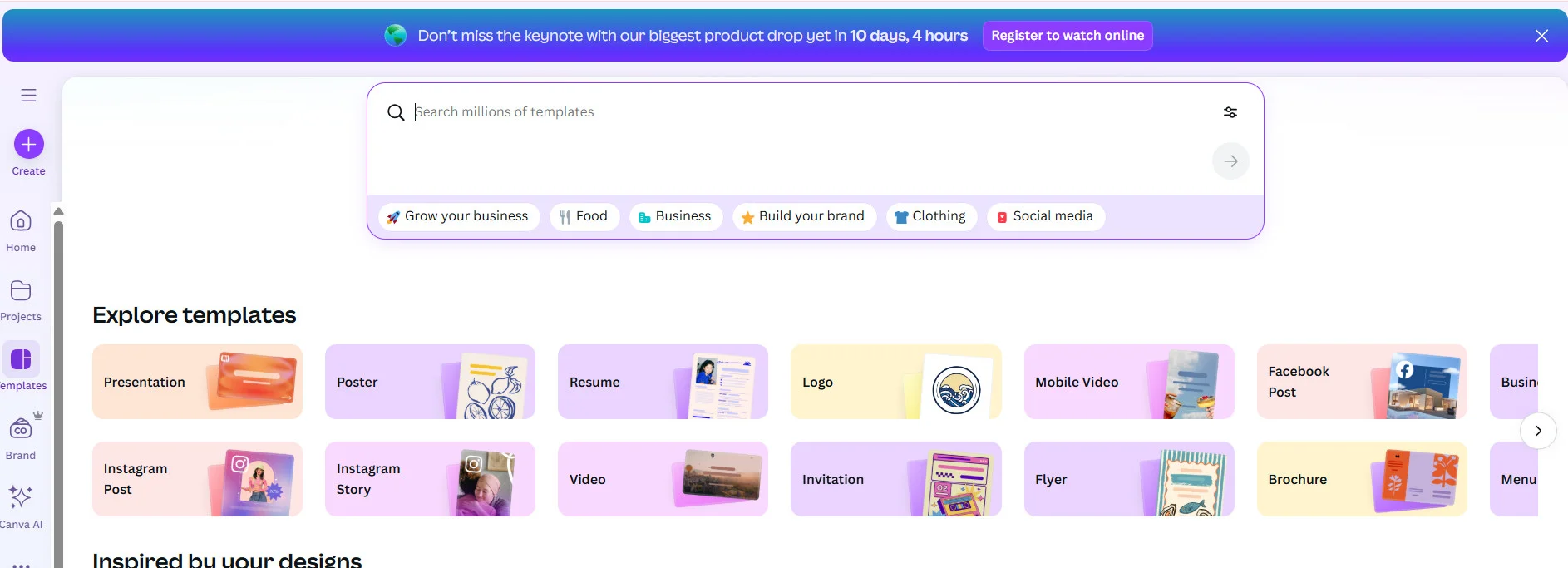
4. Canva Pro Free Graphics Design Software

Canva has gained a lot of popularity among non-designers due to its simplicity and ease of use. While it’s suitable for beginners, Canva also offers a range of advanced features like branding tools, transparent backgrounds, animation options, and access to a large library of photos, illustrations, and templates and free graphics design software. The free version provides ample tools for creating professional-level designs for social media, presentations, and marketing materials.

canva pro Graphics, Video and vector designer and AI tools

Click here to visit the tool.

5. Gravit Designer

Gravit Designer is a powerful vector design tool available for both web and desktop use. Its intuitive interface, paired with a robust set of tools, allows you to create complex designs, whether for web or print. Gravit Designer free graphics design software offers advanced features like flexible artboards, vector manipulation, and advanced typography tools. It’s perfect for both beginners and professional designers who need cross-platform compatibility.

Gravit-Designer

Click here to visit the tool.

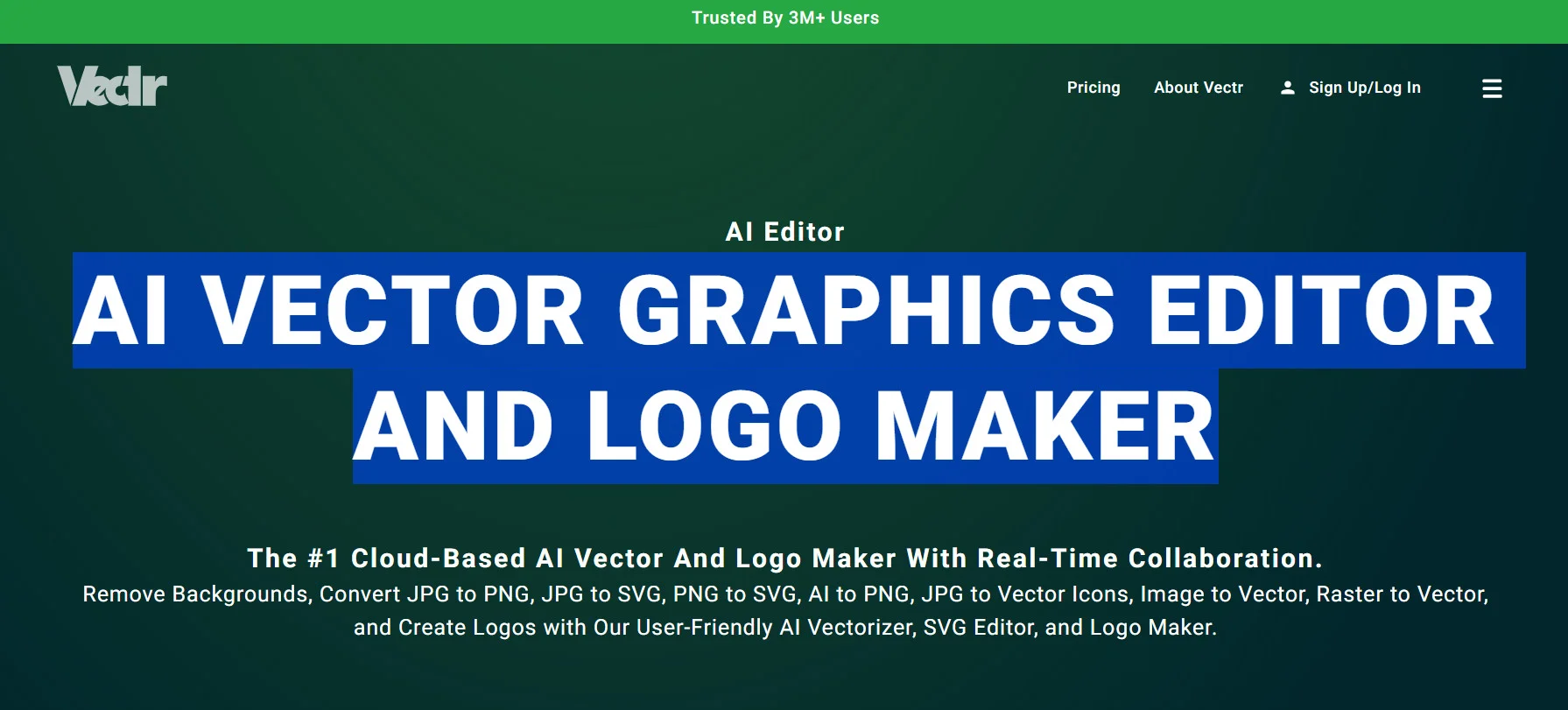
6. Vectr

Vectr is an easy-to-use yet powerful vector graphic editor. It is perfect for those who need to design logos, business cards, or web graphics. While Vectr might not have all the advanced features of other tools, its streamlined approach makes it ideal for beginners looking to create professional-looking graphics quickly with free graphics design software. Vectr offers real-time collaboration and cloud syncing, making it a great option for team-based design projects.

AI-VECTOR-GRAPHICS-EDITOR

Click here to visit the tool.

7. Blender Free Graphics Design Software

Blender is an advanced, free, and open-source tool for 3D modeling, animation, sculpting, and rendering. Although it’s primarily used for 3D design and animation, Blender can also be employed in graphic design for creating 3D assets, character designs, and complex visual effects. It’s packed with features such as texture painting, advanced rigging, and support for VR, making it a great choice for digital artists who need a 3D design tool.

https://skillsurface.com/img-c/Blender-Free-Open-Source-3D-Creation.webp

Click here to visit the tool.

8. Photopea Free Graphics Design Software

Photopea is a free, web-based graphic design tool that closely mimics Adobe Photoshop. It supports advanced features like layers, masks, blend modes, and various file formats, making it perfect for professional photo editing and graphic design. Photopea works in your browser, so there’s no need to download anything, and you can easily open PSD files and work with them seamlessly.

Free Online Photo Editor

Click here to visit the tool.

9. Figma

Figma is one of the leading collaborative design tools for UI/UX designers, offering a robust set of vector editing tools, prototyping features, and real-time collaboration. Figma is browser-based, which makes it an ideal solution for teams working remotely. With its ability to handle everything from wireframing to full UI/UX design, it’s one of the best tools for designing websites, mobile apps, and interfaces.

Figma-Interface-Design-Tool

Click here to visit the tool.

10. Pixlr

Pixlr offers both a quick and advanced Pixlr photo editing experience. It provides an intuitive, easy-to-navigate interface with robust tools for photo manipulation, color correction, and graphic design. With its AI-powered tools, Pixlr helps you achieve professional-level designs with minimal effort. Whether you’re editing images or creating graphics from scratch, Pixlr is an excellent option for those looking for advanced features in a user-friendly environment.

Pixlr photo editing AI Tool

Click here to visit the tool.

Craft Perfect Graphics Tools and Learning Tutorials

Craft Perfect Graphics Tools and Learning Designing

Craft Perfect Graphics Tools and Learning Designing with Skills and Boost in world your telent.

Creating stunning graphics is essential graphics tools and become a Learning Designing with Skills and Boost in world your telent for any business, marketer, or content creator. Whether you are designing for a website, crafting social media posts, or developing marketing materials, high-quality graphics are key to making a strong impression. At [Your Website Name], we provide a suite of powerful tools and easy-to-follow tutorials designed to help you craft perfect graphics, regardless of your experience level.

Graphics tools are your gateway to mastering design skills and boosting your creative talent in today’s visual world. Whether you’re a beginner or a pro, our suite of powerful tools and easy tutorials helps you craft stunning graphics that make a strong impression for any business or project.

Craft Perfect Graphics Tools and Learning Designing

Our Graphics Tools: Elevate Your Designs

Our graphic design tools are carefully selected to help both beginners and seasoned professionals achieve their design goals. From intuitive design software to comprehensive mockup generators, we’ve got everything you need to create beautiful, professional-grade graphics.

1. Graphic Design Software: Unleash Your Creativity

Our graphic design software is an all-in-one tool designed for users of all skill levels. With a wide variety of features such as templates, vector graphics, text editing, and image manipulation tools, this software allows you to create stunning visuals for various purposes, from marketing materials to personal projects.

  • Key Features:
    • Templates: Choose from hundreds of ready-made templates to jumpstart your design projects.
    • Vector Graphics: Create scalable vector art for logos, illustrations, and icons.
    • Text Editing Tools: Add text, play with fonts, and apply effects to enhance your designs.
    • Image Manipulation: Adjust layers, textures, and colors with precision.

Whether you are designing a website layout, crafting a brochure, or creating digital art, our graphic design software helps you achieve professional results quickly.

2. Image Editing Software: Perfect Your Photos

Image editing is a key aspect of graphic design. Our image editing software is packed with features that enable you to enhance photos, apply filters, and adjust color settings to achieve the perfect visual impact.

  • Key Features:
    • Photo Enhancement: Retouch portraits, improve lighting, and sharpen details to make your images pop.
    • Filters & Effects: Apply artistic filters, textures, and special effects to give your photos a unique touch.
    • Color Adjustments: Fine-tune brightness, contrast, saturation, and more to perfect your image.

With our image editing tools, you can transform any photo into a visually compelling work of art.

3. Logo Maker: Design Your Brand’s Identity

A logo is the face of your brand, and creating one that stands out is crucial for building recognition and trust. Our logo maker allows you to easily create unique, professional logos.

  • Key Features:
    • Customizable Icons: Choose from a vast library of logos and icons or create your own.
    • Font Styles: Select from hundreds of fonts to match your brand’s personality.
    • Color Palette: Pick colors that align with your brand’s message and vision.

Creating a memorable and impactful logo has never been easier with our logo maker, ensuring that your brand makes a lasting first impression.

4. Infographic Maker: Make Information Visually Engaging

Infographics are an excellent way to convey complex information in a digestible format. Our infographic maker helps you design visually appealing infographics that grab attention and communicate your message effectively.

  • Key Features:
    • Templates for Every Industry: Find infographic templates suited for business, education, healthcare, and more.
    • Data Visualization: Add charts, graphs, and icons to visually represent your data.
    • Customization: Tailor colors, fonts, and layouts to align with your brand’s style.

Create infographics that not only look great but also effectively communicate important data.

5. Mockup Generator: Showcase Your Designs

Our mockup generator allows you to place your designs into realistic, high-quality mockups. Whether you’re presenting a logo, website, or product packaging, showcasing your designs in a mockup adds a professional touch and helps you visualize how the final product will look in real-world settings.

  • Key Features:
    • Realistic Presentations: Display your designs on various devices, posters, t-shirts, and more.
    • Easy Drag-and-Drop Interface: Simply upload your design, and it will automatically fit into the mockup template.
    • Variety of Mockups: Choose from thousands of product mockups to find the perfect fit for your design.

Present your work in style with realistic mockups that wow your clients and audience.

Graphics Tutorials: Master the Art of Design

We believe that learning is just as important as having the right tools. Our graphics tutorials cater to all skill levels, offering step-by-step instructions to help you master the art of graphic design.

1. Beginner’s Guide to Graphic Design

If you’re new to graphic design, our beginner’s guide is the perfect place to start. This tutorial covers the basics of design, helping you understand key concepts such as color theory, typography, and layout.

  • What You’ll Learn:
    • Color Theory: Understand the psychological effects of colors and how to choose the right palette for your projects.
    • Typography Basics: Learn how to choose and pair fonts that work together harmoniously.
    • Design Principles: Get familiar with the basic principles of design, such as balance, contrast, and alignment.

Our beginner’s guide provides a solid foundation that will set you up for success in the world of graphic design.

2. Advanced Design Techniques

Take your skills to the next level with our advanced design techniques tutorials. These tutorials dive into more complex aspects of graphic design, from creating custom illustrations to mastering text effects and working with layers.

  • What You’ll Learn:
    • Custom Illustrations: Learn how to create original illustrations from scratch using vector tools.
    • Mastering Text Effects: Discover advanced techniques for creating impactful text effects.
    • Layering and Composition: Understand how to use layers to create depth and dimension in your designs.

Elevate your design skills and create professional, polished visuals with our expert-led tutorials.

3. Image Editing Tips

Our image editing tips tutorial offers professional tips and tricks for retouching photos, enhancing landscapes, and applying creative effects. Learn how to make your photos look flawless and professional.

  • What You’ll Learn:
    • Portrait Retouching: Enhance skin tones, smooth imperfections, and add highlights to portraits.
    • Creative Effects: Apply stunning effects such as double exposure, vintage filters, and more.
    • Landscape Enhancement: Make your landscape photos pop with adjustments to lighting, color, and sharpness.

Our tutorial helps you transform basic images into breathtaking visual masterpieces.

4. Logo Design Principles

Creating a logo isn’t just about aesthetics—it’s about conveying the essence of your brand. Our logo design principles tutorial teaches you the art and science behind creating logos that are visually appealing, meaningful, and scalable.

  • What You’ll Learn:
    • The Psychology of Colors: Understand how colors influence perception and how to choose the right color for your logo.
    • Scalability: Ensure your logo works across various sizes, from business cards to billboards.
    • Iconography: Learn how to create or choose icons that align with your brand’s identity.

Craft a logo that leaves a lasting impact with our expert tips on logo design principles.

5. Infographic Design Best Practices

In our infographic design tutorial, we cover the best practices for creating compelling and informative infographics that engage your audience.

  • What You’ll Learn:
    • Layout and Composition: Learn how to organize your data visually in a way that’s both attractive and easy to follow.
    • Data Visualization Tips: Discover the best ways to represent complex data using charts, graphs, and icons.
    • Best Design Tools: Explore the best tools and techniques for infographic creation.

Master the art of infographic design and turn data into visual storytelling.

Empower Your Creativity with Our Tools and Tutorials

At [Your Website Name], our goal is to provide you with the best tools and tutorials to help you create graphics that not only look great but also achieve your desired results. Whether you’re just starting your design journey or looking to enhance your advanced skills, our resources are here to guide you every step of the way.

CPanel Insights and Best Practices for Optimized Websites

CPanel Insights and Best Practices for Optimized Websites
#image_title

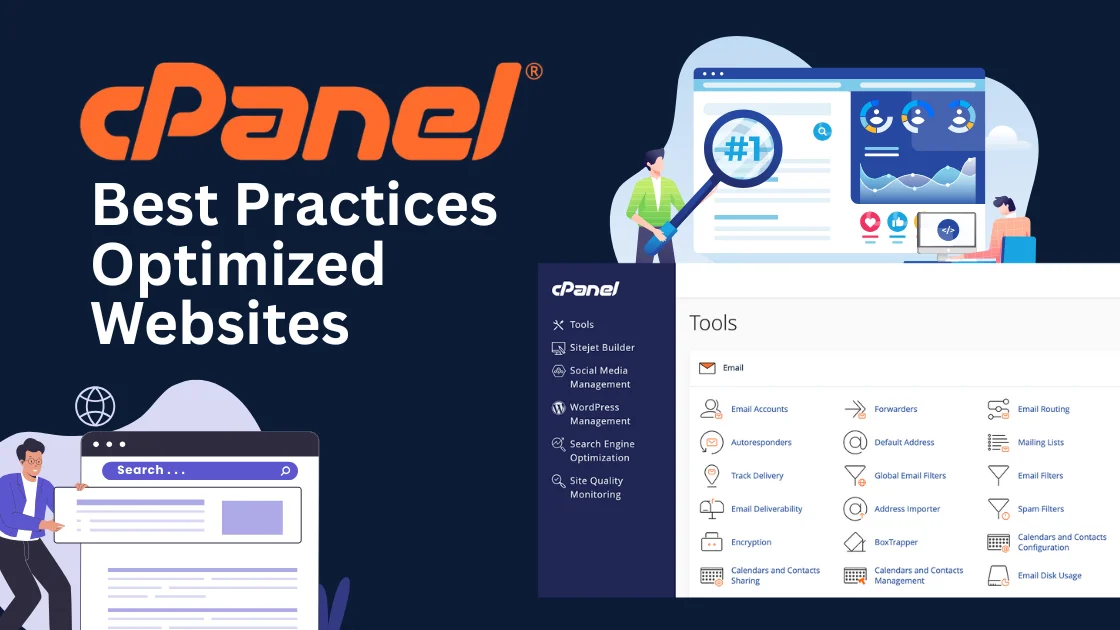
CPanel Insights and Best Practices for Optimized Websites

Optimized Websites with CPanel and one of the most popular web hosting control panels used by website owners and administrators worldwide. It simplifies managing web hosting accounts and server settings by offering an intuitive, user-friendly interface. Whether you’re a beginner or a seasoned webmaster, understanding the best practices for using CPanel effectively can help you maintain a secure, optimized, and well-functioning website. Here are some insights and best practices for leveraging CPanel’s full potential.

CPanel best practices transform how you manage websites, turning that familiar dashboard into a powerhouse for security and performance. Whether you’re launching your first site or overseeing dozens, mastering these techniques ensures your online presence stays fast, secure, and reliable—all from one intuitive interface.

CPanel Insights and Best Practices for Optimized Websites

1. Security First: Protect Your Website

Security should always be your top priority when managing a website. CPanel offers several features to ensure your site is secure and protected from malicious attacks.

  • Change Passwords Regularly: Always use strong, unique passwords for your CPanel account. Avoid simple passwords and use a combination of letters, numbers, and special characters to make your password more difficult to crack.
  • Enable Two-Factor Authentication (2FA): For an added layer of security, enable two-factor authentication (2FA) in your CPanel settings. This will require a second form of verification, such as a mobile app or an email confirmation, before anyone can access your account.
  • Update CPanel Regularly: Make sure to keep your CPanel version up to date with the latest security patches. Regular updates help protect your website from vulnerabilities that hackers may exploit.

2. Backup Your Website: Never Risk Data Loss

Website data loss can be catastrophic, whether it’s due to server failure, hacking, or accidental deletion. Regular backups are essential to safeguard your website.

  • Create Regular Backups: CPanel provides an easy-to-use backup tool that allows you to back up both your website files and databases. Set up scheduled backups to ensure you always have up-to-date copies of your site.
  • Store Backups in a Remote Location: Don’t rely solely on your server for backups. Store your backups in cloud storage or a remote location to ensure they are safe, even if something happens to your hosting server.

3. File Management: Be Cautious with File Changes

CPanel’s File Manager simplifies file uploads and management, but it’s important to exercise caution when making changes to crucial website files.

  • Avoid Accidental Deletions: Be extra careful when modifying or deleting important files, especially system files. Always double-check before making changes that could impact the functionality of your website.

  • Use Version Control: Consider using version control systems for your code (like Git) to ensure you can roll back changes if anything goes wrong.

4. Efficient Domain Management

Managing domains effectively is essential for running multiple websites or redirecting traffic.

  • Addon Domains: Use CPanel’s Addon Domains feature to host multiple domains under a single account. This allows you to manage several websites without needing additional hosting accounts.
  • Domain Redirects & Aliases: Set up domain redirects or aliases to direct visitors to different pages or other domains. This is useful for reorganizing your website or redirecting traffic from an old domain to a new one.

5. Master Email Management

CPanel provides powerful tools to manage email accounts associated with your domain.

  • Create & Manage Email Accounts: You can create multiple email addresses for your domain, such as info@yourwebsite.com or support@yourwebsite.com. This adds professionalism to your communication and helps you stay organized.
  • Set Up Email Forwarding and Autoresponders: Configure email forwarding to redirect emails to other addresses and set up autoresponders for out-of-office replies or customer support acknowledgments.
  • Spam Filters: Regularly check your email accounts and implement spam filters to prevent unwanted or malicious emails from cluttering your inbox.

6. Database Management: Keep Your Site Running Smoothly

Databases are the backbone of many websites, especially dynamic sites like WordPress.

  • Create & Manage Databases: CPanel’s MySQL Database feature allows you to create and manage databases for your website. Use it to handle all your website’s data efficiently, ensuring smooth operations.

  • Optimize Databases: Over time, databases can accumulate unnecessary data. Regularly optimize your databases in CPanel to improve your website’s performance and loading times.

7. Understand File Permissions

Incorrect file permissions can create serious security vulnerabilities, such as allowing unauthorized access to sensitive files.

  • Set Permissions Carefully: CPanel allows you to manage file permissions for each file and directory. Be cautious when changing permissions, especially for critical files like configuration files or directories with sensitive data.
  • Use Recommended Settings: Follow CPanel’s default permission recommendations to ensure the security of your website and server. If in doubt, consult with a professional or your hosting provider.

8. Automate Tasks with Cron Jobs

CPanel’s Cron Jobs feature allows you to automate repetitive tasks like backups, database optimizations, or script executions.

  • Set Up Scheduled Tasks: Use cron jobs to schedule regular maintenance tasks such as database optimization, backups, or sending automated emails, so you don’t have to manage them manually.

9. Monitor Resource Usage

Monitoring your website’s resource usage is critical to ensure your site remains online and performs well.

  • Check Resource Statistics: CPanel provides resource usage statistics, including CPU, memory, and bandwidth. Regularly monitor these stats to ensure your website is not exceeding its resource limits, which could result in downtime or slow loading times.
  • Optimize Resource Consumption: If your website’s resource usage is high, consider optimizing your website’s performance by using caching plugins, optimizing images, or reducing heavy plugins.

10. Implement SSL Certificates for Website Security for Optimized Websites

An SSL certificate ensures that your website’s data is securely encrypted, which is crucial for protecting sensitive customer information.

  • Free SSL Certificates: CPanel integrates with Let’s Encrypt to offer free SSL certificates for your domain. Enabling SSL ensures that all data between your users and your website is encrypted.
  • Renew SSL Regularly: SSL certificates require periodic renewal. Set up reminders to ensure your certificates are always up to date and that your website remains secure.

11. Track Website Performance with Visitor Statistics for Optimized Websites

CPanel includes powerful tools like Awstats and Webalizer to monitor website traffic and performance.

  • Monitor Traffic: Use visitor statistics to understand where your traffic is coming from, what pages are the most visited, and how users are interacting with your site. This data can help you improve user experience and optimize for higher conversion rates.
12. Install Software Quickly with Softaculous

CPanel integrates with Softaculous, a tool that allows you to install popular software applications with just a few clicks.

  • Install CMS Platforms: Softaculous allows for the quick installation of content management systems like WordPress, Joomla, or Drupal, as well as various other web applications, reducing the time spent on manual installation.

13. Create Custom Error Pages

Custom error pages, such as 404 (Not Found) or 500 (Server Error) pages, ensure that visitors have a better experience even when something goes wrong.

  • Professional Error Pages: Customize your error pages using CPanel’s Error Pages feature. These pages can be tailored to fit the look and feel of your website, ensuring your users still feel connected to your brand even when they encounter an error.

14. Set Up Resource Usage Alerts for Optimized Websites

To avoid unexpected downtime, set up resource usage alerts in CPanel. This will notify you when your site is consuming excessive resources, allowing you to take action before performance is impacted.

15. Seek Professional Help When Necessary Optimized Websites

While CPanel is user-friendly, there may be instances where you need expert help.

  • Consult with a Professional: If you’re unsure about configuring complex settings or encountering issues, seek help from your web hosting provider or a professional with CPanel expertise to avoid costly mistakes.

World’s Biggest and Most Popular Hosting Panel: cPanel for Website Configuration and Optimized Websites

cPanel is the ultimate website and server management tool, trusted globally for its powerful features and user-friendly interface. As the world’s most popular hosting panel, cPanel allows you to easily manage your website’s configurations, optimize its performance, and utilize high-quality tools for a seamless online experience. From securing your site with SSL certificates and managing domains to backing up your website and optimizing databases, cPanel simplifies every aspect of website management. By following best practices and regularly maintaining your cPanel account, you can ensure your website stays secure, fast, and reliable, giving you complete control over your hosting environment. With cPanel, managing your website has never been easier or more efficient.


Build Stunning E-commerce Website with Elementor & Divi 2025

Elementor & Divi 2025
#image_title

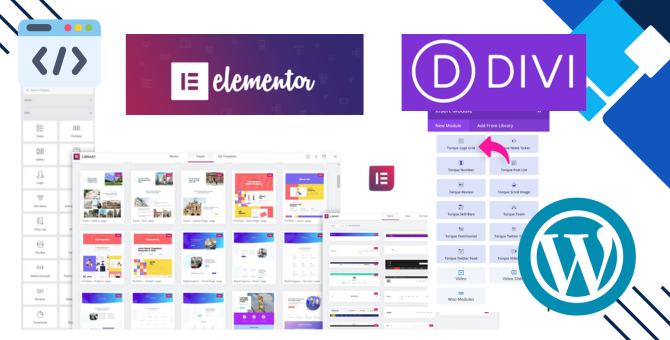
Elementor vs Divi 2025 presents WordPress users with two powerhouse options for creating stunning websites without touching a single line of code. Whether you’re launching your first site or redesigning an existing one, understanding these tools’ unique strengths can transform your web design experience from frustrating to fantastic.

Creating visually captivating and functional websites is essential for businesses and individuals looking to establish a strong online presence. For WordPress users, Elementor & Divi 2025 are two of the most popular page builder tools, known for their user-friendly interfaces, flexibility, and powerful features. Whether you’re a beginner or an experienced developer, both Elementor and Divi allow you to design stunning websites without needing to write a single line of code.

In this comprehensive guide, we’ll walk you through the process of using Elementor and Divi to build beautiful websites, and we’ll provide tips and insights to help you optimize your design process. Whether you’re looking for ease of use, advanced features, or robust design options, this guide has you covered.

Creating visually captivating and functional websites is essential for businesses and individuals looking to establish a strong online presence. For WordPress users, Elementor and Divi are two of the most popular page builder tools, known for their user-friendly interfaces, flexibility, and powerful features. Whether you’re a beginner or an experienced developer, both Elementor and Divi allow you to design stunning websites without needing to write a single line of code.

In this comprehensive guide, we’ll walk you through the process of using Elementor and Divi to build beautiful websites, and we’ll provide tips and insights to help you optimize your design process. Whether you’re looking for ease of use, advanced features, or robust design options, this guide has you covered.

Elementor & Divi 2025
#image_title

1. Choose the Right Tool: Elementor vs. Divi

Before you start designing, the first step is to decide between Elementor and Divi. Both page builders offer drag-and-drop functionality, but they each have unique features that may appeal to different types of users.

  • Elementor: Known for its intuitive user interface and flexibility, Elementor offers a wide range of widgets, templates, and design options. It also has a free version with enough features to build a professional website.
  • Divi: Divi is a robust page builder with a powerful visual editor and an advanced theme builder. It offers a massive library of pre-designed templates and layouts, making it ideal for users who want a more structured design process.

Both tools are excellent, so choose the one that best suits your workflow and design needs.

2. Install and Activate Elementor & Divi 2025

Once you’ve selected the page builder tool, the next step is to install and activate it on your WordPress website.

  • Elementor Installation:
    1. Go to the WordPress dashboard.
    2. Navigate to Plugins > Add New.
    3. Search for Elementor.
    4. Click Install Now and then Activate.
  • Divi Installation:
    1. Download Divi from the Elegant Themes website (note: Divi is a premium tool).
    2. Go to Plugins > Add New in your WordPress dashboard.
    3. Click Upload Plugin, upload the Divi zip file, and then activate the plugin.

3. Create a New Page

After activation, you can begin creating a new page or editing an existing one:

  • Navigate to Pages > Add New to create a fresh page or select an existing page you want to edit.
  • Click Edit with Elementor (for Elementor) or Enable Divi Builder (for Divi) to begin customizing your page.

4. Start Building with Elementor

Elementor offers a highly intuitive drag-and-drop interface. Here’s how you can start:

  1. Click “Edit with Elementor”: This opens the Elementor editor, where you can see a live preview of your website.
  2. Add Elements: Use the sidebar to drag and drop widgets such as images, buttons, headings, text blocks, and more into your page.
  3. Customize Design: Once you’ve added an element, customize its appearance using the design options. Elementor allows you to adjust margins, padding, colors, typography, and more.

Pro Tip: Elementor’s live editing feature lets you see changes in real-time, making it easier to experiment with different design elements.

5. Start Building with Divi

Divi offers an equally powerful drag-and-drop builder with a variety of modules to enhance your page:

  1. Click “Enable Divi Builder”: This opens the Divi builder interface.
  2. Add Sections, Rows, and Modules: Start by adding a section to your page. Then, add rows and modules (e.g., text, images, buttons, etc.) to build your layout.
  3. Customize Styling: Use Divi’s settings panel to adjust the design of each module, including font styles, spacing, background images, and animations.

Pro Tip: Divi also offers pre-made layouts and templates, which can save you time and give your website a professional look with minimal effort.

6. Design Tips for Elementor & Divi

When using either Elementor or Divi, consider these design tips to ensure a polished, professional website:

  • Maintain Consistency: Keep your color scheme, fonts, and layout consistent across your website. Both Elementor and Divi offer built-in design presets to help maintain consistency.
  • Optimize for Mobile: Both page builders allow you to preview and adjust your design for mobile devices. Ensure that your website is responsive and user-friendly on all screen sizes.
  • Use High-Quality Images: Opt for high-resolution images, but make sure they’re optimized for the web to avoid slow loading times.
  • Engaging Content: Content is king. Ensure that your website offers value to your visitors by providing clear, engaging text, and relevant visuals.

7. SEO Optimization with Elementor & Divi

Both Elementor and Divi provide options to optimize your website for SEO:

  • Elementor SEO Features: You can easily add meta descriptions, alt text for images, and optimize page titles using SEO plugins like Yoast SEO or Rank Math.
  • Divi SEO Features: Divi integrates seamlessly with SEO plugins, allowing you to manage meta tags, headings, and more for better search engine rankings.

8. Save and Publish Your Website

Once you’re satisfied with your design, it’s time to save and publish your website:

  • Elementor: Click the Publish button on the bottom of the editor to make your page live.
  • Divi: Once you’re done editing, click Save and then publish the page.

9. Test and Refine Your Website

Before making your website public, ensure that it works flawlessly on all devices and browsers:

  • Test for Speed: Use tools like GTMetrix or Google PageSpeed Insights to test your site’s load speed and make optimizations where needed.
  • Cross-Browser Testing: Make sure your website looks good on all browsers, including Chrome, Firefox, and Safari.

10. Backup and Security

It’s essential to back up your website regularly and implement security measures:

  • Backup Tools: Use plugins like UpdraftPlus to create regular backups.
  • Security Plugins: Protect your site from security threats by using plugins like Wordfence or Sucuri Security.

11. Set Up WooCommerce for Your E-commerce Website

Both Elementor and Divi integrate seamlessly with WooCommerce, the most popular e-commerce plugin for WordPress. WooCommerce helps you sell physical products, digital downloads, services, and more.

  • Elementor WooCommerce Integration: Elementor offers a wide range of WooCommerce widgets, which make it easy to customize product pages, category pages, cart, and checkout pages. You can also use Elementor’s visual editor to design product grids, single product pages, and add custom styling to your store.
  • Divi WooCommerce Integration: Divi also integrates with WooCommerce and provides specialized modules to display products, product categories, and filters. It offers WooCommerce-specific page templates that simplify the design process, allowing you to create beautiful product pages and seamless checkouts.

12. Customize Your Product Pages

Your product pages are the heart of your online store. Both Elementor and Divi give you full control over how products are displayed, so it’s crucial to make your product pages as attractive and functional as possible.

  • Elementor: Elementor’s WooCommerce widgets include options for displaying product images, titles, descriptions, price, stock status, and product attributes. You can use dynamic content to pull in WooCommerce product data and build custom layouts using the drag-and-drop editor.
  • Divi: Divi offers pre-designed layouts and modules like the Shop Module, which you can easily customize to match your branding. You can also adjust individual product page templates to improve the user experience and add product variations, customer reviews, and related product sliders.

13. Optimize for Conversions

A well-designed e-commerce website is only successful if it drives conversions. Both Elementor and Divi offer tools to help you optimize your site for higher conversion rates.

  • Elementor Conversion Optimization: Elementor includes popups, countdown timers, and call-to-action (CTA) buttons that can significantly increase conversions. You can use Elementor Pro’s Popup Builder to create promotional popups, newsletter subscriptions, or discounts to entice customers.Additionally, Elementor offers customizable forms and integrations with popular marketing tools like MailChimp, making it easy to capture customer information and grow your email list.
  • Divi Conversion Optimization: Divi offers built-in call-to-action modules, customizable buttons, and image galleries that can highlight your products. It also integrates with third-party marketing tools to help capture leads, automate email marketing, and track sales.

14. Create a Seamless Checkout Experience

Making the checkout process smooth and user-friendly is key to ensuring that customers complete their purchases. Both Elementor and Divi offer customization options to enhance the checkout experience.

  • Elementor: With Elementor, you can design custom checkout pages by integrating WooCommerce Checkout Widgets into your layout. You can customize the order review page, add custom forms, or show related products or offers on the checkout page.
  • Divi: Divi’s WooCommerce modules also provide options to modify the checkout page. You can change the layout, add special offers, or include trust-building elements like payment security badges to reassure customers during the checkout process.

15. Add Payment Gateways and Integrations

Offering multiple payment options can help increase your store’s conversion rates. Both Elementor and Divi support integrations with popular payment gateways and services like PayPal, Stripe, and Authorize.Net.

  • Elementor: Elementor works well with WooCommerce, which allows you to integrate a wide variety of payment gateways. You can easily set up and customize the payment process to accommodate different currencies and payment methods.
  • Divi: Similarly, Divi integrates seamlessly with WooCommerce and allows you to configure payment gateways, customize the checkout flow, and ensure a smooth transaction experience for your customers.

16. Mobile Optimization for E-commerce Websites

In 2025, a large portion of online shopping is done through mobile devices. To ensure your e-commerce website performs well on mobile, both Elementor and Divi offer mobile optimization features to help you create responsive websites.

  • Elementor Mobile Optimization: Elementor allows you to preview your website on mobile, tablet, and desktop views. You can adjust elements like images, typography, and spacing for mobile devices without affecting the desktop version. This ensures that your website looks and functions flawlessly across all devices.
  • Divi Mobile Optimization: Divi offers similar mobile responsiveness features, enabling you to adjust settings for different screen sizes. You can hide specific elements on mobile, rearrange modules, or adjust the layout to make your product pages mobile-friendly.

17. Add Advanced Features with Custom CSS

If you need more control over the design and functionality of your e-commerce website, both Elementor and Divi allow you to add custom CSS.

  • Elementor: Elementor offers a built-in Custom CSS option in the Advanced tab, allowing you to add custom code directly to individual elements or entire pages. This is perfect for adding custom styles or advanced functionality that goes beyond the standard options.
  • Divi: Divi also allows you to add custom CSS to individual modules, rows, or pages. Additionally, Divi’s Theme Options panel lets you input global custom CSS, which is great for making site-wide design changes.

18. SEO Optimization for E-commerce Websites

An e-commerce website must be properly optimized for search engines to drive organic traffic and sales. Both Elementor and Divi provide options to optimize your site’s SEO.

  • Elementor SEO Optimization: Elementor integrates seamlessly with SEO plugins like Yoast SEO or Rank Math. You can add SEO meta descriptions, keywords, and schema markup for products to improve visibility in search results. You can also optimize images for faster loading times by adjusting image sizes and using alt text.
  • Divi SEO Optimization: Like Elementor, Divi also works well with SEO plugins. It allows you to add SEO settings to each product page and ensure your e-commerce store is indexed properly. You can also use Divi’s built-in image optimization features to speed up page loading times.

19. Marketing and Social Media Integration

Effective marketing is essential to the success of any e-commerce store. Both Elementor and Divi offer social media integration, email marketing tools, and social proof options to promote your products.

  • Elementor Marketing Features: Elementor allows you to integrate with email marketing tools like MailChimp and ConvertKit to send promotional campaigns, newsletters, and updates. You can also add social media icons, testimonials, and product reviews to increase trust and engagement.
  • Divi Marketing Features: Divi provides options to add social sharing buttons, integrate with email marketing tools, and display user-generated content like reviews and testimonials on your product pages. This helps build social proof and can significantly improve conversions.

20. Analytics and Reporting

Tracking your store’s performance is critical for making informed business decisions. Both Elementor and Divi allow you to integrate analytics tools like Google Analytics and WooCommerce’s built-in reporting features to track sales, traffic, and customer behavior.

  • Elementor Analytics Integration: Elementor’s integration with Google Analytics lets you track your website’s performance and measure key metrics such as conversion rates, bounce rates, and user engagement. Additionally, you can monitor WooCommerce data like top-selling products and customer acquisition sources.
  • Divi Analytics Integration: Divi also integrates with Google Analytics, giving you insights into how visitors interact with your e-commerce site. You can monitor user behavior, optimize your sales funnel, and identify areas for improvement.

21. Enhance User Experience with Dynamic Content

One of the key factors that can set your e-commerce website apart is providing a personalized user experience. Both Elementor and Divi allow you to integrate dynamic content, creating a more engaging experience for your visitors.

  • Elementor Dynamic Content: Elementor Pro offers dynamic content capabilities, meaning you can pull in custom fields, posts, or product information directly onto your pages. For example, on product pages, you can automatically display the product’s name, description, pricing, or availability using dynamic tags. This enhances efficiency and personalization, as each page adapts based on the information associated with the user or product.
  • Divi Dynamic Content: Similarly, Divi allows you to create dynamic content for your e-commerce website, whether it’s showing product prices, stock levels, or any custom field created through WordPress. Using Divi’s dynamic content features, you can display personalized content based on the user’s behavior or location, improving the shopping experience and increasing conversion rates.

22. Create Multi-Language E-commerce Websites

If you’re targeting a global audience, offering your e-commerce website in multiple languages can help expand your reach. Both Elementor and Divi support multilingual functionality, enabling you to serve customers in their native language.

  • Elementor Multi-Language Support: Elementor can be integrated with WPML (WordPress Multilingual Plugin) or Polylang, which allows you to translate your pages, product descriptions, and other content into multiple languages. With Elementor’s drag-and-drop interface, translating and maintaining a multi-language site becomes simple and intuitive.
  • Divi Multi-Language Support: Divi is also fully compatible with WPML and Polylang, offering seamless language integration. You can use Divi’s translation management features to ensure all elements of your e-commerce website are available in multiple languages, improving accessibility for your international customers.

23. Utilize Membership and Subscription Features

For e-commerce stores that offer membership services, subscription boxes, or exclusive content, both Elementor and Divi support the integration of membership features.

  • Elementor Membership Features: Elementor integrates with various membership plugins like MemberPress and Restrict Content Pro to help you build subscription-based services. Whether you’re offering digital products, premium content, or memberships, Elementor’s flexible design options allow you to create an appealing interface to attract and retain subscribers.
  • Divi Membership Features: Similarly, Divi can be paired with membership plugins, allowing you to build private content areas, restrict product access, or offer subscription plans. By using Divi’s layout options and membership plugins, you can build a complete e-commerce site that supports recurring revenue models.

24. Optimize for Speed and Performance

Website speed is critical for e-commerce sites—faster websites not only provide a better user experience, but they also have a positive impact on SEO rankings and conversion rates. Both Elementor and Divi come with built-in features and optimizations that can help speed up your website.

  • Elementor Speed Optimization: Elementor helps you optimize the speed of your website by providing options for lazy loading images and videos, minifying CSS, and compressing files. Additionally, you can integrate Elementor with caching plugins like WP Rocket to further improve loading times.
  • Divi Speed Optimization: Divi offers built-in performance optimizations, including options to minimize resource-heavy scripts and images. Divi works well with caching plugins and CDNs (Content Delivery Networks), allowing you to ensure your e-commerce site loads quickly across the globe.

25. Build Customer Loyalty Programs

Customer retention is essential for e-commerce success. Creating a loyalty program can increase repeat sales, improve customer satisfaction, and enhance brand loyalty. Both Elementor and Divi allow integration with loyalty program plugins.

  • Elementor Loyalty Programs: You can integrate Elementor with popular loyalty program plugins like WooCommerce Points and Rewards or LoyaltyLion. These plugins allow you to reward customers for purchases, referrals, and other actions on your site, making them more likely to return for future purchases.
  • Divi Loyalty Programs: Divi also integrates with loyalty and rewards programs, giving you the tools to offer incentives like points for purchases, discounts, or exclusive offers. You can showcase these programs with Divi’s call-to-action modules to drive engagement and sales.

26. Set Up Advanced Product Filters

As your product catalog grows, it’s essential to make it easy for customers to find what they’re looking for. Advanced product filters can enhance the shopping experience by allowing users to sort products by categories, price, size, color, and other attributes.

  • Elementor Product Filters: With Elementor, you can create advanced product filtering options for your customers. Use WooCommerce widgets like product categories, tags, or custom attributes to create filters that enable customers to refine their product search.
  • Divi Product Filters: Divi also provides options for adding custom filters to your product pages, allowing you to filter products based on specific attributes. You can customize the filters with Divi’s powerful design options to create an intuitive, visually appealing shopping experience.

27. Leverage Custom Widgets and Modules for Enhanced Functionality

Both Elementor and Divi provide advanced widgets and modules that allow you to add functionality beyond the basics, enabling you to create more interactive and dynamic e-commerce websites.

  • Elementor Custom Widgets: Elementor Pro comes with a variety of custom widgets like product grids, price tables, testimonials, and sliders that can enhance the interactivity of your e-commerce site. You can also create custom widgets with the help of Elementor’s extensive API and add-ons.
  • Divi Custom Modules: Divi provides a robust library of modules, including product carousels, testimonials, pricing tables, and customer reviews, which can be customized to meet your store’s unique needs. You can also create custom modules to add any advanced functionality you require.

28. Engage Customers with Interactive Elements

Interactive elements like image hover effects, animations, and sliders are a great way to make your e-commerce site more engaging. Both Elementor and Divi offer a range of interactive design features to keep customers interested.

  • Elementor Interactive Features: Elementor’s motion effects, image hover animations, and scroll-based animations can help you create a more dynamic shopping experience. These elements keep customers engaged and can showcase your products in exciting, attention-grabbing ways.
  • Divi Interactive Features: Divi also provides interactive features, including hover effects and animation options. With Divi’s hover options, you can add effects to product images or buttons, while its scroll animations can be used to create smooth transitions as customers browse your site.

29. Utilize Social Proof to Build Trust

Social proof plays a vital role in building trust with potential customers. Both Elementor and Divi provide easy-to-use features for displaying customer reviews, ratings, and testimonials.

  • Elementor Social Proof: Elementor lets you integrate review widgets, show product ratings, and display customer testimonials directly on your product pages. This helps build credibility and encourages other users to make a purchase.
  • Divi Social Proof: Divi includes testimonial modules and review systems that allow you to showcase customer feedback in an attractive and engaging format. Including reviews and ratings on product pages helps potential customers feel more confident in their purchase decisions.

30. Improve Security with SSL & Security Plugins

Security is paramount for any e-commerce website. Both Elementor and Divi work seamlessly with SSL certificates and WordPress security plugins to help you protect your customers’ data.

  • Elementor Security: Elementor works well with SSL encryption, which ensures that all data exchanged between your customers and your website is securely encrypted. Additionally, you can install WordPress security plugins like Wordfence or iThemes Security to further protect your e-commerce store.
  • Divi Security: Divi also supports SSL and integrates smoothly with security plugins. Using a combination of SSL certificates, firewalls, and regular updates, Divi helps ensure that your website is safe from hacking attempts and data breaches.

Conclusion: Building E-commerce Websites with Elementor & Divi

With the ever-growing importance of e-commerce, building a website that is functional, visually appealing, and optimized for conversions is crucial. Both Elementor and Divi provide powerful tools and features that allow you to create beautiful, high-performing e-commerce websites without needing to write complex code.

From product pages and checkout processes to advanced design features and SEO optimization, Elementor and Divi equip you with all the necessary tools to design a successful e-commerce store. Whether you’re a beginner or an experienced web designer, these page builders offer everything you need to build and grow your online business effectively.

By choosing the right tool and following best practices for design, optimization, and functionality, you can create an e-commerce website that drives traffic, converts visitors into customers, and sets your business up for long-term success.

Best SEO Tools to Promote Business for Earn Millions Dollars

SEO tools to promote business

Best SEO tools to promote business for long-term worth millions of dollars

Learn about best SEO Tools to help Promote Business for long time wroth for Earn Millions Dollars to cover Gaps in Digital Marketing to fully SEO strategies. By leveraging effective SEO strategies, you can enhance your business’s digital marketing efforts and ensure sustainable growth. Fast-paced digital landscape, knowledge gaps can often hinder your business’s ability to fully leverage SEO strategies for Promote Business. However, there are several advanced SEO tools available to help bridge these gaps, offering insights into optimization strategies, website performance, content quality, for Earn Millions Dollars.

Best SEO tools can transform how you promote business growth in today’s competitive digital landscape. By leveraging these powerful resources, you’ll bridge knowledge gaps, implement effective strategies, and position your company to earn millions through sustainable, long-term success.

Best SEO Tools

Best SEO Tools as SEO Tips to Consider:

  1. Keyword Research: Focus on understanding what terms your audience searches for and optimize your content around those keywords.

  2. On-Page SEO: Ensure your website’s content, meta tags, and URLs are optimized for both users and search engines.

  3. Backlink Building: Quality backlinks can significantly improve your website’s authority and ranking.

  4. Content Marketing: Regularly update your blog or website with high-quality, relevant content that addresses your audience’s needs.

  5. Analytics: Use tools like Google Analytics to track your SEO performance and adjust your strategies accordingly.

By utilizing these tools, digital marketers can stay ahead of trends, refine their techniques, and achieve improved results in search engine rankings for for Earn Millions Dollars. Below is a curated list of 20 powerful SEO tools Promote Business that can transform your digital marketing efforts:

SEO tools to promote business

1. SEMrush

SEMrush is an all-in-one marketing toolkit that offers extensive keyword research, SEO audits, competitive analysis, and backlink tracking. With its comprehensive features, it helps bridge knowledge gaps by providing in-depth insights into how competitors are ranking and optimizing their content.

2. Ahrefs

Ahrefs is a leading SEO tool known for its powerful backlink analysis and keyword research capabilities. It allows users to explore competitors’ backlink profiles and keywords, helping to identify opportunities to bridge knowledge gaps in your SEO strategy.

3. Google Analytics

Google Analytics provides valuable insights into website traffic, user behavior, and conversion rates. By understanding your audience’s behavior, you can refine your SEO efforts, track performance, and close knowledge gaps in your digital marketing strategy.

4. Moz

Moz offers a suite of SEO tools, including its domain authority score, keyword explorer, and SEO audit features. Moz’s analytics help bridge knowledge gaps by providing users with actionable insights into on-page SEO, rankings, and site optimization.

5. Ubersuggest

Ubersuggest is a free SEO tool that helps marketers understand keyword trends, track competition, and improve content strategy. With its user-friendly interface, it simplifies the process of closing knowledge gaps in SEO by offering keyword suggestions and competitive data.

6. Yoast SEO Best SEO Tools for WordPress as Plugin

Yoast SEO is a popular WordPress plugin that helps you optimize content for both on-page SEO and readability. It assists in bridging knowledge gaps by providing real-time recommendations for improving SEO, ensuring your content ranks higher in search engines.

7. Google Search Console (Best SEO Tools Monitor Tool)

Google Search Console allows webmasters to monitor their website’s performance on Google Search. It helps identify issues related to indexing, search queries, and backlinks, thus enabling users to fill knowledge gaps in their SEO efforts.

8. Screaming Frog

Screaming Frog is a site crawler tool that identifies issues such as broken links, duplicate content, and missing metadata. By uncovering technical SEO issues, it allows you to bridge knowledge gaps related to site structure and performance.

9. SEOptimer Best SEO Tools

SEOptimer is a free SEO audit tool that evaluates your website’s SEO health and provides suggestions for improvement. It helps bridge knowledge gaps by offering actionable recommendations on both on-page and technical SEO.

10. KWFinder

KWFinder is a keyword research tool that helps find low-competition keywords with high search volume. This tool enables digital marketers to close knowledge gaps by focusing on keywords that can bring targeted traffic to their websites.

11. Surfer SEO

Surfer SEO is a content optimization tool that helps analyze top-ranking pages and optimize your content accordingly. It uses artificial intelligence to fill knowledge gaps by suggesting content structure and keyword optimization for Promote Business for Earn Millions Dollars.

12. BuzzSumo

BuzzSumo is a content research tool that helps identify trending topics and top-performing content across the web. It bridges knowledge gaps by providing insights into what’s working for your competitors and what topics are gaining traction in your niche.

13. Majestic SEO

Majestic SEO is known for its backlink analysis and link-building capabilities. It helps bridge knowledge gaps by providing data on the quality and quantity of backlinks pointing to your website, helping you improve link-building strategies.

14. Answer The Public

Answer The Public generates keyword ideas by showing you the questions and queries people are asking around a given topic. It helps you bridge knowledge gaps by revealing untapped keyword opportunities and enhancing your content strategy.

15. SpyFu

SpyFu is a competitive intelligence tool that allows you to track competitors’ keywords, ad campaigns, and organic rankings. By understanding your competitors’ strategies, you can fill gaps in your own SEO knowledge and adapt your approach accordingly.

16. CognitiveSEO

CognitiveSEO offers deep insights into backlinks, keyword rankings, and on-page SEO issues. It bridges knowledge gaps by providing in-depth analysis of your website’s strengths and weaknesses, which can inform your next steps in SEO.

17. GTMetrix   

GTMetrix is a website performance analysis tool that provides insights into how fast your website loads and how to optimize it for speed. It helps bridge knowledge gaps in site optimization by offering actionable steps to improve user experience.

18. Panguin Tool

The Panguin Tool helps analyze how Google algorithm updates impact your rankings. By identifying the exact updates that caused fluctuations in your site’s performance, it helps bridge knowledge gaps and refine your SEO strategy.

19. Google Keyword Planner

Google Keyword Planner helps identify high-value keywords to target in your SEO and PPC campaigns. It bridges knowledge gaps by providing detailed data on search volume, competition, and keyword suggestions tailored to your niche.

20. RankMath Best SEO Tools WordPress SEO plugin

RankMath is a popular WordPress SEO plugin that helps optimize content for search engines. It bridges knowledge gaps by offering advanced on-page SEO features, like keyword tracking, SEO analysis, and content optimization recommendations.

Long-term Best SEO Tools offers several benefits for your business, especially in building a sustainable and strong online presence. Here are the key advantages:

Best SEO Tools offers several benefits

  1. Sustainable Traffic Growth: Unlike paid advertising, which stops when the budget runs out, organic SEO efforts continue to drive traffic over time. As you improve your rankings, you can maintain consistent website visits without ongoing investment.

  2. Improved Brand Visibility: As your site climbs the search rankings, your brand becomes more visible to potential customers. This helps increase recognition and trust, which can lead to higher conversion rates.

  3. Higher Credibility and Trust: Websites that rank high on search engines are often perceived as more credible and trustworthy by users. Long-term SEO builds that authority organically, leading to a more loyal customer base.

  4. Cost-Effectiveness: While SEO requires an upfront investment in time, resources, and possibly tools, it provides ongoing benefits without the continuous cost of paid ads. Over time, SEO is one of the most cost-effective digital marketing strategies.

  5. Targeted Traffic: Long-term SEO helps attract more relevant visitors to your site. By optimizing for the right keywords and user intent, you’ll bring in users who are more likely to engage with your content, leading to higher-quality leads and conversions.

  6. Competitive Advantage: Over time, SEO allows you to stay ahead of competitors who might rely more on paid advertising. The higher your organic rankings, the harder it is for competitors to surpass you without significant effort.

  7. Better User Experience: SEO often requires you to improve the structure, speed, and usability of your website, which in turn enhances the overall user experience, leading to increased retention and satisfaction.

  8. Long-Term ROI: The benefits of a well-executed SEO strategy compound over time. As your content ranks higher, you not only see an increase in organic traffic but also more valuable business opportunities.

Effective Strategies for Bridging Knowledge Gaps

Effective Strategies for Bridging Knowledge Gaps

Effective Strategies for Bridging Knowledge Gaps

  • Bridging Knowledge Gaps: Strategies for Lifelong Learning and Growth In an increasingly fast-paced world, the ability to bridge knowledge gaps is more crucial than ever. Whether you’re a student, a professional, or someone eager for personal development, the process of filling the gaps between what you know and what you need to know is vital for continuous growth. Bridging these gaps effectively ensures that you are not only prepared for the challenges of today but also equipped for the demands of tomorrow.
Effective Strategies for Bridging Knowledge Gaps

What is Bridging Knowledge Gaps?

Bridging knowledge gaps refers to the process of addressing and closing the difference between what you currently understand and what you need to learn. This concept applies across various domains, including education, career development, and personal growth. It’s about overcoming limitations in your knowledge and abilities by acquiring new insights and skills.

Bridging knowledge gaps is your secret weapon for thriving in today’s fast-paced world. Whether you’re advancing your career or pursuing personal growth, learning how to identify and fill those gaps can transform your potential into real progress. Let’s explore practical strategies that make continuous learning both achievable and exciting.

The good news is that anyone can bridge their knowledge gaps. By adopting the right strategies, tools, and mindset, you can continuously evolve and stay ahead in today’s competitive environment. Below are effective strategies to help you bridge your knowledge gaps and accelerate your growth.


1. Identify Knowledge Gaps

The first and most crucial step in bridging a knowledge gap is identifying what you don’t know. This may seem obvious, but many people tend to skip this step and focus directly on learning without defining what is lacking in their understanding. Start with a self-assessment or seek feedback from peers, mentors, or supervisors to pinpoint the areas where you need improvement.

Key Question: What do I need to know to achieve my goals, and where are my knowledge deficiencies?

2. Set Clear Learning Objectives

Once you’ve identified the knowledge gap, it’s time to define clear objectives. By setting specific, measurable, achievable, relevant, and time-bound (SMART) goals, you give your learning process direction and focus. Whether you’re trying to learn a new skill, understand a complex topic, or prepare for a specific career advancement, having clear goals will keep you on track.

Tip: Break down your objectives into smaller, manageable tasks for easier tracking and achievement.

3. Seek Reliable Sources of Information

Accessing accurate, up-to-date, and reliable information is key to bridging knowledge gaps. Make use of books, research papers, online articles, video tutorials, and e-learning platforms to gather the information you need. Opt for credible sources such as academic publications, reputable websites, and industry experts to ensure you’re learning from authoritative voices.

Recommended Tools: Use online platforms like Coursera, edX, LinkedIn Learning, or Google Scholar for comprehensive learning materials.

4. Ask Questions

Never hesitate to ask questions. Whether it’s through informal conversations, professional networks, or formal settings, asking questions is one of the most effective ways to learn. Reaching out to experts, colleagues, or peers can help clarify doubts and provide valuable insights. Remember, there’s no such thing as a “silly question” in the pursuit of knowledge.

Pro Tip: Join online communities or forums related to your area of learning to ask questions and engage in discussions.

5. Experiment and Practice

Practical application is one of the best ways to reinforce new knowledge. Once you have acquired information, experimenting and practicing your new skills will help solidify your learning. Whether you’re learning a technical skill, studying a new language, or exploring a business strategy, hands-on experience is invaluable.

Example: If you’re learning coding, build small projects to apply your knowledge, or if you’re learning management techniques, lead a small team project.

6. Networking and Collaboration

Connecting with others who have more expertise in your field can provide fresh perspectives and practical advice. Networking opens doors to new learning opportunities, insights, and collaborations. Joining professional organizations, attending seminars, or simply engaging with like-minded individuals on social media platforms can facilitate knowledge exchange.

Networking Tip: Attend webinars, conferences, or join professional LinkedIn groups to expand your learning circle.

7. Mentorship for Accelerated Learning

A mentor can dramatically accelerate your learning process. Whether it’s someone in your personal network or a professional you admire, a mentor provides guidance, feedback, and support that can help you bridge knowledge gaps more efficiently. A good mentor can also point you toward resources and offer valuable career advice.

Actionable Tip: Find a mentor in your field, whether it’s through LinkedIn or professional networking events, and build a meaningful mentorship relationship.

8. Regular Feedback and Evaluation

Continually assess your progress to ensure that you’re on the right path. Ask for feedback from peers, mentors, or supervisors, and use it to refine your learning process. Regular evaluation allows you to adjust your approach, identify areas where you’re still falling short, and make necessary improvements.

Self-Reflection: Periodically evaluate what you’ve learned and identify any remaining knowledge gaps.

9. Critical Thinking and Bridging Knowledge Gaps

As you absorb new information, cultivate the ability to evaluate and analyze what you’ve learned. Critical thinking helps you discern fact from fiction and allows you to assess the quality of the sources and information you are consuming. With this skill, you can separate reliable data from noise, which is crucial in today’s information-saturated world.

Tip: Practice asking “Why?” and “How?” when presented with new information to deepen your understanding.

10. Stay Curious and Embrace Lifelong Learning and Bridging Knowledge Gaps

In a rapidly changing world, the process of bridging knowledge gaps never truly ends. Cultivate an attitude of curiosity and embrace lifelong learning. Staying open to new ideas and methodologies will allow you to adapt to new technologies, trends, and developments in your field.

Inspirational Quote: “The more I learn, the more I realize how much I don’t know.” – Albert Einstein

11. Utilize Technology and Online Tools and Bridging Knowledge Gaps

Technology can be your best ally when bridging knowledge gaps. There are countless apps, platforms, and tools that make learning easier and more efficient. Use e-learning platforms like Udemy, Khan Academy, and Skillshare to access a vast range of courses. You can also use productivity tools like Evernote or Notion to organize your notes and progress.

Example: Tools like Grammarly and Hemingway Editor can help you improve your writing skills by giving instant feedback on grammar and style.

12. Document Your Learning Journey with Bridging Knowledge Gaps

Keeping a personal record of your learning—whether in a digital format or physical journal—helps solidify and organize your knowledge. By documenting key learnings, reflections, and milestones, you can revisit concepts and track your progress over time.

Tip: Create a knowledge base that you can update with new insights and lessons as you continue learning.

13. Teach Others to Reinforce Learning Bridging Knowledge Gaps

One of the most effective ways to solidify your understanding of a topic is to teach others. When you explain concepts to someone else, you deepen your own understanding and uncover any remaining gaps in your knowledge. Teaching reinforces your learning and challenges you to see the material from a different perspective.

Actionable Tip: Start a blog, YouTube channel, or podcast to share your learning journey and teach others what you know.

Lifelong Learning as a Key to Success withBridging Knowledge Gaps

Bridging knowledge gaps is a continuous process of growth and self-improvement. Whether you’re seeking to enhance your career, improve your personal life, or stay competitive in an evolving market, the ability to learn and adapt is one of the most valuable skills you can possess. By using the strategies outlined above, you can efficiently fill knowledge gaps and ensure you’re always moving forward on your journey to success.

By embracing these strategies, you will not only bridge your own knowledge gaps but also build the skills necessary to adapt, grow, and thrive in a world that is constantly changing.

Hubble Space Telescope: A Gateway to the Cosmos

Hubble Space Telescope

The Hubble Space Telescope has been our eyes on the cosmos for over three decades, transforming how we see and understand the universe. From capturing breathtaking images of distant galaxies to uncovering secrets like dark energy, it’s a true marvel of science that keeps surprising us with every observation.

The Hubble Space Telescope is one of the most iconic scientific instruments ever created, offering humanity a unique window into the far reaches of the universe. Launched in 1990, this space observatory has revolutionized our understanding of the cosmos. Named after astronomer Edwin Hubble, the telescope is a product of collaboration between NASA and the European Space Agency (ESA). Over its decades of operation, Hubble has provided us with some of the most breathtaking images of distant galaxies, nebulae, stars, and planets, and has made countless contributions to the field of astronomy. Below, we delve into the key features and contributions that have made Hubble such an indispensable tool for scientific exploration.

1. Orbital Position: A Clear View of the Universe

One of the primary advantages of the Hubble Space Telescope is its orbital position. Orbiting Earth at an altitude of approximately 547 kilometers (340 miles), Hubble is above the distorting effects of Earth’s atmosphere. This allows it to capture incredibly clear and sharp images of celestial objects without the interference of atmospheric turbulence. Unlike ground-based telescopes, which must contend with clouds, light pollution, and other environmental factors, Hubble’s space-based vantage point provides an unobstructed view of the universe.

2. Optical and Ultraviolet Observations: A Multi-Wavelength View

Hubble is equipped with a suite of powerful instruments capable of observing the universe in optical and ultraviolet wavelengths. This ability enables Hubble to gather critical data across a broad spectrum, from visible light (what we see with our eyes) to the ultraviolet spectrum, which is invisible to human observers. These observations have allowed astronomers to gain deeper insights into the properties of celestial bodies, from the life cycles of stars to the formation of galaxies.

3. High-Resolution Imaging: Unveiling the Wonders of the Universe

One of Hubble’s most impressive achievements is its ability to produce high-resolution images. Over the years, it has captured stunning pictures of distant galaxies, nebulae, and star clusters, revealing intricate details and revealing features that were once hidden from view. This capability has significantly advanced our understanding of cosmic phenomena, such as star formation, black holes, and supernovae.

4. Cosmic Expansion and Dark Energy: Uncovering the Universe’s Accelerating Growth

Hubble has played a central role in studying the rate of cosmic expansion. By observing distant galaxies and measuring their redshifts, Hubble provided the first evidence that the expansion of the universe is accelerating. This discovery led to the groundbreaking theory of dark energy—a mysterious force that seems to be driving the universe’s expansion at an ever-increasing rate. This has been one of the most significant revelations of modern cosmology.

5. Stellar Evolution and Nebulae: Tracing the Life Cycle of Stars

Hubble has provided us with detailed observations of stellar evolution. From the formation of stars in dusty nebulae to their eventual death as white dwarfs, neutron stars, or black holes, Hubble has illuminated the life cycles of stars. Its observations have also revealed the complex interactions between stars and their environments, shedding light on the processes that shape the universe.

6. Galaxy Formation and Evolution: Peering Back in Time

Through its deep field observations, Hubble has captured images of galaxies that existed when the universe was much younger. These observations have allowed astronomers to study galaxy formation and evolution over billions of years, providing a snapshot of the universe’s infancy. Hubble’s ability to look back in time has helped to answer critical questions about how galaxies form, evolve, and interact with one another.

7. Exoplanet Studies: Exploring Worlds Beyond Our Solar System

Although Hubble was not initially designed for exoplanet research, it has still made important contributions to the study of planets orbiting other stars. By observing how the light from a star interacts with the atmosphere of an exoplanet, Hubble has helped scientists analyze the composition and conditions of distant worlds, bringing us closer to understanding whether life might exist elsewhere in the universe.

8. Supernovae and Gamma-Ray Bursts: Unveiling Cosmic Explosions

Hubble has provided valuable data on some of the universe’s most violent events, including supernovae and gamma-ray bursts. By monitoring these explosive events, Hubble has helped astronomers understand the processes behind their formation and their role in the universe, such as the creation of heavy elements and the expansion of galaxies.

9. Astrochemistry: Decoding the Chemistry of the Cosmos

Astrochemistry is the study of the chemical composition of the universe, and Hubble has contributed significantly to this field. By analyzing the spectra of distant objects, Hubble has helped scientists understand the distribution of elements and molecules across the cosmos. These findings are crucial for understanding the formation of stars, planets, and life itself.

10. Public Engagement: Inspiring Future Generations

Hubble’s breathtaking images have not only advanced science but have also inspired the public’s interest in astronomy and space exploration. Many of its iconic images, such as the Pillars of Creation and the Hubble Deep Field, have become synonymous with the beauty and vastness of the universe. These images have sparked curiosity and wonder, engaging people around the world and motivating future generations to pursue careers in science, technology, engineering, and mathematics (STEM).

Hubble’s Legacy: A Telescope That Continues to Inspire

Hubble has undergone several servicing missions since its launch, with astronauts aboard the Space Shuttle upgrading its instruments and extending its operational life. Despite facing occasional technical challenges, Hubble has remained a beacon of discovery and innovation in the field of astronomy. Its contributions have reshaped our understanding of the universe and continue to provide valuable data that will shape the future of space exploration.

As we look ahead to the future, the Hubble Space Telescope’s legacy will continue to inspire generations of scientists, explorers, and dreamers. It has proven that with the right tools, humanity can peer deeper into the cosmos and unlock the mysteries of the universe.

Free AI Tools become a high-ranking SEO and marketing expert

Free AI Tools become a high-ranking SEO and marketing expert

Free AI Tools become a high-ranking SEO and marketing expert. Advanced Free AI Tools for Content Writing in Digital Marketing

Discover the best free AI tools that empower businesses to create stunning graphics, optimize their websites, and improve digital marketing strategies. Whether you’re looking for graphic design tools, SEO optimizers, video editing solutions, or content generators, AI has you covered. These tools allow you to create high-quality marketing copy, blog posts, and social media content, while also improving website rankings with effective SEO strategies. Additionally, AI-powered grammar checkers ensure flawless content, and transcription tools turn audio and video into text with ease. With AI-driven marketing automation and customer relationship management tools, businesses can streamline their workflows and drive growth. By learning and mastering these AI tools, you can elevate your skills and become a high-ranking SEO and marketing expert, ultimately earning millions in Pakistan.

1. TECHNOLOGY.PKClick here to visit tool

Free AI tools are revolutionizing how businesses approach SEO and digital marketing, offering powerful solutions without the hefty price tag. Whether you’re crafting compelling content, optimizing websites, or automating marketing workflows, these tools provide the edge you need to excel in today’s competitive landscape.

TECHNOLOGY.PK is Pakistan’s #1 premium free SEO tool that helps enhance both YouTube and website audiences with SEO analytics. It allows businesses to grow their websites with powerful AI tools and conversion optimization strategies, making it essential for any digital marketing campaign aiming for high-quality traffic and engagement.


2. ChatGPT by OpenAI Click here to visit tool

ChatGPT is an advanced AI-driven chatbot that can automate customer service and respond to inquiries 24/7. Its conversational abilities make it perfect for businesses looking to streamline communication and enhance user experience.


3. Copy.aiClick here to visit tool

Copy.ai uses AI to help you generate creative and effective content for blogs, social media posts, ads, and more. It saves time and ensures your content is optimized for engagement and conversions.


4. Canva AIClick here to visit tool

Canva AI empowers businesses to design professional graphics with ease, offering AI-assisted templates for social media posts, ads, and branding materials. It makes creating beautiful visuals accessible to everyone.


5. Surfer SEOClick here to visit tool

Surfer SEO is an AI-powered SEO tool that helps you optimize your website content and improve its rankings. It provides data-driven insights for keyword research and SEO strategies, enabling you to drive more organic traffic.


6. Google Analytics 4 (GA4)Click here to visit tool

Google Analytics 4 is a powerful AI-driven analytics tool that helps businesses track website and app performance. It gives real-time insights on user behavior, helping businesses improve their marketing and engagement strategies.


7. GrammarlyClick here to visit tool

Grammarly is an AI-powered writing assistant that helps businesses ensure their written content is clear, concise, and free from grammatical errors. It also offers style and tone suggestions to make your content more engaging.


8. MarketMuseClick here to visit tool

MarketMuse helps businesses optimize their content strategy by using AI to identify content gaps, recommend keywords, and improve relevance. It empowers businesses to produce high-quality, targeted content that ranks well in search engines.


9. Lumen5Click here to visit tool

Lumen5 turns written content into engaging videos using AI. Whether it’s for social media, blogs, or marketing campaigns, Lumen5 saves time by automatically transforming articles and blogs into visual stories.


10. Pexels AIClick here to visit tool

Pexels provides high-quality stock images and videos, with an AI-powered search engine that helps businesses find the best media for their content. It’s an excellent resource for businesses looking to enhance their digital presence with stunning visuals.


11. QuillBotClick here to visit tool

QuillBot uses AI to rephrase and paraphrase text, helping businesses generate unique content that’s optimized for SEO and readability. It’s ideal for content creators, marketers, and SEO professionals.


12. ZapierClick here to visit tool

Zapier automates workflows between apps, saving time and reducing human error. With its AI-powered automation, businesses can seamlessly connect and streamline their favorite apps, enhancing productivity.


13. Remove.bgClick here to visit tool

Remove.bg uses AI to instantly remove backgrounds from images, making it easier for businesses to create clean, professional visuals for social media, websites, and marketing materials.


14. ClearscopeClick here to visit tool

Clearscope is an AI-powered SEO tool designed to help businesses optimize their content for search engines. It provides valuable keyword research and content optimization suggestions to improve rankings and drive traffic.


15. JasperClick here to visit tool

Jasper is an AI writing assistant that helps businesses generate high-quality marketing copy, blog posts, social media content, and more. It’s perfect for anyone looking to save time on content creation without sacrificing quality.


16. HootsuiteClick here to visit tool

Hootsuite’s AI-powered social media management platform helps businesses schedule posts, monitor social mentions, and analyze performance. It’s a comprehensive tool for businesses looking to optimize their social media strategy.


17. WordLiftClick here to visit tool

WordLift is an AI tool that helps businesses enhance their content’s SEO performance by providing semantic recommendations for keywords and improving content structure.


18. ChatfuelClick here to visit tool

Chatfuel is a leading AI chatbot platform that helps businesses automate customer interactions on platforms like Facebook and Instagram, providing personalized experiences and improving customer satisfaction.


19. Otter.aiClick here to visit tool

Otter.ai uses AI to transcribe audio and video content in real time, making it ideal for businesses that need accurate transcriptions for meetings, interviews, and other discussions.


20. HubSpot AI ToolsClick here to visit tool

HubSpot offers a suite of AI-powered tools for marketing automation, customer relationship management (CRM), and content optimization. It helps businesses generate leads, track customer interactions, and boost marketing efforts.


21. BigMLClick here to visit tool

BigML is an AI platform that provides businesses with predictive modeling and machine learning tools. It enables businesses to perform advanced analytics and make better, data-driven decisions for growth.

AI technologies are revolutionizing business growth, particularly in the field of Digital Marketing. Companies that embrace AI tools will gain a significant advantage in optimizing efficiency, enhancing customer engagement, and maintaining competitiveness in an increasingly dynamic digital landscape. These 21 advanced, free AI tools are perfect for businesses aiming to enhance their marketing strategies, simplify operations, and scale successfully in a digital-first environment. By leveraging AI’s transformative power, businesses can tackle current challenges, drive innovation, and accelerate growth like never before.

Top 15 Tips Advanced AI Tools to Promote and Grow your Business

Top 15 Tips Advanced AI Tools Promote and Grow your Business

Grow your Business with Artificial Intelligence (AI) is no longer a concept for the distant future; it has become an essential tool that is rapidly transforming industries and Advanced AI Tools to Promote and Grow your Business in world. From enhancing operational efficiency to personalizing customer interactions, AI technologies best for Grow your Business are reshaping the way businesses operate, make decisions, and engage with their customers. By harnessing AI’s potential, businesses can optimize processes, boost productivity, and gain insights that contribute to sustainable growth. Here are several ways AI tools are revolutionizing business practices and offering significant advantages for companies worldwide.

Grow your business with AI tools that are transforming industries right now—not in some distant future. Imagine boosting efficiency, personalizing customer interactions, and gaining insights that drive sustainable growth. Let’s explore how these advanced technologies can revolutionize your operations and help you stay ahead of the competition.

1. Data Analysis and Grow your Business Intelligence

AI tools excel at processing and analyzing vast amounts of data at unprecedented speeds. With the ability to analyze both structured and unstructured data, AI can identify hidden patterns, trends, and correlations that may go unnoticed by traditional methods. This enables businesses to make more informed decisions, refine their strategies, and anticipate market changes. AI-powered business intelligence platforms can deliver actionable insights in real-time, turning raw data into valuable intelligence that drives competitive advantage.

2. AI-Driven Customer Service and Virtual Assistants for Grow your Business

AI-powered chatbots and virtual assistants have transformed customer service operations. These tools provide around-the-clock support, reduce response times, and handle repetitive tasks efficiently. They can answer inquiries, process transactions, and resolve issues autonomously, continuously learning from past interactions to enhance their performance. By automating customer support, AI reduces the need for human intervention, lowers operational costs, and improves customer satisfaction. These intelligent systems offer a personalized experience even in high-demand environments, ensuring meaningful interactions with customers.

3. Personalization and Enhanced Customer Engagement

AI is a game-changer for personalization in marketing. By analyzing consumer behavior, purchase patterns, and demographic data, AI can tailor marketing strategies to individual customers. This enables businesses to deliver personalized product recommendations, dynamic pricing, and targeted offers based on each user’s preferences. Such personalized experiences foster higher engagement, boost conversion rates, and drive sales. E-commerce giants like Amazon use AI-driven recommendation engines to enhance the customer journey and improve sales outcomes.

4. Supply Chain Optimization for Grow your Business

Managing complex and dynamic supply chains requires real-time adjustments to maintain efficiency. AI can significantly improve supply chain operations by predicting demand, forecasting inventory requirements, and optimizing delivery routes. With AI-driven analytics, companies can monitor inventory in real-time, minimize waste, and prevent stockouts. Additionally, predictive analytics help identify potential disruptions, allowing businesses to address issues proactively and ensure a smooth and cost-effective supply chain.

5. Predictive Maintenance for Operational Efficiency

For industries dependent on machinery and equipment, AI-powered predictive maintenance tools are invaluable. These systems continuously monitor equipment, analyzing data from sensors and historical performance to predict maintenance needs. By identifying potential issues before they cause breakdowns, AI helps businesses schedule maintenance more effectively, reducing costly downtime and extending the life of assets. Predictive maintenance systems enable businesses to stay ahead of operational disruptions, ensuring smooth and efficient operations.

6. AI in Marketing and Advertising

AI is transforming the marketing landscape by enabling more precise targeting and real-time campaign optimization. Machine learning algorithms analyze consumer behavior, segment audiences, and uncover trends to inform advertising strategies. These insights allow businesses to craft personalized ads that resonate with specific demographics, increasing engagement and conversion rates. Furthermore, AI can automate the ad placement process, optimizing budgets and adjusting campaigns based on performance to maximize return on investment (ROI).

7. AI in Healthcare and Life Sciences

In healthcare, AI tools are unlocking new possibilities, from diagnosing diseases to accelerating drug development. AI-powered diagnostic systems can analyze medical images, genetic data, and patient histories to identify conditions like cancer, heart disease, and neurological disorders early. Additionally, AI can speed up drug discovery by predicting how various compounds interact with biological systems, reducing research and development timelines. As AI continues to evolve, its impact on healthcare will continue to grow, enhancing patient care and operational efficiency.

8. Finance and Risk Management with AI

AI has revolutionized the financial sector by improving risk management and fraud detection. AI algorithms can analyze vast amounts of financial data to detect fraudulent transactions in real time. They also assess credit risks more accurately, helping financial institutions make better lending decisions. Furthermore, AI tools can forecast market trends, enabling businesses to optimize investment strategies and mitigate risks effectively.

9. Human Resources and Talent Management

AI is streamlining HR processes, from recruitment and training to talent management. AI tools can analyze resumes, match candidates with job descriptions, and even conduct preliminary interviews using chatbots or virtual assistants. Additionally, AI-driven analytics can provide valuable insights into employee performance, helping HR departments make informed decisions regarding promotions, training, and retention strategies.

10. Natural Language Processing (NLP) for Communication and Insights

Natural Language Processing (NLP) is a branch of AI that focuses on how computers interact with human language. It enables businesses to analyze large volumes of text data—such as customer feedback, reviews, and social media posts—to gain insights into customer sentiment and market trends. NLP tools can be used for sentiment analysis, content generation, and even automating communication through chatbots, emails, or voice assistants, improving the efficiency of customer interactions.

11. AI in Image and Video Analysis

AI-powered image and video analysis is transforming industries such as retail, security, and agriculture. AI can be used for object recognition, quality control, and facial recognition, among other applications. In retail, AI helps assess product quality, detect defects in production lines, and automate visual inspections. In security, AI analyzes video feeds for unusual activities, enhancing safety and response time.

12. AI in Autonomous Vehicles

AI is driving innovation in the transportation and logistics sectors, particularly with autonomous vehicles. Self-driving cars, trucks, and drones powered by AI are revolutionizing delivery systems, reducing costs, and improving efficiency. AI algorithms enable autonomous vehicles to make real-time decisions based on sensor data, road conditions, and traffic patterns, creating a safer and more efficient transportation ecosystem.

13. Energy Efficiency with AI

AI plays a key role in optimizing energy usage across industries. By analyzing real-time data, AI can manage energy consumption in buildings, factories, and industrial facilities. AI systems adjust heating, cooling, lighting, and other systems based on environmental conditions and usage patterns, reducing energy waste and cutting operational costs. Moreover, AI supports sustainability goals by helping businesses reduce their carbon footprint and energy consumption.

14. Legal and Compliance Automation with AI

AI is increasingly being used to streamline legal and compliance processes. AI tools can quickly analyze large volumes of legal documents, contracts, and regulations, helping businesses stay compliant and avoid legal risks. AI-powered systems assist with contract analysis, due diligence, and regulatory compliance, ensuring businesses can meet legal requirements without manual intervention.

15. AI in Education and Learning

AI is transforming the education sector by personalizing learning experiences. Adaptive learning platforms use AI to monitor students’ progress, identify areas for improvement, and recommend tailored content. This not only enhances student engagement but also improves learning outcomes. AI is also being used for grading, feedback, and administrative tasks, allowing educators to focus more on teaching and improving student experiences.

AI has the potential to reshape businesses across various sectors, offering opportunities to streamline operations, enhance decision-making, and improve customer experiences. By implementing AI tools across key functions—such as customer service, marketing, finance, and supply chain management—companies can drive growth and stay ahead of the competition. However, to successfully leverage AI, businesses must invest in the right infrastructure, ensure data quality, and address privacy concerns. As AI continues to evolve, businesses that embrace these tools will be well-positioned for success in an increasingly digital world.

20 Top SEO-Friendly Latest ECommerce WordPress Themes Google Higher Rank

20 Top SEO-Friendly Latest ECommerce WordPress Themes Google Higher Rank
#image_title

20 SEO-Friendly ThemeForest Latest ECommerce WordPress Themes=

World of eCommerce 20 Top SEO-Friendly Latest ECommerce WordPress Themes is paramount to ensure your online store higher ranks on Google with organic Traffic, attracts more organic traffic, and provides a seamless user experience. As we move into 2025, 2026, businesses are increasingly turning to premium themes that not only provide aesthetic appeal but are also built to perform well on search engines. ThemeForest, a trusted marketplace for premium themes, offers some of the best eCommerce solutions designed specifically to boost your store’s SEO performance.

SEO-friendly eCommerce WordPress themes are essential for any online store aiming to climb Google’s rankings and attract more organic traffic. As we head into 2025, choosing the right theme can make all the difference in boosting your site’s performance and user experience, helping you stand out in a competitive digital marketplace.

Whether you’re selling fashion, electronics, furniture, or any other product, this article highlights the 20 best SEO-friendly eCommerce WordPress themes on ThemeForest that can help you achieve the ultimate business success. Plus, if you’re looking to purchase these themes at the most affordable rates, Skill Surface provides them under the GPL license, making it the go-to place for budget-friendly, high-quality theme purchases.

1. Anarkali – Fashion Shop WooCommerce Elementor Theme

00 anarkali preview

Anarkali is a stylish WooCommerce theme tailored for fashion stores. Built with Elementor, it provides a drag-and-drop builder for easy customization. Anarkali is highly responsive, ensuring your site is mobile-friendly, which is a key factor in SEO rankings. Its fast loading times, optimized for search engines, and its integration with WooCommerce ensures an exceptional online shopping experience.

If you need this theme at the best price, Skill Surface offers Anarkali under GPL.

2. Reebox – Elementor WooCommerce WordPress Theme

Reebox Elementor WooCommerce WordPress Theme

Reebox is a sleek and modern WooCommerce theme designed for electronics and digital product stores. With the integration of Elementor, it allows for full design flexibility. The theme is built with SEO best practices, such as optimized HTML5 and schema markup, to help your site rank higher in search results.

Get Reebox from Skill Surface at the most affordable rates under GPL.

3. Pangja – Print Shop & Printing Company WordPress Theme

Pangja - Print Shop & Printing Company WordPress theme

Pangja is a unique theme perfect for print shops and printing businesses. It comes with powerful WooCommerce integration, allowing you to manage products and orders efficiently. The SEO-optimized structure ensures that your website’s content is easily indexed by search engines, giving you an edge over competitors in the printing industry.

Pangja is available at a discounted rate on Skill Surface with GPL licensing.

4. Enzy – Multipurpose WooCommerce WordPress Theme

Enzy - Multipurpose WooCommerce WordPress Theme

Enzy is a versatile theme that can be used for various types of online stores. It’s fully responsive and built with SEO in mind, ensuring high search engine visibility. Its compatibility with WooCommerce means you can create a beautiful, fast-loading store that also drives organic traffic.

Skill Surface provides Enzy theme at a competitive rate under GPL.

5. Betheme | Responsive Multipurpose

Betheme Responsive Multipurpose

Betheme is a highly customizable multipurpose WordPress theme suitable for all kinds of online businesses. It comes with over 450 pre-built websites, making it incredibly versatile. Betheme is SEO-optimized, with lightweight code, fast load times, and advanced features like rich snippets, ensuring your site ranks well.

You can get Betheme at an affordable price under GPL from Skill Surface.

6. WoodMart – Multipurpose WooCommerce

WoodMart is a powerful, SEO-optimized WordPress theme perfect for multi-vendor WooCommerce stores. With its advanced AJAX technology, it ensures fast page loading, a crucial SEO factor. It is highly customizable, offering drag-and-drop design and advanced product filtering to enhance user experience.

01 theme preview

Skill Surface offers WoodMart theme at a cheaper price under GPL.

7. GoldSmith – Jewelry Store WooCommerce Elementor Theme

GoldSmith Jewelry Store WooCommerce Elementor Theme

GoldSmith is a sophisticated, elegant theme built specifically for jewelry stores. This theme integrates seamlessly with Elementor for easy customization, while also being optimized for SEO to ensure your store is visible on Google. Rich schema markup is included to help your jewelry store stand out in search results.

Buy GoldSmith from Skill Surface under GPL for an unbeatable price.

8. Drile – Furniture WooCommerce WordPress Theme

Drile Furniture WooCommerce WordPress Theme

Drile is a stylish and highly functional theme, designed for furniture stores. It comes with SEO optimization built into the theme structure, including mobile optimization, schema markup, and fast page loading speeds. This ensures that your furniture business performs well in search rankings.

Get Drile theme at the best price with Skill Surface under GPL.

9. Druco – Elementor WooCommerce WordPress Theme

Druco Elementor WooCommerce WordPress Theme

Druco is a modern WooCommerce theme, great for businesses of any kind, particularly fashion or electronics. Featuring Elementor integration, SEO best practices, and a mobile-first approach, Druco ensures your store is both fast and easy to use, improving your SEO ranking.

Skill Surface provides Druco theme under GPL at the lowest price.

10. Ecomus – Multipurpose WooCommerce Theme

Ecomus Multipurpose WooCommerce Theme

Ecomus is a clean and feature-rich WooCommerce theme, designed for businesses of all kinds. The theme includes SEO optimization, such as optimized meta tags, clean code, and fast loading speeds, all designed to help improve your site’s organic visibility.

You can grab Ecomus at a discounted rate from Skill Surface with GPL license.

11. Porto | Multipurpose & WooCommerce Theme and Latest eCommerce WordPress Themes

Porto Multipurpose WooCommerce Theme

Porto is an advanced, multi-purpose WordPress theme built for WooCommerce. It’s one of the most popular themes in the market due to its SEO-friendly structure, high performance, and customizable design. Porto also supports multiple languages and currencies, making it ideal for businesses with international customers.

Skill Surface offers Porto under GPL at an unbeatable price.

12. Shopkeeper • Multi-Purpose WooCommerce Theme

Shopkeeper • Multi-Purpose WooCommerce Theme

Shopkeeper is a visually appealing, SEO-optimized theme for any eCommerce business. It includes rich snippets, optimized product pages, and a fast, responsive design, ensuring that your website ranks well across various devices.

Shopkeeper theme is available at Skill Surface under GPL at a highly affordable rate.

13. Blonwe – Multipurpose WooCommerce Theme

Blonwe Multipurpose WooCommerce Theme

Blonwe is an all-in-one multipurpose WooCommerce theme ideal for business owners who want to create a professional-looking store. It’s fully optimized for SEO with clean code, schema markup, and optimized product descriptions, helping boost your site’s SEO rankings.

Blonwe is available for purchase from Skill Surface with GPL licensing.

14. Ecomall – Elementor Electronics WooCommerce Theme

Ecomall - Elementor Electronics WooCommerce Theme

Ecomall is a WooCommerce theme made specifically for electronics stores. It features advanced SEO techniques, such as fast loading, product schema markup, and lazy loading, all critical for enhancing SEO. This theme is also fully compatible with Elementor, giving you flexibility in design.

You can get Ecomall from Skill Surface at the most cost-effective rate under GPL.

15. Flatsome | Multi-Purpose Responsive WooCommerce Theme

Flatsome Multi Purpose Responsive WooCommerce Theme

Flatsome is one of the most popular WooCommerce themes due to its powerful features, fast load times, and SEO optimization. With a drag-and-drop builder and responsive design, Flatsome ensures your store runs smoothly on both desktop and mobile, boosting SEO performance.

Skill Surface offers Flatsome theme under GPL at an affordable price.

16. Sober – WooCommerce WordPress Theme

Sober WooCommerce WordPress Theme

Sober is a clean, minimalistic WooCommerce WordPress theme, perfect for any business. Its SEO-friendly structure helps increase your visibility on Google, with optimized product listings, schema integration, and fast page speeds ensuring high performance.

Get Sober at the best price through Skill Surface with GPL licensing.

17. BabyCare – Kids Store WooCommerce WordPress Theme 

BabyCare Kids Store WooCommerce WordPress Theme

BabyCare is a WooCommerce theme designed specifically for kids’ stores. This theme comes with a user-friendly design, optimized for SEO, with fast loading speeds and responsive layout. With its integration of WooCommerce and SEO-friendly features, BabyCare is a great choice for online stores.

Skill Surface offers BabyCare under GPL for an affordable price.

18. Agrofood – Elementor WooCommerce Latest eCommerce WordPress Themes

Agrofood Elementor WooCommerce WordPress Theme

Agrofood is designed for agricultural, organic food, and farm-related businesses. With a mobile-friendly design, schema markup, and optimized product pages, Agrofood provides an excellent solution for increasing your SEO ranking. Agrofood is a feature-rich WordPress theme designed for professionals. It offers a variety of powerful options, including a fully responsive layout, a mega menu, integration with Elementor page builder, the stunning Slider Revolution, RTL support, product quick view, Ajax search, Ajax cart, single Ajax add-to-cart functionality, shop load more/infinite scroll, and easy one-click demo import, among many other advanced features.

You can get Agrofood theme at a cheaper price through Skill Surface with GPL.

19. XStore | Multipurpose Latest eCommerce WordPress Themes

XStore Multipurpose WooCommerce Theme

XStore is a versatile WooCommerce theme that fits any business. It is SEO-optimized, features a user-friendly design, 130+ Readymade Demo, 12 Year on Envato to build and privde upadate supports multi-vendor stores. XStore is a high-performance theme built with speed optimization in mind, ensuring fast loading times.

XStore is available from Skill Surface with GPL for the best price.

20. Electro Electronics Store WooCommerce Theme (Latest eCommerce WordPress Themes)

Electro is a premium WooCommerce theme designed for electronics stores. It comes with an SEO-optimized design, including schema markup and fast page loads. Electro ensures that your online electronics store is both efficient and visible on search engines.

00 Preview 3 4

Electro is available at a highly affordable rate from Skill Surface with GPL.


20 SEO Optimized Best Business WordPress Themes Multipurpose

20 SEO Optimized Best Business WordPress Themes

20 SEO Optimized Best Business WordPress Themes 

Every business man need premium and professional business Website in this page you read and Choosing the right and best business WordPress themes. This is best seo optimized and multipurpose business wordpress themes for any business website. A below powerful wordpress theme should offer flexibility, responsiveness, speed, and most importantly, it should be optimized for SEO (Search Engine Optimization). As we strat to enter 2026, the demand for SEO-friendly themes that help websites rank higher in search engines while providing a seamless user experience is greater than ever. Below, we list the 20 best SEO-optimized multipurpose business WordPress themes for 2026 that are not only adaptable but also include advanced SEO features to give your site a competitive edge.

1. Astra – Fast, Lightweight & Customizable Best Business WordPress Themes

Astra continues to dominate the market with its lightweight build and speed optimization. Astra’s main appeal is its schema integration and clean codebase that ensure fast load times—key factors for ranking high in search engines. Astra also features pre-designed templates specifically for business websites, allowing you to launch quickly while maintaining excellent SEO structure.

SEO-optimized business WordPress themes are essential for any company looking to dominate search rankings while delivering an exceptional user experience. As we approach 2026, choosing the right theme can make or break your online presence—these 20 top picks combine cutting-edge SEO features with professional design to give your business website the competitive edge it deserves.

Key Features:

  • Fully responsive and AMP ready
  • Built-in SEO settings for headings and tags
  • Pre-integrated with popular page builders like Elementor and Beaver Builder

2. Divi Best Business WordPress Themes

Divi remains a popular multipurpose best business WordPress themes thanks to its versatility and drag-and-drop builder. For SEO, Divi provides optimized code, lazy loading images, and is fully compatible with SEO plugins like Yoast and Rank Math. Its responsive designs also ensure you don’t lose any mobile traffic—an important ranking factor for Google.

Key Features:

  • Divi Builder with advanced visual design controls
  • Mobile-friendly layout and custom breakpoints
  • Schema-friendly structure for rich snippets

3. GeneratePress Best Business WordPress Themes

GeneratePress is another fast, SEO-optimized theme for 2025, known for its minimal, lightweight framework. It focuses on core web vitals, which play an important role in SEO rankings. GeneratePress offers clean code, optimized JavaScript, and responsive design for all business purposes.

Key Features:

  • Optimized for speed with under 10 KB page size
  • Accessibility-ready (meets WCAG 2.0 standards)
  • Hook and filter system for developers to extend its functionality

4. OceanWP Best Business WordPress Themes

OceanWP is a multipurpose theme known for its out-of-the-box SEO optimization best business WordPress themes, as well as a deep level of customization for business websites. It features built-in breadcrumb navigation, helping Google understand your site’s structure better. Its compatibility with WooCommerce makes it a great choice for e-commerce businesses looking to optimize for search engines.

Key Features:

  • RTL (Right to Left) language support for global SEO
  • Built-in schema markups
  • Compatibility with page builders like Elementor

5. Neve Best Business WordPress Themes

Neve stands out for its mobile-first approach and ultra-fast loading speeds, making it ideal for businesses focused on delivering an amazing experience to mobile users. Neve is AMP compatible and integrates seamlessly with Gutenberg and Elementor, ensuring easy customization while maintaining strong SEO foundations.

Key Features:

  • AMP compatibility for faster mobile pages
  • Optimized for speed and performance
  • Clean HTML structure for better crawlability

6. Ultra by Themify Best Business WordPress Themes

Ultra by Themify is an advanced multipurpose theme offering multiple pre-built demo sites. This theme is built with SEO in mind, featuring optimized headers, custom CSS, and image lazy loading. It is perfect for businesses wanting flexibility while retaining speed and SEO best practices.

Key Features:

  • Smart layout options for dynamic businesses
  • SEO-friendly code and Google Fonts integration
  • Header optimization for H1, H2 tags

7. Hestia Pro Best Business WordPress Themes

Hestia Pro is a popular single-page business theme that’s fully optimized for search engines. Built on Material Design principles, it is not only aesthetically appealing but also helps with SEO thanks to its optimized header and footer structure. Hestia also offers WooCommerce integration with best business WordPress themes.

Key Features:

  • Page speed optimized with minimal loading times
  • SEO-friendly blog section for content marketing
  • WooCommerce integration for business growth

8. Salient

Salient is ideal for creative businesses. It is SEO-friendly, with clean code and optimized CSS that ensure fast loading times. Salient offers visually attractive designs and includes Parallax scrolling, making it ideal for businesses focused on storytelling and branding.

Key Features:

  • Retina-ready and fully responsive
  • Enhanced header and metadata control for SEO
  • Integration with WPBakery Page Builder

9. TheGem

TheGem is a high-performance multipurpose theme designed with SEO and performance in mind. It includes over 400 creative templates and is optimized for Google PageSpeed Insights. TheGem is also fully compatible with SEO plugins, making it ideal for tech-savvy business owners.

Key Features:

  • Google Fonts and Adobe Fonts compatibility
  • Lightweight code for faster performance
  • Comprehensive SEO plugin support

10. Enfold

Enfold is a flexible WordPress theme that is schema-friendly and comes with a drag-and-drop builder. Enfold’s SEO optimization includes fast loading, lazy load, and built-in SEO settings, ensuring your website performs well on search engines.

Key Features:

  • Customizable layout and header options
  • Mobile responsive with retina compatibility
  • Extensive documentation and support

11. Flatsome

Flatsome is a popular choice for WooCommerce stores and business websites. It focuses on providing fast load times, optimized structure, and excellent user experience. Flatsome is also regularly updated to meet Google’s latest ranking algorithm standards.

Key Features:

  • Pre-built demos for rapid site deployment
  • Built-in UX builder for easy customization
  • SEO-friendly URL and code

12. Uncode

Uncode is ideal for creative businesses looking to balance design and SEO. It comes with clean HTML and optimized images to reduce load time. The theme is responsive and supports lazy loading and adaptive images, which are essential for a great user experience.

Key Features:

  • Powerful media library with adaptive image support
  • Pixel-perfect designs for business showcases
  • WooCommerce integration for selling products

13. Kalium

Kalium is a great multipurpose theme for businesses that require sleek designs along with SEO-friendly architecture. Kalium offers optimized code, Google Font integration, and schema markup to enhance site visibility on search engines.

Key Features:

  • Pre-built content elements for easy customization
  • Optimized for performance, especially image handling
  • Integration with WPML for multilingual SEO

14. X Theme

X Theme offers a cornerstone page builder that allows you to create engaging content without compromising SEO. It provides optimized content blocks, lazy loading, and integration with SEO plugins. Its SEO-driven focus makes it great for fast-growing businesses.

Key Features:

  • Built-in templates for quick launches
  • Optimized JavaScript and CSS for speed
  • Schema integration for improved ranking

15. Bridge

Bridge is a versatile multipurpose theme ideal for business portfolios, online agencies, or consulting websites. It features high-quality SEO elements, optimized headings, and mobile-first design for better Google ranking.

Key Features:

  • 500+ demos and customization options
  • SEO-optimized for headings and image alt attributes
  • Integration with premium plugins

16. Soledad

Soledad is an excellent option for content-heavy business sites. It includes advanced schema markup, AMP support, and lightweight coding, making it easy to rank content on Google.

Key Features:

  • Pre-built demo sites for different business niches
  • AMP compatibility for faster mobile pages
  • SEO plugins support for comprehensive optimization

17. Total is best WordPress themes

Total is a responsive theme that provides multiple demo templates of best WordPress themes and SEO-friendly designs. It is compatible with major plugins like Yoast SEO, making it suitable for any type of business aiming for good organic visibility.

Key Features:

  • Lightweight design optimized for speed
  • Advanced header and footer customization
  • Parallax and animation options for dynamic sites

18. Jevelin

Jevelin is easy to use and provides a rich set of customization features that are also SEO-optimized. This theme has a responsive structure, optimized content blocks, and integration with SEO tools like Yoast.

Key Features:

  • RTL compatibility for global reach
  • Parallax scroll and animations
  • Mobile-first responsive designs

19. ZoxPress

ZoxPress is designed to improve content visibility and offer multiple options for building an SEO-optimized business website. With integrated Google AMP, this theme ensures your mobile SEO is handled effectively.

Key Features:

  • AMP ready for mobile-first indexing
  • WooCommerce compatible for business growth
  • Lazy loading of images for faster speed

20. Kallyas

Kallyas is a multipurpose theme focused on business websites and portfolios. With its clean code, optimized scripts, and lazy load integration, it’s highly optimized for search engines.

Key Features:

  • Optimized for Google PageSpeed
  • Full WooCommerce compatibility
  • Drag-and-drop builder for intuitive customization

Final Thoughts

Choosing the right theme for your business website can have a significant impact on your online presence. All of the themes listed above provide SEO optimization, responsive designs, and customization options, making them suitable for businesses looking to boost their website’s performance in 2026. Whether you are running an agency, consulting firm, or online store, these multipurpose themes will ensure your website performs well and ranks high in search engine results. Invest in one of these SEO-optimized themes to future-proof your online business and stay ahead of the competition. if you need to lean about wordpress and ern money visit “Learn WordPress”

Why Must Need Mobile App for E-Commerce Website and WhatsApp

Why Must Need Mobile App for E-Commerce Website and WhatsApp
Why Must Need Mobile App For E Commerce Website And Whatsapp

Mobile app for your e-commerce website is no longer just an option—it’s a necessity to meet today’s customer demands. Paired with WhatsApp integration, these tools transform how you engage shoppers, streamline sales, and create a seamless, personalized experience that keeps them coming back for more.

In the modern age of online shopping, having an e-commerce website is simply not enough to keep up with customer expectations. As mobile usage continues to rise and consumer behavior evolves, it’s becoming increasingly important for e-commerce businesses to have a mobile app and WhatsApp integration. Let’s explore why these two features are essential for driving engagement, increasing sales, and improving overall customer experience.

1. Mobile Shopping is the Future: Tap into the Mobile Consumer Trend

The shift to mobile commerce (m-commerce) is undeniable. According to Statista, mobile e-commerce sales are expected to account for over 70% of all e-commerce sales by 2025. More and more consumers are shopping on smartphones and tablets due to their convenience and ease of use. By developing a mobile app for your e-commerce website, you provide a seamless shopping experience that caters to the growing number of mobile shoppers.

2. Enhanced User Experience and Faster Access

A mobile app offers a more personalized and intuitive shopping experience compared to a mobile-optimized website. With a mobile app, users can:

  • Browse your product catalog more quickly with optimized performance.
  • Get faster load times, smoother navigation, and reduced friction during checkout.
  • Save items to their shopping cart or wishlist for easy access later.
  • Enable push notifications to stay updated on new arrivals, promotions, or abandoned carts.

In short, mobile apps provide a much more engaging, faster, and enjoyable shopping journey compared to traditional mobile web browsing.

3. Push Notifications for Immediate Engagement

One of the biggest advantages of having a mobile app is the ability to send push notifications directly to users’ devices. Push notifications are an excellent way to:

  • Inform users about flash sales, discounts, or new product launches.
  • Remind users of abandoned carts and encourage them to complete their purchase.
  • Provide personalized offers based on browsing history and preferences.

With push notifications, you can create direct, real-time communication with your customers, helping you increase engagement and sales.

4. Offline Access to Content

A mobile app allows users to access certain parts of your e-commerce store even when they’re offline. While they may not be able to make a purchase without an internet connection, users can browse through saved products, read reviews, and add items to their cart for future purchasing. This gives them a better experience and encourages return visits, especially in areas with unstable internet connectivity.

5. Improved Customer Loyalty and Retention

Mobile apps are powerful tools for customer retention. By providing a more convenient and personalized shopping experience, you can foster loyalty among your customers. Features such as:

  • Loyalty programs (discounts, reward points).
  • Personalized recommendations based on previous purchases or browsing habits.
  • Exclusive promotions or early access to sales for app users.

These all contribute to creating a long-term relationship with your customers, encouraging repeat purchases and increasing lifetime value (CLV).

6. WhatsApp Integration: Instant Customer Support

WhatsApp is one of the most popular messaging apps globally, with over 2 billion active users. Integrating WhatsApp into your e-commerce website or mobile app offers instant communication with customers, which can greatly enhance your customer service.

Through WhatsApp, customers can:

  • Get real-time assistance with their questions regarding products, pricing, shipping, or returns.
  • Receive updates about their order status, delivery times, and more.
  • Engage with live chat for a personalized experience, allowing you to resolve issues quickly and efficiently.

Since WhatsApp is a familiar platform, it provides a non-intrusive way for customers to get support without navigating complicated forms or long wait times.

7. WhatsApp for Order Tracking and Notifications

Another advantage of WhatsApp integration is the ability to send order confirmations and tracking information directly to customers. This ensures that customers always stay updated on their orders in real time. By offering immediate access to their shipping status, customers will feel more confident about their purchase and more connected to your brand.

8. Direct Marketing and Sales Channel

WhatsApp can also be used as a direct sales channel. By integrating WhatsApp into your e-commerce strategy, you can:

  • Reach out to customers with personalized offers and promotions.
  • Send product recommendations based on their preferences or past purchases.
  • Share exclusive sales, flash deals, or discounts via WhatsApp groups or broadcasts.

This kind of direct, conversational marketing increases the likelihood of conversions, as customers often prefer personalized interactions.

9. Cost-Effective Customer Support

Compared to traditional customer service channels, WhatsApp is cost-effective and can handle multiple customer inquiries simultaneously. Whether you’re providing order updates, answering product-related questions, or solving problems, WhatsApp allows your team to efficiently manage customer interactions with fewer resources, reducing operational costs.

10. Build Trust and Strengthen Relationships

By offering WhatsApp as a communication channel, you allow customers to interact with your brand in a way that feels more personal and authentic. This not only builds trust but also helps strengthen your relationship with customers, as they feel more connected and valued by your business.

11. Increased Conversion Rates

Both mobile apps and WhatsApp integration can lead to higher conversion rates. A smooth app experience with features like saved carts, push notifications, and one-click checkout reduces friction during the buying process, leading to more sales. Meanwhile, providing instant support through WhatsApp helps answer questions and overcome objections, closing sales faster.

12. Easier Social Sharing

With WhatsApp integrated into your mobile app or e-commerce site, customers can easily share your products with friends, family, or colleagues. This form of social sharing can drive new traffic to your site and generate free word-of-mouth marketing, which is invaluable for growing your customer base.

Conclusion: The Perfect Combination for Growth

Incorporating both a mobile app and WhatsApp integration into your e-commerce strategy offers powerful benefits that can boost engagement, increase sales, and foster customer loyalty. The mobile app enhances user experience, delivers targeted notifications, and supports offline browsing, while WhatsApp provides instant, direct communication for customer support, order tracking, and marketing.

As mobile commerce and customer expectations evolve, these features are no longer optional—they’re essential. By adopting both a mobile app and WhatsApp, you position your e-commerce business for success, ensuring it meets the demands of today’s mobile-first, always-connected consumer.

20 Key Features of a Cheap and Powerful E-Commerce Website

20 Key Features of Building Powerful E-Commerce Websites
#image_title

20 Key Features of a Cheap and Powerful E-Commerce Websites

20 Key Features of Building Powerful E-Commerce Websites at e-commerce Platform that is both affordable and powerful is crucial in today’s competitive market. Building an e-commerce website that is both affordable and powerful is crucial in today’s competitive market. With the right combination of features, you can provide an excellent customer experience, boost your SEO ranking, and grow your business—all without breaking the bank. Let’s explore the 20 key features that every cheap yet powerful e-commerce website should have.

1. Mobile Responsiveness

More than half of all online shopping is now done on mobile devices. A mobile-responsive design ensures that your website looks and functions perfectly on smartphones, tablets, and desktops, helping you cater to a wider audience and improve your SEO performance.

2. SSL Certificate and Security

Security is non-negotiable in e-commerce. An SSL certificate (Get from cloudflare) ensures that customer data is encrypted, which is essential for secure transactions. Not only does it protect data, but it’s also a must-have for search engine ranking and earning customer trust.

3. User-Friendly Navigation

Good navigation is key to a seamless shopping experience. Categories should be easy to find, and a powerful search bar with auto-suggestions helps users locate products quickly, leading to better user satisfaction and conversion rates.

4. High-Quality Product Images and Videos

Visual content can significantly impact buying decisions. High-resolution images, multiple views, zoom-in functionality, and product videos allow potential customers to better evaluate what they are buying, reducing the chances of returns.

5. Fast Loading Times

Website speed is crucial not only for user experience but also for search engine ranking. Optimize images, leverage browser caching, and use content delivery networks (CDNs) to ensure fast load times. Google rewards fast websites, and customers expect pages to load within 2 seconds.

6. Flexible Payment Options

Customers have different preferences when it comes to payment methods. Ensure your website supports various options like credit/debit cards, digital wallets (PayPal, Apple Pay, Google Pay), and even Buy Now, Pay Later (BNPL) services, to make purchases as convenient as possible.

7. Product Reviews and Ratings

Customer reviews and ratings serve as social proof, increasing trust in your products. Encourage verified customers to leave reviews and make them visible on product pages to boost conversion rates and credibility.

8. SEO-Friendly Design and Structure

An SEO-optimized e-commerce site drives organic traffic. Use clean URLs, optimize meta titles and descriptions, add alt text to images, and ensure keyword integration across your site to improve ranking on search engines. Structured data, or schema markup, is also vital to help Google better understand your content.

9. Effective Call-to-Action (CTA) Buttons

Strategically placed and visually striking CTA buttons such as “Add to Cart,” “Buy Now,” or “Learn More” guide customers towards making a purchase. Make sure CTAs are prominently visible on every product page and use compelling language.

10. Integrated Analytics and Reporting Tools

Data-driven decisions are the key to business growth. Integrate analytics tools like Google Analytics or built-in e-commerce metrics to understand your customer behavior, track sales, and identify any problem areas that need improvement.

11. Inventory Management System

For efficient sales, an integrated inventory management feature is essential. This system should track stock levels, send low-stock alerts, and ensure you never oversell products, improving both customer experience and operational efficiency.

12. Abandoned Cart Recovery

Many customers abandon their carts before completing purchases. Use automated email triggers to remind customers about their abandoned carts, offer incentives like discount codes, and nudge them to complete their purchases.

13. Integrated Blog Section

Content marketing is a powerful tool for SEO and customer engagement. Adding a blog section to your website allows you to provide value through articles, tutorials, and product guides while also enhancing your search engine ranking by targeting keywords and building internal links.

14. Discounts, Coupons, and Special Offers

Offering deals such as discounts or coupons can help convert browsers into buyers. Make sure your website can support coupon code functionality and easily highlight ongoing promotions across product pages.

15. Product Filtering and Sorting

Customers need to find what they are looking for quickly. An advanced filtering and sorting feature allows users to narrow down products based on attributes such as price, color, size, brand, and more, thereby enhancing the shopping experience.

16. Multi-Currency Support

If you are targeting an international audience, multi-currency support is a must. Customers should be able to see product prices in their local currency to reduce any uncertainty during checkout and increase the likelihood of completing a sale.

17. Fast and Reliable Customer Support

Prompt support builds trust and encourages repeat business. Integrate features like live chat, chatbots, and ticket-based customer service to resolve issues quickly. Some affordable options also include FAQ pages and self-service guides for added convenience.

18. Social Media Integration

Social proof is essential in the e-commerce world. Integrate your website with popular social media platforms like Instagram, Facebook, and Pinterest. Allow users to share products, reviews, and engage with your brand, which helps drive organic traffic and improves brand visibility.

19. One-Click Checkout

The faster the checkout process, the better the customer experience. Offer a one-click checkout feature to returning customers to help them quickly complete their purchase with pre-filled shipping and payment information, reducing cart abandonment rates.

20. Mobile Payment Gateway

Ensure that your e-commerce site supports a variety of mobile payment options. With mobile wallets growing in popularity, integration with payment services like Apple Pay, Google Pay, and even local mobile wallets can make it easier for users to complete purchases on their mobile devices.

Cheap powerful e-commerce websites are no longer a myth—they’re a necessity for thriving in today’s competitive online marketplace. By combining smart, budget-friendly features with robust functionality, you can create a platform that delivers exceptional customer experiences while maximizing your return on investment. Let’s dive into the essential elements that make this possible.


Conclusion

Creating an e-commerce website that is both powerful and cost-effective is all about blending the right features to deliver a seamless, secure, and engaging customer experience. Each of the features listed above—such as mobile responsiveness, flexible payment options, high-speed performance, and SEO-friendly design—are vital components that contribute to customer satisfaction, higher sales, and stronger search engine rankings.

Remember, the ultimate goal is to provide value at an affordable price point without sacrificing quality, functionality, or security. The e-commerce landscape is competitive, and your website’s success relies on choosing the right combination of features that cater to your target audience while being cost-efficient and delivering powerful performance.

10 Key Features of Cheap, Fast, and Secure E-Commerce Web Hosting

10 Key Features Cheap, Fast, & Secure E-Commerce Web Hosting
#image_title

10 Key Features of Cheap, Fast, and Secure E-Commerce Web Hosting

When it comes to running an e-commerce business, your website’s performance with 10 Key Features of Cheap, Fast, and Secure E-Commerce Web Hosting in World.. From providing a seamless shopping experience to safeguarding customer data, selecting the right hosting solution is crucial. A good e-commerce web host should offer affordability, speed, and security without compromising on quality. Here are 10 essential features to look for when choosing the best hosting service for your e-commerce website.

1. Affordable Pricing Plans E-Commerce Web Hosting

While you want your hosting to be cost-effective, it’s important that affordability doesn’t come at the expense of quality. Look for hosting providers that offer transparent, competitive pricing with no hidden fees. Many hosts offer special e-commerce plans that include features tailored to online stores at reasonable prices.

2. High-Speed Performance

Speed is crucial for e-commerce websites. A fast-loading website improves user experience, reduces cart abandonment, and boosts your rankings on search engines like Google. Look for hosting that includes performance-optimizing technologies such as SSD storage, caching, and a content delivery network (CDN). This ensures quick loading times, even during traffic spikes.

3. SSL Certificates for Secure Transactions for E-Commerce Web Hosting

Security is non-negotiable in e-commerce. An SSL (Secure Socket Layer) certificate encrypts sensitive information during transactions, ensuring your customers’ data remains private. A reputable host should include an SSL certificate with their plans or offer it at an affordable price. SSL is vital for building trust with your customers and is also a ranking factor for Google.

4. Scalability and Flexibility

As your e-commerce business grows, so will your hosting needs. Choose a hosting provider that offers scalable solutions, allowing you to easily upgrade your resources such as bandwidth, storage, and processing power. This flexibility ensures that your website remains responsive and fast, even during high-traffic periods like holiday sales or product launches.

5. Robust Security Features

Given the prevalence of cyber-attacks, a reliable e-commerce host must offer a range of security features, such as DDoS protection, daily malware scans, firewalls, and frequent software updates. Additional layers of security, such as two-factor authentication and automated backups, ensure that your store is well-protected against online threats and data breaches.

6. PCI-DSS Compliance

If you handle credit card transactions, your hosting provider should be PCI-DSS (Payment Card Industry Data Security Standard) compliant. This ensures that all transactions meet the necessary security requirements for storing, processing, and transmitting cardholder information. A compliant host reduces your liability and ensures secure payment processing.

7. 24/7 Customer Support for E-Commerce Web Hosting

Issues with your e-commerce store can arise at any time, whether it’s a server issue, payment gateway problem, or something related to your website’s functionality. Choose a hosting provider that offers 24/7 customer support through multiple channels, such as live chat, phone, and email. Efficient support is crucial to minimize downtime and keep your online store running smoothly.

8. One-Click E-Commerce Software Installation

For an e-commerce site, ease of setup is key. The hosting provider should offer one-click installations for popular e-commerce platforms such as WooCommerce, Magento, or PrestaShop. This feature allows you to quickly set up and launch your store without needing advanced technical skills. A streamlined setup process can save you time and effort, allowing you to focus on growing your business.

9. Automatic Backups and Data Recovery

Frequent backups are essential for any e-commerce site to prevent the loss of valuable data. Look for a hosting service that offers automated daily or weekly backups, so that you can restore your website quickly in the event of a failure or disaster. This ensures that your customers’ orders and sensitive data are always secure, even in the case of an unexpected issue.

10. Optimized for E-Commerce SEO

Search engine optimization (SEO) is vital for attracting organic traffic to your e-commerce store. Look for hosting providers that offer features such as fast server speeds, optimized URL structures, and server-side caching, which can significantly improve your SEO efforts. Some hosting services even provide built-in SEO tools or performance monitoring features to help you stay on top of your optimization strategy.

E-commerce web hosting is the backbone of your online store’s success, blending affordability, speed, and security into one essential package. When you’re building a business that depends on smooth transactions and happy customers, choosing the right hosting isn’t just technical—it’s strategic. Let’s explore what really matters.

10 Coding Tips How To Secure WordPress Website

10 Coding Tips How To Secure Wordpress Website
Coding Tips How To Secure Wordpress Website

10 Coding Tips How To Secure WordPress Website

Securing your WordPress website is critical to protect against vulnerabilities and ensure your data and user information remain safe. This article outlines ten essential coding practices to enhance your WordPress site’s security. From using HTTPS and enforcing strong passwords to securing the wp-config.php file and implementing a Content Security Policy (CSP), these tips offer practical, code-based solutions to safeguard your website. Whether you’re aiming to prevent brute force attacks, secure your database, or optimize your site for SEO, these coding strategies will help you build a robust and secure WordPress site.

Secure WordPress website with these 10 essential coding tips that actually work. Whether you’re a developer or site owner, these practical strategies will help you protect your site from vulnerabilities while keeping it running smoothly. Let’s dive into the code!

Securing a WordPress website is essential for protecting both the site and its users. Here are ten crucial security tips, complete with coding examples, to help you secure your WordPress website while maintaining SEO-friendliness and safeguarding your database.

1. Keep WordPress, Themes, and Plugins Updated

Regular updates are vital for security, as they often contain patches for vulnerabilities. Make sure to keep WordPress core, themes, and plugins up to date.


              // Enable automatic updates
define('WP_AUTO_UPDATE_CORE', true);
            

2. Use Strong Passwords and Two-Factor Authentication (2FA)

Enforce the use of strong passwords and implement 2FA to add an extra layer of security.

Example (functions.php):


              // Enforce strong passwords
function enforce_strong_passwords($errors, $update, $user) {
    if (strlen($user->user_pass) < 12) {
        $errors->add('pass_too_short', __('Password should be at least 12 characters.'));
    }
}
add_action('user_profile_update_errors', 'enforce_strong_passwords', 10, 3);
            

3. Secure the wp-config.php File

The wp-config.php file contains sensitive information, such as database credentials. Restrict access to this file to enhance security.

Example (.htaccess):


              <files wp-config.php>
order allow,deny
deny from all
</files>
            

4. Disable File Editing from the Dashboard

Prevent unauthorized users from editing theme and plugin files through the WordPress dashboard.

Example (wp-config.php):


              define('DISALLOW_FILE_EDIT', true);
            

5. Limit Login Attempts

Limiting login attempts can protect against brute force attacks by temporarily locking out users after a set number of failed login attempts.

Note: Plugin Recommendation: Use a plugin like Limit Login Attempts Reloaded for more features.

Example (functions.php):


              function limit_login_attempts() {
    $attempts = get_transient('login_attempts_' . $_SERVER['REMOTE_ADDR']);
    if ($attempts > 3) {
        wp_die('Too many failed login attempts. Please try again later.');
    }
}
add_action('wp_login_failed', 'limit_login_attempts');            

6. Implement a Content Security Policy (CSP)

CSP helps prevent XSS attacks by controlling the sources from which content can be loaded.

Example (functions.php):


              function add_csp_header() {
    header("Content-Security-Policy: default-src 'self'; script-src 'self' https://trusted-source.com; style-src 'self';");
}
add_action('send_headers', 'add_csp_header');            

7. Harden Database Security

Change the default WordPress database prefix from wp_ to something unique to make it harder for attackers to target your database.

Example (wp-config.php):


              $table_prefix  = 'customprefix_';            

8. Use SEO-Friendly Security Measures

Ensure that your security measures do not negatively impact your SEO. For example, use robots.txt to prevent search engines from indexing sensitive areas of your site.

Example (robots.txt):


              User-agent: *
Disallow: /wp-admin/
Disallow: /wp-includes/            

9. Regularly Back Up Your Website

Regular backups ensure that you can recover your site in case of a security breach. Use a plugin like UpdraftPlus for automated backups.

Example (wp-config.php):


              // Schedule daily database backups
if (!wp_next_scheduled('database_backup')) {
    wp_schedule_event(time(), 'daily', 'database_backup');
}
function database_backup() {
    // Code to backup database
}
add_action('database_backup', 'database_backup');
            

10. Secure Your Login URL

Change the default login URL to something unique to reduce the risk of automated attacks on your login page.

Plugin Recommendation: Use a plugin like WPS Hide Login to change the login URL.

By following these tips and implementing the corresponding code snippets, you can significantly enhance the security of your WordPress website, protect your database, and maintain SEO-friendliness. For a more robust security setup, consider combining these measures with additional security plugins and services tailored to your specific needs.

Top 10 Web Development Mistakes and Essential Security Tips

Top Web Development Mistakes And Essential Security Tips
Untitled design - 1

Web development mistakes can derail even the most promising projects, but with the right approach, you can build secure, efficient websites that delight users. Whether you’re a seasoned developer or just starting out, avoiding common pitfalls like ignoring cross-browser compatibility or neglecting security measures is crucial for success. Let’s explore the top 10 mistakes and essential strategies to keep your projects on track.

When it comes to Web Development Mistakes, avoiding common pitfalls can significantly improve both the functionality, Essential Security Tips of your websites. Here are some key mistakes that web developers often make, along with strategies to avoid them:

1. Ignoring Cross-Browser Compatibility

Many developers focus on a single browser during development, only testing on others at the last minute. This can lead to a host of issues, as different browsers may render your site differently. To avoid this, you should periodically test your site on multiple browsers throughout the development process.

Cross Browser Compatibility Syncing

2. Overloading the Page with Unnecessary Resources

Loading too many scripts, stylesheets, or large media files can drastically slow down your website. It’s crucial to only load what is necessary for each page. For instance, if certain plugins are only needed on specific pages, make sure they are only loaded there to improve loading times.

website overloading error

3. Failing to Optimize for Different Devices

With the growing use of mobile devices, ensuring your website is responsive is more important than ever. Not optimizing for various screen sizes can alienate a significant portion of your audience. Using frameworks like Bootstrap can help streamline this process.

4. Neglecting SEO Best Practices

SEO should be integrated from the beginning of the development process, not as an afterthought. This includes proper use of meta tags, ensuring fast load times, and creating a crawlable site structure. Poor SEO can make it difficult for users to find your site.

5. Misusing UI Patterns

While UI patterns like carousels and low-contrast text can be visually appealing, they often hinder user experience. It’s important to ensure that these elements add value and do not detract from the usability of the site.

By being mindful of these common mistakes, you can create more efficient, user-friendly websites that stand out in both performance and design. For more insights on web development best practices, you can check out the detailed articles from Toptal, where these points are discussed extensively.

6. Poor Security Practices

Security is often an afterthought for many developers, but neglecting it can have severe consequences. Common issues include hardcoding sensitive information, using outdated libraries, or failing to validate user input properly. Implementing security best practices from the outset, such as using HTTPS, regularly updating dependencies, and validating input, can protect your site from potential threats.

7. Not Using Version Control

Skipping version control might save time initially, but it can lead to chaos if something goes wrong. Version control systems like Git allow developers to track changes, collaborate more effectively, and revert to previous versions if needed. Ensuring your project is under version control from the beginning can save significant headaches later on.

8. Overcomplicating the Codebase

Writing overly complex or convoluted code can make maintenance a nightmare. Keeping your code clean and simple not only makes it easier for others to understand but also reduces the likelihood of bugs. Using well-documented code, following coding standards, and breaking down large functions into smaller, reusable components can help maintain simplicity.

9. Ignoring User Feedback

User feedback is invaluable for improving your website, but it’s often overlooked. Users may encounter issues or have suggestions that you didn’t anticipate. Actively seeking and incorporating feedback can lead to a better overall user experience and help you catch issues that may not have been apparent during development.

10. Failing to Plan for Scalability

As your website grows, so will the demands placed on it. Failing to plan for scalability can lead to performance issues down the line. Ensure that your website is built with scalability in mind, from database architecture to load balancing. This preparation can help your website handle increased traffic without sacrificing performance.

By steering clear of these common mistakes, you can deliver a better product to your clients and users. Whether you’re providing web design or hosting services in Pakistan, like those offered by Skill Surface, focusing on these key areas will set your projects up for success and ensure they stand out in a competitive market.

Fast WordPress Cloud Hosting wtih Premium Wp Themes

90% Discount Wordpress Hosting in Pakistan with free domain name
Discount Wordpress Hosting In Pakistan With Free Domain Name

Fast WordPress Cloud Hosting wtih Premium Wp Themes Pakistan

Best Fast speed WordPress Cloud Hosting with Premium WordPress Themes and Wp Plugins in Pakistan. Get Fast, Secure, and low price upto 90% off with free domain and WooCommerce, SSL certificate and Technical Support and also learn and earn money. In today’s digital age, having a robust online presence is crucial, and it starts with choosing the right hosting for your WordPress site. If you’re looking for a hosting solution that combines speed, security, and affordability, you’re in luck. Now, you can enjoy all these benefits along with a staggering 90% discount on WordPress hosting.

90% Discount WordPress Hosting in Pakistan with free domain name

Fast WordPress cloud hosting in Pakistan gives you the perfect foundation for your online presence. With lightning-fast servers, premium themes, and incredible 90% discounts, you can launch a professional website that loads quickly and impresses visitors from day one.

Managed WordPress Hosting, Powered by Ultra-Fast Servers with 90% Discount and premium WP themes, free domain, WooCommerce, SSL certificate and  Support.

Why Choose WordPress Hosting?

WordPress hosting is specifically optimized to cater to WordPress websites, offering configurations that enhance performance and security. Here’s why it’s a smart choice for your website:

  1. Fast Loading Times: Speed is a critical factor for website success. Our WordPress hosting uses SSDs (Solid State Drives) which are significantly faster than traditional hard drives, helping your website to load quickly and run smoothly.
  2. Enhanced Security: Security is paramount, especially with the increasing threats online. Our WordPress hosting includes advanced security measures to protect your website from malware, brute force attacks, and other vulnerabilities. Plus, the included Comodo SSL certificate ensures that all data transmitted to and from your website is encrypted and secure.
  3. Seamless Management: With cPanel, managing your website becomes a breeze. It offers an intuitive interface to control various aspects of hosting, from setting up email accounts to managing databases. This control panel, combined with WordPress-specific tools, allows for easy updates, backups, and site management.
  4. Rich Features at No Extra Cost: Our hosting plans come packed with value-added features. You receive free premium WordPress themes and plugins, allowing you to design and enhance your website without additional costs. These tools can help you create a professional-looking site that meets your functional needs.
  5. E-commerce Support: For those looking to run an online store, our WordPress hosting supports WooCommerce and other e-commerce platforms. This compatibility allows you to transform your site into a fully functional online store, capable of handling secure transactions and customer data.

90% Discount on WordPress WooCommerce Hosting

To make it even better, we are currently offering an incredible 90% discount on our WordPress hosting plans. This discount makes it more accessible than ever to get started with a powerful, feature-rich hosting service that can cater to all your WordPress needs.

Whether you are starting a blog, running a business, or managing an enterprise, our WordPress hosting plans provide a solid foundation that supports your growth and success online. Take advantage of this limited-time offer and empower your website with fast, secure, and affordable WordPress hosting.

Don’t miss out on this opportunity to enhance your online presence while enjoying significant savings. Opt for our WordPress hosting and experience the difference in speed, security, and performance that can propel your website to new heights.

Cutting-Edge Hosting Technology Our WordPress hosting is backed by the latest technology housed in next-generation, high-speed data centers across the EU and US. These facilities are equipped with advanced cooling systems, robust power supplies, and the highest security measures to ensure your website operates seamlessly and securely.

All-Inclusive WordPress Hosting Plans SKILLSURFACE PAKISTAN offers WordPress hosting plans that are not only economical but also packed with features. Every plan includes a free domain name, allowing you to establish your online presence without extra costs. We also secure your site with a free Comodo Positive SSL certificate, ensuring all data transactions on your website are encrypted and safe.

Premium WordPress Enhancements Included Elevate your WordPress site with our wide range of premium themes and plugins, including WooCommerce, at no additional cost. Our plans come with everything you need to create a dynamic online store or a vibrant blog. Deploying and managing WordPress is effortless with the Softaculous app installer and cPanel, the world’s leading control panel, which provides you with full website control through your browser.

Tailored Tools for Optimal Performance Utilize our suite of free technology tools designed specifically for the Pakistani market. Our SEO and Website Tools will help improve your site’s visibility and performance. Additionally, our special offers extend beyond WordPress hosting to include shared hosting, dedicated servers, and cloud hosting solutions throughout the year.

Deep Dive into Web Hosting and Domain Essentials

  • Web Hosting: A service that enables your website to be accessible on the Internet by providing space on a server.
  • Domain Names: Your website’s address on the Internet, essential for creating a unique online identity.
  • SSL Certificates: Digital certificates that encrypt data exchanged between your website and visitors, crucial for secure online transactions.

Whether you’re launching a new venture or looking to enhance an existing one, SKILLSURFACE PAKISTAN’s WordPress hosting solutions provide the power, security, and affordability you need. Don’t miss out on our incredible 90% discount offer—start building your impactful online presence today!

This reimagined article not only outlines SKILLSURFACE PAKISTAN’s WordPress hosting offerings but also underscores the company’s commitment to delivering high-value, feature-rich hosting solutions. This makes it an attractive choice for anyone looking to establish or upgrade their digital presence in Pakistan, leveraging top-tier resources at a fraction of the cost.


Web Hosting Offers in Pakistan

shared web hosting offer in pakistan 50% discount with free domain name
Shared Web Hosting Offer In Pakistan Discount With Free Domain Name

Affordable cPanel and eCommerce SSD Web Hosting in Pakistan

We offer fast, Affordable cPanel and eCommerce SSD web hosting in Pakistan with free domain, premium WordPress themes, Wp plugins, and Comodo SSL certificate. Are you looking for a powerful web hosting solution that fits your budget? Look no further than SKILLSURFACE PAKISTAN! We’re thrilled to offer an incredible 50% discount on our hosting and domain services exclusively for our customers in Pakistan.

Affordable cPanel web hosting in Pakistan is now within your reach with our exclusive 50% discount! Looking for a powerful, budget-friendly solution that includes free domains, premium WordPress tools, and top-notch security? You’ve just found your perfect hosting partner at SKILLSURFACE PAKISTAN.

Shared Web Hosting offer in Pakistan 50% Discount

shared web hosting offer in pakistan 50 discount with free domain name

State-of-the-Art Hosting Infrastructure Our services are powered by the latest in technology with new-generation high-speed data centers located in the EU and US. These facilities boast cutting-edge features such as advanced cooling systems, robust power supplies, and top-tier security measures to ensure that your website runs smoothly and securely at all times.

Comprehensive Hosting Solutions At SKILLSURFACE PAKISTAN, we provide a comprehensive range of hosting services designed to meet all your needs. From shared hosting to dedicated servers and cloud hosting solutions, we have something for everyone. Our shared hosting plans are perfect for those just starting out or managing small to medium-sized websites, offering a cost-effective yet powerful option.

Free Domain and Premium Features Every hosting plan comes with a free domain name to get you started without additional costs. We don’t stop there; customers also benefit from free email services, databases, FTP access, and a Comodo Positive SSL certificate to secure your site’s data.

Enhance Your Website with Premium WordPress Resources Elevate your website with our free premium WordPress themes and a wealth of WooCommerce plugins. We offer a variety of premium plugins included with our hosting plans to extend the functionality of your WordPress site. Deploying WordPress is seamless with the Softaculous app installer, allowing you to get your site up and running in seconds. Plus, managing your site is a breeze with cPanel, renowned as the best control panel for its comprehensive features accessible directly through your browser.

Tailored Tools and Special Offers Our suite of technology tools, including free SEO, YouTube, and Website Tools, are specially tailored for the Pakistani market. Take advantage of these tools to boost your online presence. Additionally, keep an eye out for our exclusive offers on various hosting services that we provide throughout the year.

Understanding Web Hosting and Domain Services

  • Web Hosting: A service enabling websites to be accessible on the Internet by allocating space on a server.
  • Domain Names: The web address used to access your site, crucial for creating a digital identity.
  • Types of Hosting: From shared to cloud hosting, each type offers different resources and capabilities suited for various website needs.
  • Domain Privacy: Protects your personal information from being public on WHOIS databases.
  • SSL Certificates: Essential for securing and encrypting data exchanged between your site and its visitors.

Whether you’re setting up a new business or looking to enhance an existing one, SKILLSURFACE PAKISTAN’s hosting solutions provide the reliability, speed, and security you need at unbeatable prices. Don’t miss out on our limited-time 50% discount offer—start building your online presence today!

This comprehensive article incorporates a detailed overview of what SKILLSURFACE PAKISTAN offers, emphasizing the high-quality, cost-effective solutions available, especially with the current promotional discounts. For anyone looking to establish or upgrade their online presence in Pakistan, these services provide a robust foundation and rich features to support a variety of web hosting needs.

Dedicated and VPS Hosting for Advanced Needs For those requiring more power and control, our dedicated and VPS hosting options are the perfect solution. With dedicated hosting, you benefit from having a server exclusively for your website, providing maximum control and performance. VPS hosting, on the other hand, offers similar benefits but with the flexibility of a scalable environment, making it ideal for businesses experiencing growth.

Cloud Hosting: Scalability and Reliability Our cloud hosting solutions harness the power of multiple servers to ensure high availability and scalability. This means you can easily scale resources up or down based on your website’s traffic, ensuring your site remains online and performs optimally even during traffic spikes.

Domain Services: Simplified Management and Registration Registering your domain with SKILLSURFACE PAKISTAN is straightforward. Choose a memorable and unique domain name to create a lasting impression on your visitors. With our domain services, you can manage your domain settings easily through our user-friendly control panel, ensuring that your domain aligns perfectly with your business needs.

Specialized Tools for Enhanced Online Presence To further enhance your website’s performance and reach, we offer specialized tools tailored for the Pakistani market. Our free SEO tools help improve your site’s visibility on search engines, while our YouTube and Website Tools enhance multimedia content engagement. These tools are designed to help you maximize your online presence and attract more visitors.

Educational Insights on Hosting and Domains Understanding the nuances of web hosting and domains is crucial for making informed decisions. Here’s a deeper look into some key aspects:

  • Domain Names and DNS: Learn how domain names serve as digital addresses and how DNS serves as the internet’s phonebook, directing users to your website.
  • Choosing the Right Hosting: Factors such as website load, expected traffic, and technical requirements should influence your choice of hosting to ensure optimal site performance.
  • Website Migration and Domain Transfer: We provide support for seamless website migration and domain transfers, minimizing downtime and ensuring a smooth transition to our servers.

Exceptional Customer Support and Ongoing Offers At SKILLSURFACE PAKISTAN, we understand that exceptional customer support is as important as the technology we provide. Our dedicated support team is available 24/7 to assist you with any queries or issues you may encounter. Additionally, keep an eye out for ongoing discounts and special offers on our hosting and domain services to get the best value for your investments.

Join Us and Empower Your Digital Journey With SKILLSURFACE PAKISTAN, stepping into the digital world is easier and more affordable. Our comprehensive hosting solutions, equipped with numerous free features and robust technology, are designed to support your digital journey from the ground up. Leverage our current 50% discount offer on hosting and domain services to build a strong online presence that stands out in the competitive digital landscape of Pakistan.

This extended coverage not only illustrates the breadth of SKILLSURFACE PAKISTAN’s hosting offerings but also emphasizes the company’s commitment to providing value-added services that cater to diverse needs, from beginners to businesses looking for robust digital solutions.


Why WordPress CMS is the #1 Choice for Websites in 2026

Why WordPress CMS is the #1 Choice for Websites in 2026
#image_title

Why WordPress CMS is the #1 Choice for Websites in 2026

World Leading WordPress CMS is creating premium websites for businesses, blogs, newspapers, and magazines. It’s best tool for AI content, powered by WP plugins. It’s 2026. We have AI building websites from a single prompt and walled-garden platforms like Shopify and Wix promising instant, “easy” stores. So, a simple question gets asked every year: “Is WordPress dead yet?”

WordPress CMS continues to dominate the web landscape in 2026, powering nearly half of all websites with its remarkable flexibility and community-driven innovation. If you’re wondering whether this platform still matters in our AI-driven world, the answer is a resounding yes—and here’s exactly why it’s thriving more than ever.

World Leading Content Management System with name WordPress CMS. It was best for create and build Premium Websites for Business, Blogs, Newspaper and best tool to publish magazine and best CMS for AI content building Website with Wp Plugins power by WP or WordPress.org. It’s not just surviving; it’s thriving. As of late 2025, the WordPress CMS powers an astonishing 43.3% of the entire internet. Let that sink in. Nearly half of the web runs on this one platform. And when you look only at sites that use a known Content Management System (CMS), that number jumps to a staggering 60.7% market share. So, what is WordPress? And how has a platform that started as a simple blogging tool in 2003 evolved to become the undisputed engine of the modern web, outmuscling its competitors combined?

Why WordPress CMS is the #1 Choice for Websites in 2026

What WordPress Actually Is

At its core, WordPress (WordPress.org) is a free, open-source Content Management System.

  • “Open-source” means nobody owns it, and a global community of developers constantly improves it.
  • “Content Management System” is a fancy term for a tool that lets you create, manage, and publish digital content (pages, products, posts) without having to be a professional coder.

Unlike “rented” platforms (like Shopify or Wix) where you pay a monthly fee to use their system, WordPress is software you own. You install it on your own web hosting, giving you 100% control over every single file, line of code, and piece of data.

This ownership is the key. It’s the reason WordPress has evolved from a blog tool into an unstoppable “everything” platform.


3 Reasons WordPress Is Still King in 2026

Its dominance isn’t an accident. WordPress has relentlessly adapted. Here’s why it’s more relevant in 2026 than ever before.

1. It’s Not Just “User-Friendly”—It’s “User-Controllable”

For years, competitors claimed WordPress was “too technical.” That argument is officially dead.

The introduction of the Gutenberg block editor has matured into Full Site Editing (FSE). This means that instead of being locked into a rigid theme, you can now visually design your entire website—header, footer, sidebars, and all—using drag-and-drop “blocks.”

It’s the perfect balance: the simplicity of a page builder with the deep, powerful customization that open-source provides. You get total design freedom without writing a line of code.

2. It’s the Center of the AI & Automation Web

Don’t think of WordPress as “an AI tool.” Think of it as the platform that all the best AI tools plug into.

Because you own your site, you can integrate any AI service you want. In 2026, this is critical. We’re not just talking about AI writing blog posts. We’re talking about:

  • Smart Automation: Automatically optimize images, set SEO metadata, and even schedule social media posts the second you hit “publish.”
  • Deep Personalization: Use AI plugins to show different content, product recommendations, or headlines to visitors based on their past behavior.
  • AI-Powered SEO: Integrate tools like Rank Math or Yoast SEO that use AI to analyze your content against top competitors in real-time.
  • Intelligent Chatbots: Add AI-driven customer service bots that are trained on your site’s content.

3. It Evolved: “Headless WordPress” Is the Future

This is the most important trend for 2026. “Headless WordPress” is the ultimate proof that WordPress is a “forever” platform.

Here’s the simple version:

  • Traditional: WordPress manages your content (the “back-end”) AND displays it (the “front-end”).
  • Headless: WordPress only manages your content. It then uses an API to send that content anywhere.

Why does this matter? You can use WordPress as the “brain” to power a lightning-fast, modern website built with React or Next.js. You can use it to send content to your mobile app, your smartwatch app, or an in-store kiosk.

You manage your content in one place, and “Headless” technology delivers it everywhere. This gives you the rock-solid, user-friendly CMS you love with the blazing-fast performance and security of a modern static site. It’s the best of all worlds.


The 2026 Verdict: Is WordPress Right for You?

While other platforms lock you into their ecosystem, WordPress gives you the keys to the kingdom.

It remains the world’s leading content management system because it’s not just a product; it’s a foundation. It’s the only platform that gives you complete ownership, unmatched flexibility, and the power to adapt to any new technology that comes next—from AI integration to the headless web.

If you just want a simple, temporary landing page, a “rented” builder might be fine. But if you’re building a serious business, a professional brand, or a high-traffic eCommerce store, the choice is clear. You build it on the platform that you can truly own and scale, forever.

You build it on WordPress.

World Leading Content Management System with name WordPress CMS. It was best for create and build Premium Websites for Business, Blogs, Newspaper and best tool to publish magazine and best CMS for AI content building Website with Wp Plugins power by WP or WordPress.org. it’s a catalyst for digital empowerment, enabling individuals and businesses to bring their visions to life on the web. Its user-centric design, extensive functionality, and thriving community make it the platform of choice for millions of users worldwide. Whether you’re a seasoned developer or a novice blogger, WordPress offers the tools and resources you need to succeed in the ever-evolving landscape of online content creation. Embrace WordPress, and unlock the limitless possibilities of the web.

Official About Us form WordPress | What is WordPress Wikipedia

In the vast ecosystem of website creation tools, WordPress stands tall as a beacon of accessibility, versatility, and innovation. Powering over 40% of all websites on the internet, WordPress has evolved from a simple blogging platform to a full-fledged content management system (CMS) trusted by individuals, businesses, and organizations of all sizes. But what exactly is WordPress, and why has it become the go-to choice for millions of users worldwide?

Origins and Evolution

WordPress traces its origins back to 2003 when Matt Mullenweg and Mike Little created it as a successor to the b2/cafelog blogging software. Initially envisioned as a platform for bloggers, WordPress quickly gained popularity due to its user-friendly interface, customizable themes, and robust plugin architecture.

Over the years, WordPress has undergone significant transformations, evolving into a comprehensive CMS capable of supporting various types of websites, including blogs, e-commerce stores, portfolios, forums, and more. Its open-source nature has fueled a vibrant community of developers, designers, and contributors who continuously enhance its functionality and expand its capabilities.

Why make this article and What is WordPress CMS related Key Features:

At its core, Wp simplifies the process of website creation and management through its intuitive dashboard and feature-rich toolkit. Here are some key features that make WordPress indispensable:

  1. User-Friendly Interface: Wp offers a streamlined interface that allows users to create, edit, and publish content without any technical expertise. Its block-based editor, introduced in WordPress 5.0 (Gutenberg), enables users to design dynamic layouts effortlessly.
  2. Customization Options: With thousands of free and premium themes and plugins available, Wp allows users to customize their websites to suit their unique needs and preferences. From design elements to functionality enhancements, the possibilities are virtually endless.
  3. Scalability and Flexibility: Whether you’re starting with a simple blog or building a complex web application, Wp scales seamlessly to accommodate your requirements. Its modular architecture and extensive plugin ecosystem make it adaptable to a wide range of use cases.
  4. SEO-Friendly: WordPress prioritizes search engine optimization (SEO) by providing tools and plugins that optimize website visibility and rankings. Features like customizable permalinks, XML sitemaps, and SEO plugins empower users to improve their site’s search engine performance.
  5. Community Support: The WordPress community is a treasure trove of knowledge, offering forums, tutorials, meetups, and conferences where users can seek assistance, share insights, and collaborate on projects. This supportive ecosystem fosters learning and innovation, ensuring that users always have access to resources and guidance.

Use Cases

WordPress caters to diverse audiences and serves as the foundation for a wide array of websites, including:

  • Blogs and Personal Websites: WordPress’s roots lie in blogging, making it an ideal platform for individuals looking to share their thoughts, stories, and creative endeavors with the world.
  • Business Websites: From small businesses to multinational corporations, WordPress powers websites of all scales and industries, offering customizable solutions for showcasing products, services, and brand identity.
  • E-commerce Stores: With plugins like WooCommerce, WordPress facilitates the creation of robust online stores, enabling merchants to sell products, manage inventory, and process payments securely.
  • Educational Portals: Universities, schools, and online learning platforms leverage WordPress to deliver educational content, manage courses, and engage with students effectively.
  • Nonprofit Organizations: WordPress provides nonprofits with a cost-effective platform for raising awareness, collecting donations, and mobilizing supporters around social causes and charitable initiatives.

DOWNLOAD OFFICIAL WORDPRESS

Top Hashtags 2026 Facebook Instagram, TikTok & YouTube

popular hashtags
Most Popular Hashtags For Facebook Tiktok Instagram And Youtube In

Top Hashtags 2026 Facebook Instagram, TikTok & YouTube Guide

Top Hashtags 2026 Social media platforms Facebook, Instagram, TikTok & YouTube are continually evolving, and with them, the popularity of hashtags also changes. Social media platforms are continually evolving, and with them, the popularity of hashtags also changes. In 2026, hashtags play a significant role in content discoverability and engagement across various platforms, including Facebook, TikTok, Instagram, and YouTube. To help you stay up-to-date with the latest trends, we’ve compiled a list of the most popular hashtags for each of these platforms in 2026. Forget the outdated advice of just copying the biggest, most generic hashtags. In 2026, social media discovery is a smarter game. Success on platforms like TikTok, Instagram, and YouTube now hinges on a sophisticated hashtag strategy. While popular tags still offer visibility, the landscape is dominated by niche communities and rapid-fire trends. Using a generic tag like #love is a drop in a digital ocean; real growth comes from strategically blending broad-appeal tags with the hyper-specific tags that attract your perfect audience.

Understanding Your 2026 Hashtag Strategy

Before you copy-paste any list, understand that a winning strategy in 2026 requires a mix of three tag types.

  1. Community Tags: These are the most powerful. They connect you to a dedicated, high-engagement audience that already exists (e.g., #BookTok, #IndieDev, #CottageCore).
  2. Trending Tags: These are short-term, viral tags based on current events, challenges, or sounds (e.g., #ViralChallenge, #AIartTrend). They provide a quick boost in visibility.
  3. Content Tags: These are simple, searchable tags that describe your post (e.g., #KetoRecipes, #DailyVlog, #GRWM).

The most effective posts use a few from each category. Below are the top-performing hashtags and community hubs dominating each platform this year.

Instagram (Reels & Posts)

Instagram remains the king of high-quality visuals and community building. Your strategy here should blend aesthetic, community, and discoverability.

  • #InstaGood: The timeless tag for any high-quality, proud-to-post photo.
  • #ReelsViral: Used to push content specifically toward the Reels algorithm.
  • #Aesthetic: A broad tag for any visually planned content, from home decor to fashion.
  • #GRWM: “Get Ready With Me.” Dominates fashion, beauty, and daily vlog content.
  • #StyleInspo2026: More specific and current than just #OOTD.
  • #SmallBusinessOwner: A massive community tag for entrepreneurs and shoppers.
  • #Wanderlust: Still the dominant tag for all inspiring travel content.
  • #AIart: Reflects the massive trend of AI-generated imagery and art.
  • #FoodPorn: The evergreen tag for delicious, visually appealing food posts.
  • #SelfCareSunday: A reliable weekend tag for wellness and mental health content.

TikTok

TikTok is all about speed, trends, and niche communities. Your goal is to land on the “For You Page” (FYP), and these tags are your best bet.

  • #fyp: Still the most-used (and debated) tag on the platform.
  • #TikTokChallenge: A hub for all current viral trends and dances.
  • #BookTok: One of the most powerful niche communities on the internet.
  • #DayInMyLife: The go-to tag for vlogging and behind-the-scenes content.
  • #GamingOnTikTok: The central hub for all gaming clips, news, and streams.
  • #LifeHacks: Perennially popular for useful tips, tricks, and DIY content.
  • #Comedy: The umbrella tag for all skits, jokes, and funny videos.
  • #LearnOnTikTok: A massive category for educational and tutorial-based videos.
  • #ThriftTok: A huge community focused on sustainable fashion and thrift finds.
  • #CoreCore: A high-level tag for niche aesthetics and artistic video edits.

YouTube (Shorts & Long-Form)

Top hashtags 2026 are your secret weapon for cutting through the social media noise. Forget just copying generic tags—this year is all about smart strategy. Whether you’re posting on Facebook, Instagram, TikTok, or YouTube, the right hashtags can transform your content from invisible to viral. Let’s dive into the tags that actually work in today’s fast-paced digital landscape.

Hashtags on YouTube function more like SEO search terms. They help categorize your video and make it discoverable in searches and recommended feeds.

  • #YouTubeShorts: Essential for pushing short-form content to the “Shorts shelf.”
  • #Gaming: The largest single community on the platform.
  • #Vlog: The classic tag for all forms of vlogging and personal stories.
  • #Tutorial: A top-tier search term for all “how-to” and educational content.
  • #TechReview: The go-to tag for reviews of new gadgets, software, and tech.
  • #HowTo: More direct than #Tutorial and highly searched.
  • #LetsPlay: The standard tag for gameplay walk-throughs and commentary.
  • #Documentary: Used for high-effort, long-form video essays and deep dives.
  • #Podcast: Helps categorize full-length podcast episodes and clips.
  • #Unboxing: A perennially popular format for new products.

Facebook (Reels & Community)

Facebook hashtags are most effective for building local community, driving traffic in groups, and boosting Reels.

  • #FacebookReels: Used to help Facebook’s algorithm categorize your short-form video.
  • #SupportLocalBusiness: A powerful tag for local marketing and community engagement.
  • #ParentingHacks: Connects with the massive parent demographic on the platform.
  • #TBT (ThrowbackThursday): Still a fun, engaging tag for nostalgic content.
  • #CommunityFirst: A popular tag for local news, events, and non-profits.
  • #GardeningTips: A huge and highly engaged niche on Facebook.
  • #MotivationMonday: A classic tag to start the week with inspiring content.
  • #ShopSmall: Used by small businesses, especially during peak shopping seasons.
  • #RecipeOfTheDay: Highly effective in cooking groups and on food-centric pages.
  • #FamilyFun: A wholesome tag for family-oriented content.

Ultimately, mastering hashtags in 2026 isn’t about finding a magic list—it’s about becoming a keen observer. The trends listed here are your starting point, but your best data will always come from your own analytics. Watch what your competitors are using, and more importantly, see what tags your most engaged followers are using in their own posts. A hashtag is an invitation to a conversation; use these to make sure you’re talking to the right people.

Shared Hosting vs Dedicated Hosting: Which is Right for You and Why?

Shared vs Dedicated Hosting
Shared Vs Dedicated Hosting Which Is Right For You And Why

Shared Hosting vs Dedicated Hosting: Which is Right for You

Hosting Tiers Explained: Shared vs. VPS vs. Dedicated

Confused by hosting? Learn the key differences between Shared hosting vs Dedicated Hosting, and VPS to find the perfect fit for your site’s needs and budget. Choosing the right web host is the first critical step in building your online presence. It’s like finding a home for your website. But the options can be confusing. Your article correctly identified the two extremes: Shared and Dedicated. However, this debate skips the most popular and practical step-up: VPS Hosting. Let’s explore the complete journey of web hosting, from a beginner’s blog to a high-traffic enterprise, to see which solution is right for you right now.

1. Shared Hosting: The Digital Apartment

Shared hosting is the most common and affordable starting point.

  • What it is: Think of it as an apartment building. You get a room (a space on a server) but share all the main resources—like the building’s electricity, water, and elevator (CPU, RAM, and bandwidth)—with dozens or even hundreds of other tenants (websites).
  • The Good:

    • Extremely Low Cost: It’s the cheapest option, perfect for tight budgets.
    • Beginner-Friendly: The hosting provider manages all technical server maintenance, security, and updates. You just focus on your website.
  • The Bad:

    • The “Noisy Neighbor” Problem: If another website on your server suddenly gets a massive traffic spike (goes viral), it can consume the shared resources and slow your site down.
    • Limited Resources: You have strict limits on storage and bandwidth, and you have no control over the server’s core settings.
  • Who is it for?

    • Beginners, personal bloggers, and very small businesses with low traffic.

2. VPS Hosting: The Modern Upgrade

This is the “latest update” you need. When you outgrow shared hosting, you don’t need to jump to a dedicated server. You need a Virtual Private Server (VPS).

  • What it is: If shared hosting is an apartment, a VPS is like a condo or a townhouse. You still share the same physical building (the server), but you have your own private, guaranteed unit. Your resources (RAM, CPU) are yours alone and are not affected by your neighbors.
  • The Good:

    • Guaranteed Performance: You get a dedicated slice of the server’s resources. No more “noisy neighbor” problem.
    • More Control: Most VPS plans provide “root access,” meaning you can install custom software and fine-tune your server environment.
    • Better Security: Your virtual server is isolated from other users, creating a much more secure environment.
  • The Bad:

    • Higher Cost: It’s a significant step up in price from shared hosting.
    • Requires Some Tech Skill: You are responsible for more of your own server management (though “Managed VPS” plans exist).
  • Who is it for?

    • Growing businesses, e-commerce stores, and websites with increasing traffic that need reliable performance.

3. Dedicated Hosting: The Private Digital Fortress

This is the top-tier solution for power and control.

  • What it is: This is your own private mansion. You lease an entire physical server. All of its resources—every bit of RAM, every CPU core—belong exclusively to you.
  • The Good:

    • Maximum Performance: Unmatched speed and reliability, as you are not sharing with anyone.
    • Total Customization: You have complete control over the operating system, security protocols, and software.
    • Peak Security: You can implement enterprise-grade security measures, which is essential for sites handling sensitive financial or personal data.
  • The Bad:

    • Very Expensive: This is the most costly hosting solution.
    • Complex Management: You are 100% responsible for all server management, maintenance, and security. You need a dedicated IT professional or system administrator.
  • Who is it for?

    • Large e-commerce enterprises, high-traffic websites, and businesses with strict security and compliance needs.

💡 The “Flexible” Option: Cloud Hosting

It’s also worth mentioning Cloud Hosting. Think of this like a utility (like electricity). Instead of one server, your site is powered by a network of servers. You can instantly scale your resources up or down and only pay for what you use. It’s a great alternative to VPS for sites with unpredictable traffic.

How to Make the Right Choice

The decision isn’t just about Shared vs. Dedicated. It’s a ladder.

  1. Start with Shared Hosting: It’s cheap, easy, and all you need when you’re starting out.
  2. Monitor Your Site: When your site starts to slow down, or your traffic grows consistently, it’s time to upgrade.
  3. Upgrade to VPS: This is your logical next step. It provides the performance and control you need for a growing business without the massive cost and complexity of a dedicated server.
  4. Go Dedicated: Only consider this final step when your website is a large, mission-critical operation that demands an entire server’s resources.

By understanding the full path, you can confidently choose the plan that fits your budget and goals today, while knowing exactly what to do when you’re ready to grow tomorrow. Selecting the right web hosting plan is essential for your website’s success and growth. Whether you’re starting with shared hosting for its affordability and simplicity or opting for VPS hosting as your business scales, understanding your needs is key. For high-traffic or sensitive sites, dedicated hosting provides the power and control necessary for maximum performance. However, cloud hosting offers flexibility for businesses with unpredictable traffic. By evaluating your current requirements and planning for future growth, you can confidently navigate the hosting tiers, ensuring you have the right infrastructure to support your website’s success at every stage.

Shared vs dedicated hosting can feel like a confusing tech puzzle when you’re launching your website. But don’t worry—we’re here to break it down in plain English! Whether you’re starting a personal blog or running a growing business, understanding these hosting options is key to finding your site’s perfect digital home without overspending.

The Pros and Cons of Free Hosting Services

Free hosting services
The Pros And Cons Of Free Hosting Services Why You Get What You Pay For

The Pros and Cons of Free Hosting Services: Why You Get What You Pay For?

Choosing a hosting service for your website is a pivotal decision that can greatly impact its performance, security, and overall success. While free hosting services may seem like an attractive option, it’s essential to understand the trade-offs involved. In this article, we’ll delve into the pros and cons of free hosting services to help you make an informed decision.

The Pros of Free Hosting Services

1. Cost-Efficiency

  • Pros: Free hosting services are, as the name suggests, completely free of charge. This can be ideal for individuals or small businesses with limited budgets.

2. Easy Setup

  • Pros: They often come with user-friendly website builders and one-click installation options for popular platforms like WordPress, making it accessible for beginners.

3. Maintenance

  • Pros: The hosting provider typically handles server maintenance and security updates, reducing your workload. You can focus solely on your website’s content.

4. Learning Opportunity

  • Pros: It can be a valuable learning experience for those new to website ownership and management. You can experiment and gain insights without financial risk.

The Cons of Free Hosting Services

1. Limited Features

  • Cons: Free hosting services usually offer limited features and resources. This can restrict your website’s growth and functionality.

2. Subdomains and Branding

  • Cons: Most free hosts provide subdomains or include their branding in your website’s URL, which can appear unprofessional.

3. Unreliable Performance

  • Cons: Free hosting services often have slower loading times and less reliable uptime compared to paid options. This can frustrate visitors and harm your site’s reputation.

4. Limited Support

  • Cons: Customer support is often limited or even nonexistent with free hosting. When issues arise, you may find yourself without assistance.

5. Lack of Scalability

  • Cons: As your website grows, you may quickly outgrow the resources provided by free hosting. Migrating to a paid plan can be challenging.

Why You Get What You Pay For

It’s essential to remember the old adage: “You get what you pay for.” While free hosting services offer initial cost savings, they come with limitations that can hinder your website’s success and growth. Here’s why:

1. Resource Constraints

  • Free hosting services allocate limited server resources, leading to slower load times and reduced performance, especially during traffic spikes.

2. Limited Control

  • You have little control over server settings, making it challenging to customize your website or implement advanced security measures.

3. Lack of Reliability

  • Free hosts often lack the infrastructure and redundancy necessary for high uptime, increasing the risk of downtime.

4. Limited Future Options

  • Transitioning from a free host to a paid hosting service can be complicated, as you may need to migrate your entire website, leading to potential data loss and downtime.

While free hosting services offer an enticing cost-saving option, it’s crucial to assess your long-term goals and requirements. If your website is a hobby or a small personal project, free hosting may suffice. However, for businesses or individuals looking to create a professional online presence, investing in a paid hosting service is often a wise choice. Paid hosting services provide better performance, reliability, support, and scalability, ensuring your website has the best chance for success in the long run.

Free hosting services can be a tempting starting point for your website, offering zero upfront costs and easy setup. But before you dive in, it’s crucial to weigh the benefits against the potential drawbacks—like limited features and slower performance—to ensure your site thrives without hidden compromises.

Why Hosting Security Is Your #1 Priority

Secure web hosting, hosting security, website security

Why Hosting Security Is Your #1 Priority

Why security should be a top priority when choosing a hosting service

Learn why secure web hosting critical in 2025. Discover Hosting Security protects your data, Secure website Hosting Countering cyber attacks for Safe Website. In today’s digital age, the importance of online security cannot be overstated. As businesses and individuals increasingly rely on the internet to store and share sensitive information, the choice of a hosting service becomes critical. The hosting provider you choose plays a pivotal role in safeguarding your website from cyber threats, making security a top priority. Choosing a hosting service with a strong emphasis on security is non-negotiable in safeguarding your online presence. It not only protects your website from cyber threats but also ensures the privacy and integrity of your data. As you consider your hosting options, prioritize those that offer comprehensive security features and a proven track record of reliability. Remember, in the realm of online security, it’s better to be proactive than reactive. Your website, your customers, and your reputation depend on it.

🔒 Why Hosting Security Is Your #1 Priority

In today’s hyper-connected economy, your website is more than a digital brochure; it’s your storefront, office, and vault combined. Choosing a web host based purely on speed or price is like building that storefront in a bad neighborhood with no locks on the door. The digital threat landscape of 2025 is not a distant problem; it’s an active, daily battle. As cyber-attacks, now often powered by AI, grow in sophistication, your hosting provider becomes your single most important line of defense. Making security a non-negotiable priority isn’t just a technical choice—it’s the most critical business decision you can make to protect your revenue, reputation, and customer data from the ground up.

Hosting security isn’t just another feature to check off your list—it’s the foundation of your entire online presence. Think about it: your website holds everything from customer data to payment information, making it a prime target for cyber threats. Choosing a host that prioritizes security means you’re building your digital home in the safest neighborhood possible.


The New Face of Cyber Threats

The game has changed. We are no longer just talking about lone hackers guessing passwords. Today, businesses face automated botnets, sophisticated AI-driven phishing campaigns, and crippling ransomware attacks that can lock up your entire operation. Recent reports, like IBM’s 2025 Cost of a Data Breach Report, show the average cost of a breach in the U.S. has surged to a record $10.22 million. These attacks don’t just target massive corporations; they are automated to scan for any vulnerability, making small business blogs and e-commerce shops prime targets.

When your host’s infrastructure is weak, it can lead to several devastating outcomes:

  • Data Theft: Hackers can steal your customer lists, personal information, and credit card details, leading to massive legal fines and a complete loss of trust.
  • Downtime & Revenue Loss: A Distributed Denial of Service (DDoS) attack can flood your server and take your site offline for days, making it impossible for customers to find you or buy your products.
  • Reputation Damage: If Google detects malware on your site, it will be “blacklisted” and show a bright red warning screen to visitors. This instantly destroys your brand’s credibility and tanks your SEO rankings, wiping out all your hard work.

A hosting service is the foundation of your entire online presence. A weak foundation will collapse, no matter how well-designed your website is. Many budget-friendly shared hosting plans pack hundreds, or even thousands, of websites onto a single server. If just one of those “neighbors” gets infected with malware, the entire server—including your site—is at risk. Prioritizing a host that offers proactive security, server-level isolation, and real-time monitoring means you are building on solid rock, not on sand. This infrastructure-level protection is the barrier that stops threats before they even reach your website’s login page.

What to Look For: Modern Security Features

When evaluating a new hosting provider, move past the basic marketing claims and look for these specific, high-value security features. These are no longer optional “add-ons”; in 2025 and 2026, they are the standard.

  • Web Application Firewall (WAF): This is your website’s personal bodyguard. A WAF filters all incoming traffic and blocks malicious requests (like SQL injections and cross-site scripting) before they can exploit a vulnerability in your site’s code or plugins.
  • Proactive Malware Scanning & Removal: Many cheap hosts will only notify you if you get hacked. A secure host offers automated, daily scanning that not inly detects malware but also removes it for you, often before you even know there’s a problem.
  • Automated Daily Backups (with Easy Restore): If the worst happens, you need a quick fix. Look for a host that provides automatic daily backups stored off-site and gives you a simple, one-click tool to restore your site to a clean version instantly.
  • Free, Auto-Renewing SSL Certificate: An SSL certificate (which enables https://) encrypts data between your site and your visitors. It’s essential for user trust, e-commerce, and is a confirmed Google ranking factor. This should always be included for free.
  • Advanced DDoS Mitigation: This is a system that can absorb the shock of a massive, coordinated attack and filter out the “bad” traffic, allowing your legitimate customers to continue using your site without interruption.

Your Host: A Partner in Protection

Ultimately, you cannot afford to be reactive. Waiting until you are hacked is too late; the damage is already done. Choosing a hosting service must be viewed as a critical investment in your business’s continuity and security. By prioritizing a host that invests heavily in a secure and resilient infrastructure, you are not just buying server space—you are gaining a 24/7 security partner. This proactive stance protects your website, your customers, and your hard-earned reputation in an increasingly hostile digital world.

10 questions to ask before choosing a hosting service for your website

best hosting service
Questions To Ask Before Choosing A Hosting Service For Your Website

10 questions to ask before choosing a hosting service for your website

Choosing the right best Web hosting service for Build Website working essential smooth performance, security, and scalability. Before making a decision., ask yourself these ten key questions: What type of hosting does the service offer—shared, VPS, dedicated, or cloud? How reliable is the uptime performance, with a guaranteed SLA of at least 99.9%? Does the host implement strong security measures, such as SSL certificates, firewalls, and regular backups? How responsive and accessible is customer support, and what are their available channels? Can the hosting service scale with your site’s growth? What are their backup policies and restoration options? Where are their servers located, and how might that affect speed and SEO? What is included in the pricing plan, and are there any hidden costs? Are there bandwidth and storage limitations that could affect performance? Lastly, what do current customers say about the best web hosting service? These questions will guide you to a hosting solution that not only meets your current needs but also supports future growth and success with best Web hosting. When selecting a hosting service for your website, it’s crucial to thoroughly evaluate potential hosts based on a variety of important criteria. Here are ten insightful questions to guide your decision-making process:

  1. What type of hosting is offered?
    • Does the service provide shared, VPS (Virtual Private Server), dedicated, or cloud hosting? Depending on your site’s needs—such as customer traffic expectations and resource demands—the type of hosting will matter.
  2. How reliable is the uptime performance?
    • What uptime percentage does the host guarantee? Look for a service level agreement (SLA) that promises at least 99.9% uptime, which ensures your site is reliably online and accessible.
  3. What security measures are in place?
    • Does the host provide robust security features such as SSL certificates, firewalls, DDoS protection, and regular backups? Security is critical to protect your site from cyber threats and data loss.
  4. How does the host handle customer support?
    • What kind of support channels (e.g., phone, chat, email) are available, and what are their hours of operation? Is the support team in-house or outsourced? Responsive, 24/7 customer support from knowledgeable staff is essential.
  5. Can the hosting scale with my site’s growth?
    • Does the host offer easy scalability options to accommodate growing traffic and more intensive resource needs? Ensure you can upgrade plans or resources without significant downtime or cost penalties.
  6. What are the backup policies?
    • How often does the host back up data, and how easy is it to restore your site from a backup? Regular, automatic backups are necessary to recover quickly from data loss incidents.
  7. What is the geographic location of the servers?
    • Server location can affect website speed and SEO, so knowing where the host’s data centers are located can help you choose the best service for your target audience.
  8. What is included in the plan’s pricing?
    • Are there hidden costs such as setup fees, domain registration, or SSL certificates? Understand all costs upfront to avoid unexpected charges.
  9. What are the limitations on bandwidth and storage?
    • Will bandwidth and storage be sufficient for your site’s operation, or are there caps that could impact your user experience? Make sure the plan you choose fits your expected needs.
  10. What do current customers say about the host?
    • Looking at reviews and testimonials can provide valuable insights into the reliability and customer service of the host. Pay attention to how the company responds to complaints.

These questions will help you find a hosting service that ensures your website runs smoothly, remains secure, and can grow without barriers. Always consider both current and future needs when making your choice.

Web hosting can make or break your online presence, so choosing the right service is absolutely crucial. Before you commit to any provider, asking these ten essential questions will help you find a solution that delivers reliable performance, strong security, and room to grow—without any nasty surprises down the road.

5 Best WordPress hosting and top 5 Hosting Features for Business website

Wordpress hosting and top 5 hosting features for Business website
Best Web Hosting For Business Website Design At Wordpress

5 Best WordPress Hostings, Top 5 Best Features for Websites

Best WordPress hostings and top 5 Best features of Web hosting for Business website and unlock best features for business website. Fast speed, security, more. If you’re a small business owner, you know how important it is to have a website that’s fast, reliable, secure, and affordable. One of the most important factors that contribute to the success of your website is finding the right hosting provider. However, with so many options out there, it can be quite overwhelming to choose one that’s perfect for your WordPress website.

Here are the top 5 features you should look for when researching the best wordpress hosting provider for your WordPress website:

1- Speed The speed of your website is crucial for providing a great user experience. A slow website can negatively impact your search engine rankings, increase bounce rates, and result in lost potential customers. Therefore, you need to choose a best wordpress hosting provider that offers fast loading times. Look for providers that use SSDs (solid-state drives) instead of traditional hard drives, as SSDs are faster and more reliable. Additionally, you can use speed testing tools such as GTmetrix, Pingdom, or Google PageSpeed Insights to check the speed of potential hosting providers.
Fat speed website at wordpress hosting

Best WordPress hosting is essential for any business website looking to thrive online. As a small business owner, you need a hosting provider that delivers fast speed, reliable uptime, robust security, and excellent support—all while fitting your budget. Let’s explore the top 5 features that make the difference.

2- Uptime refers to the amount of time your website is up and running. If your website experiences frequent downtimes, it can lead to lost traffic, lost revenue, and a negative impact on your brand reputation. Therefore, you need to choose a hosting provider that offers high uptime guarantees. Look for providers that offer at least a 99.9% uptime guarantee, and check their uptime history using tools such as UptimeRobot or StatusCake.

website wordpress uptime

3- Security Website security is crucial for protecting your website and customer data from hackers and cyber threats. A secure website also helps build trust with your customers. Therefore, you need to choose a hosting provider that offers robust security features such as SSL certificates, firewalls, and malware scanning. Look for providers that offer automatic backups, so you can quickly restore your website in case of an attack or data loss.

Website Security secure sockets layer illustration

4- Customer Support is essential for ensuring that your website is always up and running smoothly. If you experience any issues with your website, you need to have a reliable support team to help you resolve the issue as quickly as possible. Therefore, you need to choose a hosting provider that offers 24/7 customer support through multiple channels such as phone, email, live chat, or ticketing system.

customer support contact us

Costs is a significant factor when choosing a hosting provider, especially for small businesses with limited budgets. However, keep in mind that the cheapest option may not always be the best. Instead, look for providers that offer the best value for your money. Compare the costs and features of different hosting providers to find the one that fits your needs and budget.

Fast Speed cost control hosting and vps for wordpress

Choosing the right hosting provider for your WordPress website is crucial for your online success. Make sure to consider the factors mentioned above when researching potential hosting providers. With a little bit of research, you can find a hosting provider that offers fast loading times, high uptime guarantees, robust security features, reliable customer support, and affordable costs.

Top 5 Best Fast Speed best wordpress hosting

WordPress is the most popular content management system (CMS) in the world, powering millions of websites across different niches. When it comes to hosting a WordPress website, there are many options available, ranging from shared hosting to managed WordPress hosting. In this article, we’ll review some of the best WordPress hosting providers that offer reliable, fast, and affordable hosting solutions.

When it comes to finding the best web hosting for your business website built on WordPress, there are several top contenders in the market. Below are some of the most popular and reliable hosting providers that offer great features, performance, and customer support for WordPress websites.

1- NAMECHEAP WORDPRESS HOSTING

Namecheap is a popular domain registrar that also offers WordPress hosting plans that are optimized for speed, security, and ease of use. Their hosting plans start at $3.88 per month and come with features such as automatic backups, free SSL certificates, and a user-friendly control panel. Namecheap also provides excellent customer support, with 24/7 live chat and ticket support.

namecheap wordpress

2- DREAMHOST WODPRESS HOSTING

DreamHost is a reliable and affordable hosting provider that offers shared, VPS, and dedicated hosting plans for WordPress websites. Their hosting plans start at $2.59 per month and come with unlimited bandwidth, a free domain name, and a 97-day money-back guarantee. DreamHost also provides excellent customer support, with 24/7 live chat and email support.

dreamhost


3- BLUHOST WORDPRESS HOSTING

Bluehost is a hosting provider that’s officially recommended by WordPress.org. They offer shared, VPS, and dedicated hosting plans that are optimized for WordPress. Bluehost is known for its fast loading times, 24/7 customer support, and user-friendly control panel. Their hosting plans start at $2.95 per month and come with a free domain name, SSL certificate, and marketing credits.

bluehost wordpress hosting


4- HOSTINGER WORDPRESS HOSTING

WP Engine is a managed WordPress hosting provider that’s known for its excellent performance and support. Their hosting plans start at $25 per month and come with features such as automatic updates, daily backups, and advanced security features such as firewalls and malware scanning. WP Engine also provides a user-friendly dashboard, 24/7 customer support, and developer tools for creating and testing websites.

hostinger wordpress hosting


5- WPENGIN WORDPRESS HOSTING

Hostinger is a budget-friendly hosting provider that offers shared and VPS hosting plans for WordPress websites. Their hosting plans start at $0.99 per month and come with features such as automatic backups, free SSL certificates, and a user-friendly control panel. Hostinger also provides excellent customer support, with 24/7 live chat and ticket support.

wp engin


One important factor to consider is the type of hosting offered by the provider. There are several types of hosting, including shared hosting, VPS hosting, dedicated hosting, and cloud hosting. Shared hosting is the most affordable option but can be slower and less secure than other types of hosting. VPS hosting and dedicated hosting offer more resources and better performance, but they are more expensive. Cloud hosting is a flexible and scalable option that can be more affordable than dedicated hosting.

Another factor to consider is the ease of use and user interface of the hosting provider. Look for providers that offer a user-friendly control panel such as cPanel or Plesk, which allows you to easily manage your website, email accounts, and other hosting settings.

It’s also important to consider the scalability and flexibility of the hosting provider. As your business grows, you may need to upgrade your hosting plan or add more resources. Make sure that the hosting provider offers scalable options that can accommodate your future needs.

Best OpenAI ChatGPT-4, GPT-5 Journey AI Speed of Development

OpenAI's ChatGPT A Short Brief History
Openais Chatgpt A Short Brief History

Best OpenAI ChatGPT-4, GPT-5 Journey AI Speed of Development

Successor Generative Pre-trained Transformer (GPT) models.

Best OpenAI ChatGPT-4, GPT-5 Redefines AI speed of development has become the new AI Innovation to track from experimental GPT-1 to world-changing GPT-3 and the multimodal leap of GPT-4. But the advancements of 2024 and 2025 have fundamentally shifted the goalposts. The launch of OpenAI ChatGPT-4o (Omni) in May 2024 gave us a single, seamless model that could hear, see, and speak in real time. This was the foundation for the next true successor: GPT-5, which launched in August 2025. This new flagship model is not just another upgrade; it’s an entirely new architecture designed for intelligent reasoning and efficiency.

GPT-5 isn’t just another AI upgrade—it’s a revolutionary leap that’s completely redefining what’s possible. Building on the seamless multimodal foundation of GPT-4o, this 2025 flagship model introduces intelligent reasoning and unprecedented efficiency that’s changing how we interact with artificial intelligence every single day.

Here is a completely new and unique article, rewritten from scratch using the latest 2025 data as you requested. The original article was outdated; this version reflects the current AI landscape.

Beyond GPT-4: How GPT-5 Redefines AI

The breakneck speed of AI development has become the new normal. For years, we tracked the journey from the experimental GPT-1 to the world-changing GPT-3 and the multimodal leap of GPT-4. But the advancements of 2024 and 2025 have fundamentally shifted the goalposts. The launch of GPT-4o (Omni) in May 2024 gave us a single, seamless model that could hear, see, and speak in real time. This was the foundation for the next true successor: GPT-5, which launched in August 2025. This new flagship model is not just another upgrade; it’s an entirely new architecture designed for intelligent reasoning and efficiency.

The Journey to an “Omni” Model

To understand why GPT-5 is so significant, we must first look at its predecessor, GPT-4o. The AI evolution was once a story of climbing parameter counts:

  • GPT-1 (2018): The proof of concept. It showed that the “Transformer” architecture could be pre-trained on a large text corpus.
  • GPT-2 (2019): A significant leap in coherence. This model could generate believable text, leading OpenAI to initially withhold the full version due to misuse concerns.
  • GPT-3 (2020): The model that started the revolution. With 175 billion parameters, it demonstrated powerful “few-shot” learning and powered the first wave of generative AI tools.
  • ChatGPT (Late 2022): Built on GPT-3.5, this wasn’t a new model but a new interface. It put AI in the hands of millions, making it a global phenomenon.
  • GPT-4 (2023): This model introduced true multimodality, allowing users to input images and text. However, it was still a combination of different models working together.

The real revolution came with GPT-4o (“Omni”) in May 2024. For the first time, a single, unified model was trained end-to-end on text, vision, and audio. This meant it could understand tone, see and discuss a live video, and switch between languages instantly—all with human-like response times. It made AI interaction fluid and natural, setting the stage for the next leap.

Here is a completely new and unique article, rewritten from scratch using the latest 2025 data as you requested. The original article was outdated; this version reflects the current AI landscape.


Beyond GPT-4: How GPT-5 Redefines AI

The breakneck speed of AI development has become the new normal. For years, we tracked the journey from the experimental GPT-1 to the world-changing GPT-3 and the multimodal leap of GPT-4. But the advancements of 2024 and 2025 have fundamentally shifted the goalposts. The launch of GPT-4o (Omni) in May 2024 gave us a single, seamless model that could hear, see, and speak in real time. This was the foundation for the next true successor: GPT-5, which launched in August 2025. This new flagship model is not just another upgrade; it’s an entirely new architecture designed for intelligent reasoning and efficiency.

The Journey to an “Omni” Model

To understand why GPT-5 is so significant, we must first look at its predecessor, GPT-4o. The AI evolution was once a story of climbing parameter counts:

  • GPT-1 (2018): The proof of concept. It showed that the “Transformer” architecture could be pre-trained on a large text corpus.
  • GPT-2 (2019): A significant leap in coherence. This model could generate believable text, leading OpenAI to initially withhold the full version due to misuse concerns.
  • GPT-3 (2020): The model that started the revolution. With 175 billion parameters, it demonstrated powerful “few-shot” learning and powered the first wave of generative AI tools.
  • ChatGPT (Late 2022): Built on GPT-3.5, this wasn’t a new model but a new interface. It put AI in the hands of millions, making it a global phenomenon.
  • GPT-4 (2023): This model introduced true multimodality, allowing users to input images and text. However, it was still a combination of different models working together.

The real revolution came with GPT-4o (“Omni”) in May 2024. For the first time, a single, unified model was trained end-to-end on text, vision, and audio. This meant it could understand tone, see and discuss a live video, and switch between languages instantly—all with human-like response times. It made AI interaction fluid and natural, setting the stage for the next leap.

The arrival of GPT-5 in August 2025 marked the end of the “model picker.” Its single greatest innovation is an intelligent, real-time router. Users no longer need to choose between a “fast” or “smart” model. GPT-5 automatically analyzes the complexity of your request. For a simple question, it uses its “Fast Mode” AI inovation for an instant answer. But for a complex coding problem or a deep analytical query, it automatically engages its “Thinking Mode,” a powerful reasoning engine that takes more time to deliver a far more accurate and in-depth response. This new architecture, combined with specialized versions like GPT-5 Pro and Mini, makes AI more powerful, accessible, and efficient for everyone, from free users to enterprise developers.

What GPT-5’s “Thinking Mode” Means

The “Thinking Mode” in GPT-5 is more than just a marketing term; it represents a fundamental change in how the AI “solves” a problem. Instead of just predicting the next word, this mode allows the model to perform multi-step reasoning, analyze a problem from multiple angles, and self-correct its own logic before giving a final answer.

This leap in reasoning is now being applied to OpenAI’s next grand challenge. With GPT-5 as the established flagship, the company has already formed a new, elite team of engineers—including talent from the text-to-video Sora model—to pursue Artificial Superintelligence (ASI). This is the explicit goal of creating an AI that is not just human-level (AGI) but significantly smarter.

The Future: From Flagship Model to Trillion-Dollar IPO

The launch of GPT-5 is the engine driving OpenAI’s new commercial and scientific reality. As of late 2025, the company’s annual revenue is reportedly soaring past $13 billion, and there is active speculation about a potential $1 trillion IPO in 2026 or 2027. This massive financial and technological momentum proves that the AI journey is no longer a simple series of model updates. It is a full-scale industrial revolution, and GPT-5 is its current, powerful, and reasoning-capable core.

Best Way to Create MySql Database from Cpanel Step by Step

Step By Step Guide How To Create Mysql Database From Cpanel

Create MySQL database in cPanel is your essential first step for launching any modern website, whether you’re building with WordPress, PHP, or Laravel. Think of it as setting up your site’s digital brain—where all your content, user data, and settings will live securely. The good news? cPanel’s MySQL Database Wizard makes this technical task surprisingly simple, guiding you through the entire process in just a few clicks.

Once you’re on the main cPanel dashboard, scroll down to the “Databases” section. Look for and click the icon named “MySQL® Database Wizard.”

Step 2: Create a New Database

The wizard’s first step is to name your database. Your cPanel username will be automatically added as a prefix (like username_).

  • New Database: Type a short, memorable name. For a WordPress site, something like wp123 or mysite is perfect.
  • The full database name will be username_wp123.

Click “Next Step.”

Step 3: Create a Database User

Now, you need to create a “user” that has permission to access this database. This is what your web application (like WordPress) will use to log in.

  • Username: Create a short username (e.g., wpuser).
  • Password: This is critical. Use the Password Generator button to create a long, secure, and random password (e.g., j!8a(Z#kP^$f@_).
  • Important: Copy this strong password and paste it into a secure text file or notepad immediately. You will need it.

Click “Create User.”

Step 4: Assign Privileges to the User

You’ve made a database and a user. This final step connects them and gives the user permission to manage the database.

  • You will see a list of checkboxes. Select the checkbox at the very top labeled “ALL PRIVILEGES.”
  • This will automatically check every other box, giving your new user full control to read, write, and change data—exactly what WordPress needs.

Click “Make Changes” or “Next Step.”

Step 5: You’re Done!

The wizard will now show a “Task Complete” screen. It will list your final:

  1. Database Name: username_wp123
  2. Username: username_wpuser
  3. Password: (The one you saved)

Copy these three pieces of information. This is exactly what you will need to enter into your WordPress wp-config.php file or any other application installer.

You have now successfully used the cPanel Database Wizard. This streamlined tool combines what was once a three-part manual process (creating a database, creating a user, and then linking them) into one simple, foolproof workflow. You have all the credentials you need to proceed with your website’s installation, confident that the “brain” of your site is ready to go.

The “Manual” Method (Alternative for Advanced Users)

If your cPanel doesn’t have the wizard, you can do these steps manually from the main “MySQL® Databases” page. It’s the same process, just not guided:

  1. Create New Database: Use the first form to create the database.
  2. Create New User: Scroll down to the “MySQL Users” form to create the user and password.
  3. Add User to Database: Scroll to the last form, “Add User to Database.” Select the user and the database you just made, click “Add,” and then assign “ALL PRIVILEGES” on the next screen.

Your Next Steps

You are now finished with the cPanel part. You have the three essential “keys” to your database: the database name, the username, and the password. When you run the famous 5-minute WordPress install or set up another application, it will ask for this exact information. Simply paste in the credentials you just created, and your website will connect to its new “brain” and spring to life.

How to Connect WordPress with Cloudflare

Cloudflare
How To Connect Wordpress With Cloudflare

Best way to Connect WordPress Website with Cloudflare CDN: 2025, 2026 Speed & SSL Guide

Best Way to connect your WordPress with Cloudflare CDN and SSL Our 2025, 2026 guide covers setup to get free SSL best for faster race secure websites in World. Cloudflare is a popular content delivery network (CDN) and security service that can be used to enhance the performance and security of your WordPress website. By using  Cloudflare, you can speed up your website, protect it from malicious attacks, and even get a free SSL certificate for life. We will discuss what Cloudflare is and how you can connect your WordPress website with it to activate free SSL and improve its performance. We will also cover some basic configurations that you should consider when setting up Cloudflare for your website.

Connect WordPress to Cloudflare CDN to instantly boost your site’s speed and security with a free SSL certificate. Our straightforward 2025 guide cuts through the confusion, showing you exactly how to set it up in minutes—no technical headaches required!

This guide will walk you through the modern, correct way to connect your WordPress website to Cloudflare. We’ll skip the confusing, outdated methods and focus on the two essential parts: the core nameserver setup and the official WordPress plugin integration for flawless performance.

What is Cloudflare (And Why You Need It)

Think of Cloudflare as a global network of bouncers and express-delivery-couriers for your website. It sits between your visitors and your web host (e.g., your cPanel server).

  1. As a CDN (Speed): Cloudflare copies your site’s static content (like images, CSS, and JavaScript) and stores it on its servers in hundreds of cities worldwide. When a visitor from Sydney, Australia, opens your site, they get the content from Cloudflare’s Sydney server, not from your host in Texas. This dramatically reduces loading time.
  2. As a Security Shield (Protection): Before a visitor even reaches your site, they must pass through Cloudflare’s firewall. It automatically blocks millions of known threats, spam comments, and DDoS (Distributed Denial of Service) attacks that try to knock your site offline.
  3. As an SSL Provider (Trust): Cloudflare provides a universal free SSL certificate. This gives you the “https” padlock in the browser, encrypting all data between your visitors and your site, which is essential for user trust and Google rankings.

Part 1: The Core Cloudflare Setup (The 10-Minute-Wait)

This is the most critical part of the process. You are not making changes in cPanel; you are telling the entire internet to find your site at Cloudflare first.

Step 1: Create Your Free Cloudflare Account

Go to the Cloudflare website and sign up. Select the Free plan. It has everything you need to get started, including the CDN and free SSL.

Step 2: Add Your Domain and Select the Plan

Cloudflare will ask for your domain name (e.g., yourwebsite.com). Enter it, select the Free plan, and click “Continue.” Cloudflare will then scan your domain’s existing DNS records. This may take about 60 seconds. It will show you a list of records (A, CNAME, MX, etc.). Don’t worry about these; just confirm they look right and click “Continue.”

Step 3: Change Your Nameservers (The Most Important Step)

This is the one step that connects everything. Cloudflare will now give you two new nameservers. They will look something like this:

  • ana.ns.cloudflare.com
  • felipe.ns.cloudflare.com

Your job is to replace your current nameservers with these two.

Where do you do this? NOT in cPanel. You do this at your Domain Registrar—the company where you bought your domain name (e.GET, GoDaddy, Namecheap, Google Domains, etc.).

  1. Log in to your Domain Registrar.
  2. Find the “DNS” or “Nameservers” settings for your domain.
  3. Change the setting from “Default Nameservers” to “Custom Nameservers.”
  4. Delete your old nameservers and paste in the two new ones Cloudflare gave you.
  5. Click Save.

That’s it! Now, go back to the Cloudflare dashboard and click the “Done, check nameservers” button.

Note: DNS propagation can take anywhere from 5 minutes to 24 hours, but it’s usually very fast. Cloudflare will email you as soon as your site is active.

Part 2: Optimizing Cloudflare for WordPress

Your site is now protected by Cloudflare, but it’s not yet optimized for WordPress. This is where the official plugin comes in.

Step 4: Install the Official Cloudflare Plugin

Log in to your WordPress admin dashboard.

  1. Go to Plugins > Add New.
  2. Search for “Cloudflare”.
  3. Install and activate the official plugin by Cloudflare, Inc.

Step 5: Configure Your SSL/TLS Mode

This is a critical security step. In your Cloudflare dashboard (not WordPress), navigate to the “SSL/TLS” tab on the left.

  • You will see several options. Select “Full (Strict)”.
  • Why? This is the most secure option. It ensures traffic is encrypted from the visitor to Cloudflare and from Cloudflare to your server.
  • Prerequisite: “Full (Strict)” requires you to already have an SSL certificate on your hosting server. Most cPanel hosts provide a free Let’s Encrypt SSL. Make sure that is active first.

Step 6: Connect the Plugin and Optimize

Back in your WordPress admin, go to Settings > Cloudflare.

  1. Click “Sign in here” and enter your Cloudflare email and API Key. (Click “Get your API Token from here” to find it).
  2. Once connected, you will see a settings page. Click the button that says “Apply Recommended Cloudflare Settings for WordPress.”
  3. This one-click action will automatically enable Automatic HTTPS Rewrites (to fix mixed content errors) and other essential performance settings.

Congratulations! Your WordPress site is now fully connected and optimized, running on a global CDN, and secured with a top-tier firewall and “Full (Strict)” SSL.

In the race for a faster, more secure website, every millisecond and every layer of defense counts. Your WordPress site might feel fast to you, but deploying it to a global audience introduces lag and new security risks. This is where Cloudflare steps in. It’s not just a service; it’s the single most powerful upgrade you can give your site, acting as a global CDN (Content Delivery Network) and a formidable security shield—and the best part is, its core plan is completely free.

DNS Configuration and Replacement from CPanel

DNS
Dns Configuration And Replacement From Cpanel

DNS Configuration and Replacement from CPanel

As a website owner, you may have heard about DNS, but might not be sure about what it is and how it works DNS Configuration for connect  with website hosting. DNS, or Domain Name System, is an integral part of the internet and is responsible for translating domain names into IP addresses. In simpler terms, DNS is like a phonebook for the internet. Just like how you look up a person’s name in a phonebook to find their phone number, DNS looks up a domain name to find the corresponding IP address. DNS configuration is essential for any website, especially for WordPress sites hosted on cPanel. In this article, we will cover DNS configuration and replacement for cPanel for WordPress sites, both for beginners and advanced users.

DNS configuration might sound technical, but it’s actually the friendly translator that helps visitors find your WordPress site on cPanel. Think of it as your website’s personal GPS—without proper setup, your audience might get lost trying to reach your content. Let’s walk through making this essential connection smooth and reliable.

DNS Configuration for Beginners:

For beginners, DNS configuration might sound intimidating, but it is quite simple. The first step is to choose a reliable DNS provider, such as Google DNS or Cloudflare DNS. These providers offer fast and secure DNS services, and their setup process is straightforward.

To configure DNS for a WordPress site on cPanel, follow these steps:

  • Log in to your cPanel account and go to the “Zone Editor” option under the “Domains” section.
  • Select the domain you want to configure and click on “Manage.”
  • Click on the “Edit” button next to the “A (Host)” record for your domain.
  • Enter the IP address of your website hosting provider in the “Destination” field and click on “Save.”
  • Repeat this process for the “CNAME” record and enter your website’s domain name in the “Destination” field.

Once you have completed these steps, your DNS configuration is complete. The changes may take some time to propagate, but you should be able to access your WordPress site with your domain name shortly.

DNS Configuration for Advanced Users:

For advanced users, DNS configuration offers more options and customization. For instance, you can use multiple DNS providers to improve your website’s speed and reliability.

To configure DNS for a WordPress site on cPanel for advanced users, follow these steps:

  1. Log in to your cPanel account and go to the “Zone Editor” option under the “Domains” section.
  2. Select the domain you want to configure and click on “Manage.”
  3. Click on the “Edit” button next to the “A (Host)” record for your domain.
  4. Enter the IP addresses of your website hosting provider in the “Destination” field, separated by commas.
  5. Create a secondary A record and enter the IP address of your secondary DNS provider.
  6. Create a “CNAME” record and point it to your primary DNS provider.
  7. Repeat these steps for all of your domain’s subdomains.

Once you have completed these steps, your DNS configuration is complete. Your website should load faster and be more reliable thanks to the use of multiple DNS providers.

DNS Replacement for cPanel:

In some cases, you may need to replace your cPanel’s DNS with another DNS provider. This can happen if you are switching hosting providers or want to use a different DNS provider for security or performance reasons.

To replace your cPanel’s DNS, follow these steps:

  1. Log in to your cPanel account and go to the “Nameservers” option under the “Domains” section.
  2. Enter the nameservers provided by your new DNS provider.
  3. Click on “Change” to save the changes.

Once you have completed these steps, your cPanel’s DNS has been replaced with your new DNS provider. Your website’s DNS will now be handled by the new provider, and your website should be more reliable and secure.

DNS configuration and replacement are essential for any WordPress site hosted on cPanel. Beginners and advanced users alike can follow these steps to ensure that their website’s DNS.

Web Development Code Languages 2026: A Roadmap for Beginners

Top Web Development Code Languages A Roadmap for Beginners
#image_title

Web Development Code Languages 2026: A Roadmap for Beginners

Learn the top Web development Code languages. Our guide covers the roadmap from HTML, CSS, and JS to React, Node.js, and SQL for full-stack success. Web development is a rapidly growing field that involves building websites and web applications. It is a complex process that requires knowledge of various programming languages, frameworks, and tools. In this article, we will explore the most common languages and tools used in web development. Stepping into web development in 2025, 2026 is like walking into a massive, bustling city. It’s exciting, full of opportunity, but it’s hard to know which street to take. This world is built on two core pillars: the Front-End (the visible storefront you interact with) and the Back-End (the hidden warehouse and logic that makes it all work). Whether your goal is to be a specialized front-end or back-end developer, or a full-stack expert who builds both, this roadmap will guide you through the essential languages and tools, from day-one basics to job-ready skills.

Web development languages form the foundation of every website and application you use today. If you’re starting your journey in 2026, you’re entering an exciting field where mastering the right languages can open doors to countless opportunities. Let’s explore the essential roadmap that will take you from complete beginner to job-ready developer.

web development

Part 1: The Foundation (The “Front-End Trio”)

Every single website, from a simple blog to a complex app like Google Maps, is built on three core technologies. You cannot skip these. They are the Hypertext Transfer Protocol (HTTP), the protocol that browsers use to request and receive information.

  • HTML (Hypertext Markup Language): This is the skeleton of your website. It’s not a programming language but a “markup” language that defines the structure and content, such as headings, paragraphs, images, and links.
  • CSS (Cascading Style Sheets): This is the skin and style. CSS controls everything visual: colors, layouts, and fonts. This is where you’ll implement responsive design, ensuring your site looks great on a phone, tablet, and desktop. You’ll also use it to add custom typefaces (like from Google Fonts) or icon packs (CSS icons). Frameworks like Bootstrap or W3.CSS can help you build beautiful, responsive layouts quickly.
  • JavaScript (JS): This is the brain of the site, making it interactive. When you click a button, see a popup, or watch a slider move, that’s JavaScript in action. It’s the first true programming language you’ll learn. It allows you to directly manipulate the HTML DOM (Document Object Model) to change content live.

With just HTML, CSS, and JavaScript, you can build impressive static websites and add interactivity. You’ll learn to fetch data using techniques like AJAX (Asynchronous JavaScript and XML) or, more commonly today, with JSON (JavaScript Object Notation), which is the standard format for data exchange. While older libraries like jQuery and W3.JS simplified these tasks, modern JavaScript (version ES6+, not the ancient ES5) has adopted many of their features, making them less essential than they once were.

Part 2: Modern Front-End Frameworks

Once you’re comfortable with JavaScript, you’ll find that building complex applications is difficult. This is where JavaScript frameworks and libraries come in. In 2025, knowing one of these is non-negotiable for a front-end job.

  • React: Developed by Meta (Facebook), React is the most popular library for building user interfaces. It’s fast, component-based, and has a massive community.
  • Vue.js: Known for its gentle learning curve and excellent documentation, Vue.js is a progressive framework that is a favorite for both startups and large companies.
  • Angular: This is a full-fledged framework from Google, not to be confused with its predecessor, AngularJS, which is now obsolete. Angular is a powerful, all-in-one solution for large-scale enterprise applications.
  • Svelte: The new, hot contender that is gaining massive popularity. Svelte is a compiler that writes highly efficient vanilla JavaScript, resulting in blazing-fast apps.

You’ll also use these frameworks to integrate powerful third-party services, like adding interactive Google Charts for data visualization or embedding Google Maps.

Part 3: The “Engine Room” (Back-End & Full-Stack)

The back-end is the part of the website you don’t see. It handles user authentication, database management, and the core business logic.

  • Back-End Languages: You need a language to run on the server. The most popular choice for Full-Stack JS developers is Node.js, which is just JavaScript running on a server. Other top choices in 2025 include Python (with its Django or Flask frameworks) and PHP (which still powers over 70% of the web, thanks to WordPress).
  • Databases: This is where your data lives (user info, blog posts, etc.). The most common database language is SQL (Structured Query Language), which is used to manage relational databases like MySQL and PostgreSQL.
  • Data Formats: As mentioned, your back-end will send data to your front-end, almost always using JSON. You may also encounter XML, an older but still-used data-interchange format.

Part 4: The Essential Developer Toolkit

Writing code is only half the battle. To be a professional developer, you must use the same tools as the pros.

  • CLI (Command Line Interface): You’ll need to get comfortable working in a text-based terminal. It’s faster and more powerful than a graphical interface for many tasks.
  • npm (Node Package Manager): This is the world’s largest software registry. It’s a command-line tool you’ll use to install and manage all the frameworks and libraries (or “packages”) your project depends on.
  • Git & GitHub: Git is the industry-standard version control system. It’s like a “save” button on steroids for your code, allowing you to track every change and collaborate with a team. GitHub is the most popular website for hosting your Git projects, collaborating, and building your portfolio.

Finally, your site needs a home. This is where cloud platforms like Amazon AWS come in. AWS offers a huge range of services, from simple virtual servers (AWS EC2) to managed databases (AWS RDS), giving you the power to deploy and scale your application for a global audience.

A Step-by-Step Guide Cpanel Introduction

cpanel
Step By Step Guide Cpanel Introduction

A Step-by-Step Guide: Introduction to cPanel

A Step-by-Step Short Guide cPanel. Learn CPanel essentials and unleash the power of easy website management. cPanel is a popular and user-friendly web hosting control panel that simplifies website management tasks, making it easier for users to control and maintain their hosting accounts and websites. Whether you’re new to web hosting or looking to learn more about cPanel, this step-by-step guide will introduce you to its key features and functionalities.

What is cPanel?

cPanel, short for “Control Panel,” is a web-based interface provided by many web hosting providers. It allows users to manage various aspects of their web hosting accounts and websites without needing extensive technical knowledge. With cPanel, you can perform a wide range of tasks, from setting up email accounts to managing databases and installing web applications.

Accessing cPanel

  1. Login to Your Hosting Account: To access cPanel, first, log in to your web hosting account provided by your hosting provider.
  2. Locate cPanel: Once logged in, you can usually find the cPanel link in your hosting dashboard. It may be labeled as “cPanel” or “Control Panel.”
  3. Access cPanel: Click on the cPanel link to access the cPanel dashboard.

cPanel Dashboard Overview

Upon accessing the cPanel dashboard, you’ll see a user-friendly interface with various icons and sections. Here’s an overview of some essential elements:

  • Home: The default landing page provides information about your hosting account, including server statistics and resource usage.
  • File Manager: Allows you to manage your website files, upload/download files, and create directories.
  • Email: Here, you can create and manage email accounts, set up email forwarding, and access webmail.
  • Databases: Manage databases, create new ones, and handle database backups and restorations.
  • Domains: Add and manage domain names, subdomains, and domain redirects.
  • Applications: Install and manage web applications, such as content management systems (e.g., WordPress) and e-commerce platforms.
  •  Metrics: View website statistics, including visitor traffic, error logs, and bandwidth usage.
  •  Security: Enhance website security with tools like SSL/TLS management, IP blocking, and directory protection.
  • Preferences: Customize cPanel settings, such as your preferred language and contact information.

Key Tasks in cPanel

Now that you’re familiar with the cPanel dashboard, let’s explore some common tasks you can perform using cPanel:

1. Create Email Accounts

  • Click on the “Email” section to set up new email accounts for your domain.

2. Upload Website Files

  • Use the “File Manager” to upload website files and manage your website’s content.

3. Install Web Applications

  • Under “Applications,” you can easily install popular web applications like WordPress, Joomla, or Drupal.

4. Manage Databases

  • The “Databases” section allows you to create, backup, and manage databases for your website.

5. View Website Statistics

  • Check your website’s performance and visitor data under “Metrics.”

6. Set Up Domain Redirects

  • In the “Domains” section, you can configure domain redirects to point visitors to specific URLs.

Advanced Tasks in cPanel

Once you’ve become familiar with the basic functions of cPanel, you can explore some more advanced tasks to further enhance your website management capabilities:

  • Backup and Restore: Use the “Backup” section to create full backups of your website, including files, databases, and email accounts. Regular backups ensure you can quickly recover your site in case of data loss or unforeseen issues.
  • Subdomains and Addon Domains: In the “Domains” section, you can create subdomains (e.g., blog.yourwebsite.com) and addon domains (e.g., additionalwebsite.com) to manage multiple websites from a single cPanel account.
  • SSL Certificate Installation: Enhance website security by installing SSL/TLS certificates. Many hosting providers offer free SSL certificates through cPanel, enabling secure HTTPS connections for your visitors.
  • Cron Jobs: Automate routine tasks and scripts on your website using the “Cron Jobs” feature. This is particularly useful for scheduled backups, data updates, and other repetitive processes.
  • Advanced DNS Settings: In the “Zone Editor” or “Advanced DNS Zone Editor,” you can configure advanced DNS settings, including custom DNS records like CNAME, MX, and SPF records.
  • Hotlink Protection: Prevent other websites from directly linking to your website’s content by enabling hotlink protection in the “Security” section.

Best Practices for cPanel Users

As you explore cPanel’s features and perform various tasks, it’s important to follow best practices to ensure the security and efficiency of your website:

  • Regularly Update Software: Keep your website’s software, including content management systems (CMS), plugins, and themes, up to date to patch security vulnerabilities and improve performance.
  • Secure Your cPanel Account: Use strong, unique passwords and enable two-factor authentication (2FA) for your cPanel account to prevent unauthorized access.
  • Monitor Resource Usage: Keep an eye on your website’s resource usage in the “Metrics” section to ensure it stays within your hosting plan’s limits.
  • Back Up Your Data: Regularly back up your website’s data and databases to prevent data loss in case of unforeseen events.
  • Implement Security Measures: Take advantage of cPanel’s security features, such as IP blocking, to protect your website from potential threats.
  • Optimize Website Performance: Use the “Optimize Website” feature to enable compression and improve website loading times for a better user experience.
  • 7. Review Logs: Periodically review error and access logs in the “Metrics” section to identify and address any issues on your website.

Additional Tips and Considerations

As you delve further into managing your website using cPanel, here are some additional tips and considerations to keep in mind:

  • Resource Allocation: Be aware of your hosting plan’s resource limitations, including bandwidth, disk space, and CPU usage. Ensure that your website’s demands align with your hosting package to prevent performance issues.
  • File Permissions: Familiarize yourself with file permissions in cPanel. Assign appropriate permissions to files and directories to maintain security and restrict unauthorized access.
  • Database Optimization: Regularly optimize your databases using tools like phpMyAdmin, available in cPanel. This process removes unnecessary data and improves database efficiency.
  • Email Filtering: Set up email filters and spam protection in the “Email” section to reduce unwanted emails and enhance email security.
  • File Backups: Configure automatic file backups through cPanel to safeguard critical website files. These backups can be a lifesaver in case of accidental data loss or corruption.
  • Server-Level Security: Collaborate with your hosting provider to ensure server-level security measures are in place. This includes server firewall rules, intrusion detection systems, and regular security audits.
  • Content Delivery Networks (CDNs): Consider integrating a CDN with your website to improve content delivery speed and reduce server load. Many CDNs can be easily integrated via cPanel.
  • Staying Informed and Learning

The world of web hosting and website management is continually evolving. To stay informed and make the most of cPanel, consider the following:

  • Community Forums and Documentation: Most hosting providers offer community forums and extensive documentation related to cPanel. These resources can provide valuable insights, troubleshooting tips, and updates on new features.
  • Online Courses and Tutorials: Explore online courses and tutorials on cPanel to enhance your skills and discover advanced techniques for managing your website efficiently.
  • Webinars and Seminars: Attend webinars or seminars hosted by your hosting provider or cPanel experts to learn about the latest trends and best practices in web hosting.
  • Regular Updates: Keep an eye on cPanel updates and new releases. Updates often include security patches and feature enhancements that can benefit your website.

Empowerment Through Knowledge

cPanel is a versatile and user-friendly tool that empowers website owners to take control of their online presence. By familiarizing yourself with cPanel’s features, following best practices, and staying informed about web hosting trends, you can effectively manage your website, enhance its security, and ensure optimal performance. With the right knowledge and resources, you have the tools needed to navigate the dynamic world of web hosting successfully and make the most of your online endeavors. Explore, learn, and let cPanel be your gateway to a powerful and efficient website management experience.

cPanel guide is your ultimate companion for mastering website management without technical headaches. Whether you’re launching your first site or streamlining existing hosting, this friendly walkthrough makes cPanel’s powerful tools accessible and practical for everyone.

Easy to fix Missed scheduled post error can be frustrating

Missed scheduled post
Easy To Fix Missed Scheduled Post Error Can Be Frustrating

Easy to fix Missed scheduled post error can be frustrating

WordPress is an incredibly powerful content management system that allows website owners to WordPress Easily fix Missed Scheduled Post error for publish posts on their website. Sometimes things don’t go planned, may encounter an error says Missed Scheduled Post. (Refrence “Missed Scheduled Post). This error occurs when a scheduled post fails to publish at the scheduled time. In this article, we’ll provide you with a step-by-step guide on how to fix this error in WordPress.

Beginner’s Solution:

Step 1: Check Your Timezone Settings The first thing you need to do is make sure your timezone settings are correct. To check your timezone settings, go to Settings > General in your WordPress dashboard. Here you can set your timezone to the correct location.

WordPress missed scheduled post error can be incredibly frustrating when your carefully timed content doesn’t publish as planned. Don’t worry – this common WordPress issue is usually straightforward to resolve once you understand what’s causing it. Let me walk you through exactly how to get your scheduled posts back on track.

Step 2: Check Your Scheduled Posts The next step is to check your scheduled posts. Go to Posts > All Posts in your WordPress dashboard and look for any posts that have a missed scheduled status. If you find any, click on the post and check the scheduled date and time. Make sure it’s set to the correct date and time, and then click the “Update” button.

Step 3: Check Your WordPress Cron Job The final step is to check your WordPress cron job. The WordPress cron job is responsible for running scheduled tasks, such as publishing scheduled posts. To check your WordPress cron job, you can use a plugin like WP Control or WP Crontrol. These plugins will show you all of the scheduled tasks in your WordPress site, including scheduled posts. If you find that the cron job is not working properly, you can try disabling and re-enabling it.

Advanced Solution:

Step 1: Check Your Server Time The first step in the advanced solution is to check your server time. The server time is the time that your web server is using. To check your server time, you can use a plugin like Server Time.

Step 2: Check Your WordPress Cron Job The next step is to check your WordPress cron job, just like in the beginner’s solution. However, in the advanced solution, you may need to dig a little deeper to find the root cause of the problem. You can use a plugin like WP Crontrol to view the logs of the cron job and see if there are any errors.

Step 3: Use a Third-Party Cron Job Service If you’re still having trouble with the missed scheduled post error, you can use a third-party cron job service like EasyCron or Cron Job Monitor. These services will run the cron job for you, which can help ensure that your scheduled posts are published on time.

The missed scheduled post error can be frustrating, but it’s usually easy to fix. By following the steps outlined in this guide, you can get your scheduled posts back on track and avoid missing any important deadlines. Remember to check your timezone settings, scheduled posts, and WordPress cron job to ensure everything is working as it should be.

Best Way to Fix Harmful Programs Error in WordPress

Fix Ssl Wordpress Security Error This Site Ahead Contains Harmful Programs Error In Wordpress
#image_title

Best Way to Fix Harmful Programs Error in WordPress

Seeing the Harmful Programs error on WordPress Error? Our 2025, 2026 guide shows how to scan, clean malware, and request a Google review to get your site back. One common error that many WordPress users encounter is the “This Site Ahead Contains Harmful Programs” message. WordPress is an excellent platform to create and manage websites. It’s user-friendly, flexible, and has a plethora of plugins and themes to customize your site. However, like any other platform, WordPress can run into issues that need to be resolved promptly.  This error can be daunting and may affect your site’s traffic and search engine ranking. Seeing a bright red warning screen from Google that says “This Site Ahead Contains Harmful Programs” is one of the most terrifying moments for a website owner. This message, part of Google’s Safe Browsing feature, means your site has been blacklisted. It’s actively warning visitors—and your potential customers—to stay away. Your traffic will vanish, your reputation will suffer, and your SEO rankings will plummet. This error is triggered when Google’s crawlers detect malware, unwanted software, or phishing elements on your pages. But don’t panic. This is fixable, and this guide will walk you through the exact steps to clean your site and get back in Google’s good graces.

WordPress harmful programs error can send chills down any site owner’s spine—that bright red Google warning isn’t just scary, it’s actively driving visitors away. But here’s the good news: this terrifying message is completely fixable, and we’ll walk you through every step to clean your site and restore your reputation.

This Site Ahead Contains Harmful Programs Error in WordPress

Step 1: Immediately Verify the Infection

Before you start deleting files, you need to confirm the threat and find out where it is. A “false positive” is rare but possible; it’s more likely the infection is real.

  1. Use an External Scanner: Do not rely on your own browser, which might have your site cached. Use a free, external malware scanner like Sucuri SiteCheck. You just enter your website’s URL, and it will scan your site from the outside, checking for known malware, blacklist status, and malicious code.
  2. Check Google Search Console: This is the most important step. Log in to your Google Search Console (GSC) account. If you haven’t verified your site, you must do this immediately.
    • Navigate to the “Security & Manual Actions” tab on the left.
    • Click on “Security Issues.”
    • This dashboard is Google’s official report. It will tell you exactly what pages are infected and what type of threat it found (e.g., “Deceptive content,” “Malware,” “Unwanted Software”). This report is your cleanup checklist.

Step 2: Clean and Secure Your Website

Now that you’ve confirmed the hack, it’s time to remove it. You have two main paths: using a plugin or a manual approach.

The Plugin Method (Recommended)

This is the fastest and most reliable method for most users. You’ll use a dedicated security plugin to do the heavy lifting.

  1. Install a Top-Tier Security Plugin: If you don’t already have one, install a reputable scanner like Wordfence Security or Sucuri Security.
  2. Run a Full, Deep Scan: Launch a high-sensitivity, full-site scan. This will comb through all your WordPress core files, themes, plugins, and database.
  3. Quarantine or Delete: The scanner will provide a list of infected files. Most plugins will allow you to “Repair” files (if they are core WordPress files) or “Delete” files that are clearly malicious (like new, strange .php files in your /uploads/ folder).

The Manual Method (Advanced)

If a plugin can’t find the issue, you may need to dig in manually:

  • Check .htaccess and wp-config.php: These two files are high-value targets. Open them in your cPanel File Manager and look for any suspicious code you don’t recognize.
  • Inspect Your wp-content/uploads Folder: Hackers love to hide malicious scripts here. Sort by “Last Modified” and look for any .php, .js, or other executable files that shouldn’t be there.
  • Replace Core Files: Download a fresh copy of WordPress. Manually replace your wp-admin and wp-includes folders. This ensures your core files are 100% clean.

A security plugin is your best first defense, but cleaning a hacked site isn’t just about deleting bad files; it’s about closing the security hole that let the hacker in. The instant you regain access, you must change every single password associated with your site. This includes your WordPress admin password, all other user passwords, your cPanel/hosting password, your FTP password, and especially your database password. Failing to do this is like kicking an intruder out but leaving your front door unlocked for their return. This is the most critical step in preventing an immediate re-infection.

Step 3: Request a Review from Google

Once you are 100% confident your site is clean, you must officially tell Google.

  1. Go back to your Google Search Console dashboard.
  2. Navigate to the “Security Issues” report.
  3. You will see a button labeled “Request Review.”
  4. Click it and fill out the simple form. You must briefly explain what steps you took to fix the problem (e.g., “I used a security plugin to scan and remove all malicious files, updated all plugins, and changed all passwords.”).

Google will then re-crawl your site. If it finds the site is clean, the “Harmful Programs” warning will be removed, usually within 24 to 72 hours.

How to Prevent This from Ever Happening Again

Fixing a hacked site is a stressful, time-consuming lesson. Learn from it by “hardening” your WordPress security to make your site a much more difficult target.

  • Use a Web Application Firewall (WAF): Services from Cloudflare, Wordfence, or Sucuri can block malicious traffic before it even reaches your server.
  • Enable Two-Factor Authentication (2FA): This makes a stolen password useless to a hacker.
  • Keep Everything Updated: Your WordPress core, plugins, and themes must be kept up-to-date. This is the #1 way hackers get in.
  • Limit Login Attempts: Install a plugin that locks users out after three failed login attempts to block “brute force” attacks.

Failed Upload to Write File to Disk Error in WordPress

Error in WordPress
Failed Upload To Write File To Disk Error In Wordpress

Failed Upload to Write File to Disk Error in WordPress

If you are encountering the “Failed Upload to Write File to Disk” error in WordPress, frustrating and may prevent you from uploading files to your website. This error occurs when WordPress is unable to write the uploaded file to your server’s disk. In this article, we will provide a step-by-step guide on how to fix the “Upload: Failed to Write File to Disk” error in WordPress with both beginner and advanced level solutions.

Failed Upload to Write File to Disk error in WordPress can stop you dead in your tracks when trying to upload images, documents, or media files. Don’t panic – this frustrating issue usually stems from simple server or configuration problems that we can walk you through fixing step by step.

Beginner Solution: Increase File Upload Limit

The first step in fixing the “Upload: Failed to Write File to Disk” error is to increase the file upload limit in WordPress. This is because WordPress has a default file size limit of 2 MB, which may prevent you from uploading larger files. To increase the file upload limit, follow these steps:

  1. Log in to your WordPress dashboard.
  2. Click on “Settings” and then “Media.”
  3. Increase the “Maximum upload file size” limit to a value that is appropriate for your needs.
  4. Click on “Save Changes” to save the new upload limit.

Advanced Solution: Check and Update File Permissions

If increasing the file upload limit does not fix the “Upload: Failed to Write File to Disk” error, the next step is to check and update file permissions. Incorrect file permissions can prevent WordPress from writing files to the server’s disk. To check and update file permissions, follow these steps:

  1. Connect to your website using an FTP client or file manager in your hosting account.
  2. Navigate to the folder where you want to upload the file.
  3. Right-click on the folder and select “File Permissions” or “Permissions” from the drop-down menu.
  4. Check the numeric value in the “Permissions” field. The value should be set to 755 or 775.
  5. If the numeric value is not correct, change it to the correct value and click on “Apply” or “Save” to save the changes.
  6. Try uploading the file again to see if the issue is resolved.

The “Upload: Failed to Write File to Disk” error can be frustrating, but it can be fixed with a few simple steps. By following the beginner and advanced level solutions outlined in this article, you should be able to resolve the issue and successfully upload files to your WordPress website. Remember, if you’re not comfortable making these changes yourself, it’s always a good idea to contact your web host or a WordPress developer for assistance.

Fix Error Too Many Redirects Issue in WordPress

Fix Error Too Many Redirects Issue In Wordpress

Fix Error Too Many Redirects Issue in WordPress

The “too many redirects” error is a common issue that WordPress users may encounter. It occurs when a browser is stuck in a continuous loop of trying to access a particular web page. This error can be frustrating for both website owners and visitors. In this article, we will provide a comprehensive guide on how to fix the “too many redirects” error in WordPress with both beginner and advanced level solutions.

Beginner Solution: Clear Your Browser Cache and Cookies

The first step in fixing the “too many redirects” error is to clear your browser cache and cookies. This is because your browser may be storing outdated or incorrect information, which can cause the continuous loop of redirects. To clear your browser cache and cookies, follow these steps:

  1. Open your browser and click on the three dots icon at the top right corner of the screen.
  2. Select “History” from the drop-down menu.
  3. Click on “Clear browsing data” on the left-hand side of the screen.
  4. Select the time range for which you want to clear your browsing data.
  5. Check the boxes next to “Cookies and other site data” and “Cached images and files.”
  6. Click on “Clear data” to clear your browser cache and cookies.

Advanced Solution: Check Your Website’s URL Settings

If clearing your browser cache and cookies doesn’t fix the “too many redirects” error, the next step is to check your website’s URL settings. Incorrect settings can cause your website to redirect continuously. To check your website’s URL settings, follow these steps:

  1. Log in to your WordPress dashboard.
  2. Click on “Settings” and then “General.”
  3. Check the WordPress Address (URL) and Site Address (URL) fields. Ensure that they are both set to the correct URL of your website.
  4. If the URLs are incorrect, change them to the correct URL and click on “Save Changes.”

Advanced Solution: Check Your Website’s .htaccess File

If the above solutions don’t fix the “too many redirects” error, the next step is to check your website’s .htaccess file. This file controls the server configuration for your website and incorrect settings can cause the continuous loop of redirects. To check your website’s .htaccess file, follow these steps:

  1. Connect to your website using an FTP client or file manager in your hosting account.
  2. Locate the .htaccess file in the root directory of your website.
  3. Rename the .htaccess file to something like .htaccess-backup.
  4. Try accessing your website again to see if the issue is resolved. If it is, then the problem was likely in the .htaccess file.
  5. Create a new .htaccess file by going to “Settings” and then “Permalinks” in your WordPress dashboard. Click on “Save Changes” to generate a new .htaccess file.

Too many redirects” error can be a frustrating problem, but it can be fixed with a few simple steps. By following the beginner and advanced level solutions outlined in this article, you should be able to resolve the issue and ensure that your website is accessible to all visitors. Remember, if you’re not comfortable making these changes yourself, it’s always a good idea to contact your web host or a WordPress developer for assistance.

Method 2

The “Too Many Redirects” issue in WordPress is often caused by incorrect configurations in the site’s settings, plugins, or server settings. Here’s a step-by-step guide to troubleshoot and fix this issue through coding:

1. Check WordPress Address (URL) and Site Address (URL)

Sometimes, a mismatch in these URLs can cause a redirect loop.

  • Log in to your WordPress dashboard.
  • Go to Settings > General.
  • Ensure both WordPress Address (URL) and Site Address (URL) are correct and consistent (e.g., both should start with https:// or both with http://).
  • If you can’t access the dashboard, you can update these URLs directly in the wp-config.php file:

Replace https://yoursite.com with your actual site URL.

2. Check .htaccess File

If your .htaccess file is misconfigured, it can cause redirect loops. You can reset it by creating a default .htaccess file:

  1. Access your site via FTP or File Manager in your hosting control panel.
  2. Rename the existing .htaccess file to something like .htaccess_old.
  3. Create a new .htaccess file in the root directory of your WordPress installation and add the default WordPress rules:

3. Disable Plugins

A plugin might be causing the redirect loop. To test this:

  1. Access your site via FTP or File Manager.
  2. Navigate to the wp-content folder.
  3. Rename the plugins folder to something like plugins_old.
  4. Check if the issue persists. If it doesn’t, one of your plugins is causing the issue.
  5. Rename the folder back to plugins and disable the plugins one by one from the WordPress dashboard to identify the culprit.

4. Check for SSL Settings

If you’ve recently switched to HTTPS, ensure that all configurations are correct:

  • In the wp-config.php file, force SSL if needed:
  • Ensure that your site is properly configured to use HTTPS in the WordPress settings.

5. Check Server-Side Redirects

If you have server-side redirects set up (like in nginx or .htaccess), they may conflict with WordPress.

For nginx:

  • Check your nginx.conf file for any conflicting redirects.

For Apache:

  • Ensure that any redirects set in the .htaccess file aren’t causing loops.

6. Clear Browser Cookies

Sometimes, clearing your browser’s cookies can resolve the issue, especially if the cookies have become corrupted or outdated.

7. Check CDN or Proxy Settings

If you’re using a CDN or proxy like Cloudflare, ensure that the redirect settings there aren’t causing a loop. For instance, setting the SSL mode to “Flexible” can sometimes cause this issue. Try setting it to “Full” instead.

8. Debugging Using WP-CLI

If you have access to WP-CLI, you can run the following commands to help identify the problem:

These commands will display the URLs configured in your database, and you can confirm they match what you expect.

By following these steps, you should be able to resolve the “Too Many Redirects” issue in WordPress. If the problem persists, it might be worth checking with your hosting provider or considering more advanced debugging techniques.

Fix 403 Forbidden Error in WordPress

Fix Forbidden Error In Wordpress

Fix 403 Forbidden Error in WordPress

403 Forbidden errors are a common issue that WordPress users encounter. This error occurs when your server denies access to a specific page or resource on your website. This can be a frustrating problem, especially if it prevents your visitors from accessing important content on your website. In this article, we will provide a step-by-step guide on how to fix the 403 Forbidden error in WordPress with both beginner and advanced level solutions.

403 Forbidden errors in WordPress can stop visitors dead in their tracks, blocking access to your important content. Don’t panic—this frustrating server issue has straightforward solutions whether you’re a beginner or advanced user. Let’s walk through exactly how to identify and fix these access problems step by step.

Beginner Solution: Clear Your Browser Cache and Cookies

The first step in fixing the 403 Forbidden error is to clear your browser cache and cookies. This is because your browser may be storing outdated or incorrect information, which can prevent you from accessing certain pages on your website. To clear your browser cache and cookies, follow these steps:

  1. Open your browser and click on the three dots icon at the top right corner of the screen.
  2. Select “History” from the drop-down menu.
  3. Click on “Clear browsing data” on the left-hand side of the screen.
  4. Select the time range for which you want to clear your browsing data.
  5. Check the boxes next to “Cookies and other site data” and “Cached images and files.”
  6. Click on “Clear data” to clear your browser cache and cookies.

Advanced Solution: Check File Permissions

If clearing your browser cache and cookies doesn’t fix the 403 Forbidden error, the next step is to check the file permissions on your website. Incorrect file permissions can prevent your server from serving certain pages or resources on your website. To check file permissions, follow these steps:

  1. Connect to your website using an FTP client or file manager in your hosting account.
  2. Navigate to the folder or file that is causing the 403 Forbidden error.
  3. Right-click on the folder or file and select “File Permissions” or “Permissions” from the drop-down menu.
  4. Check the numeric value in the “Permissions” field. The value should be set to 644 for files and 755 for folders.
  5. If the numeric value is not correct, change it to the correct value and click on “Apply” or “Save” to save the changes.

403 Forbidden error can be a frustrating problem, but it can be fixed with a few simple steps. By following the beginner and advanced level solutions outlined in this article, you should be able to resolve the issue and ensure that your visitors can access all the important content on your website. Remember, if you’re not comfortable making these changes yourself, it’s always a good idea to contact your web host or a WordPress developer for assistance.

Fixing WordPress RSS Feed Errors

Fixing Wordpress Rss Feed Errors

Fixing WordPress RSS Feed Errors

WordPress RSS Feed is a built-in feature that allows website owners to provide their readers with a way to keep up-to-date with the latest content on their website. RSS stands for Really Simple Syndication, and it’s a web-based format that allows users to receive automatic updates from websites or blogs.

WordPress RSS feed errors can be incredibly frustrating when they prevent your latest content from reaching subscribers. If you’re seeing broken feeds or missing updates, don’t worry – we’ve got you covered with practical solutions that work for beginners and advanced users alike.

In WordPress, RSS feeds are generated automatically for every post and page on your website. By default, your WordPress RSS feed will include the title and content of each post, along with a link to the full post on your website. You can also include other elements in your RSS feed, such as images, videos, and custom post types.

There are two types of RSS feeds in WordPress: category-based feeds and tag-based feeds. Category-based feeds allow readers to subscribe to updates for a specific category on your website, while tag-based feeds allow readers to subscribe to updates for a specific tag.

WordPress RSS feeds are an important tool for website owners because they allow readers to stay informed about the latest content on your website without having to manually check for updates. This can help to increase readership and engagement on your website.

To access your WordPress RSS feed, simply add /feed to the end of your website’s URL. For example, if your website’s URL is www.example.com, your RSS feed URL would be www.example.com/feed.

In conclusion, WordPress RSS feeds are a powerful tool for website owners who want to keep their readers up-to-date with the latest content on their website. By default, WordPress generates RSS feeds for every post and page on your website, making it easy for readers to subscribe to updates. With the ability to customize your RSS feed and provide readers with category-based and tag-based options, WordPress RSS feeds are a valuable addition to any website.

WordPress RSS feeds are an essential tool for keeping your readers up-to-date with your latest blog posts. However, RSS feed errors can be a frustrating problem for website owners. These errors can prevent your RSS feed from updating properly, which can lead to a loss of readership. In this article, we will provide a complete guide to fixing WordPress RSS feed errors with both beginner and advanced level solutions.

Beginner Solution: Check for Plugin Conflicts

The first step in fixing WordPress RSS feed errors is to check for plugin conflicts. To do this, deactivate all of your plugins and then reactivate them one by one. Check your RSS feed after each plugin reactivation to see if the issue has been resolved. If the issue disappears after deactivating a particular plugin, that plugin is likely causing the problem. You can either deactivate it permanently or look for a replacement plugin that will not cause conflicts with your RSS feed.

Advanced Solution: Check for Corrupt Feed Files

If the plugin conflict solution does not work, the next step is to check for corrupt feed files. This can happen if your website’s RSS feed files become corrupted or if there are coding errors in your website’s theme files. To check for this issue, first, make a backup of your website files and database.

Next, navigate to your website’s root directory using an FTP client or file manager in your hosting account. Locate the “wp-includes” folder and rename it to “wp-includes-old”. This will disable all WordPress core files and themes.

Now, check your website’s RSS feed to see if the issue has been resolved. If the issue is resolved, then there was a problem with one of the WordPress core files or themes. You can now revert the “wp-includes” folder back to its original name and then reactivate your themes and plugins one by one to determine which one was causing the problem.

If the issue persists, it’s possible that the problem is with your website’s database. In this case, you may need to use a database repair tool to fix any database issues.

WordPress RSS feed errors can be a frustrating problem, but they can be fixed with a few simple steps. By following the beginner and advanced level solutions outlined in this article, you should be able to resolve the issue and ensure that your RSS feed is functioning properly. Remember, if you’re not comfortable making these changes yourself, it’s always a good idea to contact your web host or a WordPress developer for assistance.

How to Fix WordPress Email Not Sending Issue

How To Fix Wordpress Email Not Sending Issue

How to Fix WordPress Email Not Sending Issue

If you’re using WordPress to power your website and Email not working with smtp. Fix WordPress Email Not Sending Issue., you may encounter an issue where your website is not able to send emails. This can be a frustrating problem, especially if you rely on email notifications to keep your website running smoothly. Fortunately, it’s usually a simple fix. In this beginner’s guide, we’ll walk you through the steps to fix the WordPress not sending email issue.

WordPress email not sending can really throw a wrench in your website operations, especially when you’re counting on those crucial notifications. If you’ve found yourself staring at a non-functional email system, don’t worry—you’re not alone, and the solution is often simpler than you might think. Let’s walk through some straightforward fixes together.

Step 1: Check Your Spam Folder

Before we get started with troubleshooting, it’s important to make sure that the email isn’t being filtered into your spam folder. Check your spam folder to see if any emails from your WordPress site are there. If they are, make sure to mark them as “not spam” to prevent this from happening in the future.

Step 2: Use a Plugin to Send Emails

If you’re still not receiving emails from your WordPress site, you can try using a plugin to send emails. There are several plugins available that can help with this issue, such as WP Mail SMTP and Easy WP SMTP. These plugins allow you to configure your WordPress site to use an external email service, such as Gmail or Yahoo, to send emails.

Step 3: Check Your Email Settings

If you prefer not to use a plugin, you can also check your email settings within WordPress. To do this, go to the “Settings” menu in your WordPress dashboard and click on “General.” Make sure that the email address entered in the “Email Address” field is correct and that it’s an email address that you have access to. If it’s not, update it with the correct email address.

Step 4: Check Your Hosting Provider

If none of the above steps have worked, it’s possible that the issue is with your hosting provider. Some hosting providers have strict email policies that may prevent WordPress from sending emails. Contact your hosting provider to see if they can assist you with this issue.

Step 5: Use an SMTP Server

Finally, you can try using an SMTP server to send emails from your WordPress site. An SMTP server is a protocol for sending emails, and it can help to ensure that your emails are delivered properly. You can either use an external SMTP server or your hosting provider’s SMTP server.

WordPress not sending email issue can be a frustrating problem, but it’s usually a simple fix. By following the steps outlined in this article, you should be able to identify and fix the issue in no time. Remember, if you’re not comfortable making these changes yourself, it’s always a good idea to contact your web host or a WordPress developer for assistance.

Best Beauty and Makeup for Women, Girls and Kids

Best Beauty And Makeup For Women Girls And Kids

Best Beauty and Makeup for Women, Girls and Kids

Beauty and makeup are an important part of many women’s and girls’ daily routines. It’s a way to express ourselves, enhance our natural features, and feel confident and beautiful. In this article, we’ll share some of the best beauty and makeup tips for women, girls, and even kids.

Beauty and makeup are more than just products—they’re powerful tools for self-expression and confidence that women, girls, and even kids can enjoy. Whether you’re perfecting your daily routine or helping your little ones explore gently, we’ve gathered practical tips to enhance natural beauty at every age.

Skincare is the foundation of any great beauty routine, so it’s important to start with a clean slate. Make sure to cleanse your skin thoroughly every morning and night, and follow up with a moisturizer to keep your skin hydrated. Sunscreen is also a must to protect your skin from harmful UV rays.

When it comes to makeup, less is often more. Start with a light, breathable foundation or tinted moisturizer to even out your skin tone. Use concealer to cover any blemishes or dark circles, and a touch of blush to add a healthy glow to your cheeks.

For your eyes, a simple swipe of mascara can do wonders to make your eyes look brighter and more awake. If you’re feeling bold, try experimenting with eyeshadow colors to make your eyes pop. And don’t forget to groom your eyebrows – a well-defined brow can frame your face and enhance your natural beauty.

Lipstick or lip gloss is the finishing touch to any makeup look. Choose a shade that complements your skin tone and outfit, and apply it with a light hand for a natural look or layer it on for a more dramatic effect.

Beauty and makeup aren’t just for women and girls – kids can have fun with it too. Just make sure to choose products that are age-appropriate and gentle on their delicate skin. Lip balms and clear mascaras can be a great way for kids to experiment with makeup without going overboard.

In addition to makeup, taking care of your hair is another important part of a great beauty routine. Make sure to use a shampoo and conditioner that are suited for your hair type, and avoid heat styling tools as much as possible to prevent damage.

Beauty and makeup are an important part of many women’s and girls’ lives, but it’s important to remember that true beauty comes from within. Embrace your natural features and use makeup to enhance your best qualities. And don’t be afraid to experiment – makeup is a fun and creative way to express yourself and boost your confidence.

Step-by-Step Guide Are You Sure You Want to Do This Error in WordPress

Step By Step Guide Are You Sure You Want To Do This Error In Wordpress

Step-by-Step Guide Are You Sure You Want to Do This Error in WordPress

If you’ve been using WordPress for a while, you may have come across the “Are you sure you want to do this?” error message. This can be frustrating, especially if you’re not sure what caused it or how to fix it. Fortunately, it’s usually a simple fix. In this article, we’ll walk you through the steps to fix the “Are you sure you want to do this?” error in WordPress.

WordPress ‘Are you sure you want to do this?’ error can stop you in your tracks, but don’t panic! This frustrating message usually pops up when something’s blocking your WordPress actions, and the good news is it’s often easy to resolve. Let’s walk through the most effective fixes together.

Step 1: Clear Your Browser Cache

Before we get started, it’s important to make sure that the error isn’t being caused by a caching issue. Clearing your browser cache can often fix this issue. To do this, simply go to your browser’s settings and look for the option to clear your cache. Once you’ve done that, try accessing your WordPress site again and see if the error has been resolved.

Step 2: Check Your WordPress Plugins

Another common cause of the “Are you sure you want to do this?” error in WordPress is a plugin conflict. To check if this is the case, try deactivating all of your plugins and then reactivating them one by one to see if the error returns. If you find that a particular plugin is causing the issue, try contacting the plugin developer for assistance or find an alternative plugin to use instead.

Step 3: Increase the WordPress Memory Limit

If the error is still persisting, you may need to increase the WordPress memory limit. To do this, you will need to access your website’s wp-config.php file. This file can be found in the root directory of your WordPress installation. You can access it via FTP or by using the file manager in your hosting account. Once you’ve located the file, add the following code:

define(‘WP_MEMORY_LIMIT’, ‘256M’);

This will increase the WordPress memory limit to 256MB, which should be enough to fix the error.

Step 4: Check Your Theme Files

If none of the above steps have worked, it’s possible that the issue is with your WordPress theme. To check if this is the case, try switching to a different theme and see if the error disappears. If it does, you may need to contact the theme developer for assistance or find an alternative theme to use instead.

Are you sure you want to do this?” error in WordPress can be caused by a variety of issues, but it’s usually a simple fix. By following the steps outlined in this article, you should be able to identify and fix the issue in no time. Remember, if you’re not comfortable making these changes yourself, it’s always a good idea to contact your web host or a WordPress developer for assistance.

Fix WordPress Image Upload & Display Errors – Wp Image Issue

Ultimate Guide To Fixing Common Image Issues In Wordpress

Fix WordPress Image Upload & Display Errors – WordPress Image Issues

Solve issue and Fix WordPress Image Upload, broken links, wordpress Display Errors or slow-loading photos in WordPress. Guide helps you fix common image issues fast. Helps you fix common image issues fast. Images are the lifeblood of a modern website. They capture attention, break up text, and are critical for everything from e-commerce products to blog engagement. But when they break, it can be incredibly frustrating and make your site look unprofessional. Whether you’re facing the vague “HTTP error” during an upload, finding your images have vanished, or noticing they’re slowing your entire site down, the good news is that most WordPress image issues are solvable. This guide will walk you through the most common problems and provide clear, step-by-step solutions to get your media library back in perfect health.

Part 1: Solving Image Upload Failures Fix WordPress Image Upload

Nothing stops your workflow faster than an error when you try to upload a new image. Here’s how to troubleshoot the most frequent upload problems.

The Vague “HTTP Error”

This is one of the most common and frustrating errors because it doesn’t tell you what is wrong. It’s a general-purpose error that means something went wrong on the server.

  • Solution 1: Refresh and Rename: The simplest fix is often the answer. Wait a few minutes and try uploading again. If it fails, rename the image file. Remove any special characters (like $, &, or #) and keep the name simple (e.g., blue-widget.jpg instead of IMG_9481!_final.jpg).
  • Solution 2: Check Plugin Conflicts: A new plugin, especially an image optimization or security plugin, could be interfering. Temporarily deactivate all your plugins and try uploading. If it works, reactivate them one by one until the error returns. The last plugin you activated is the culprit.
  • Solution 3: Increase PHP Memory: Your server might be running out of memory to process the upload. You can increase the memory limit by editing your wp-config.php file. Add this line just before /* That's all, stop editing! */:

    PHP Limit Update

    define( 'WP_MEMORY_LIMIT', '256M' );
    

“Unable to create directory wp-content/uploads” Fix WordPress Image Upload

This error is very specific and almost always means one thing: file permissions. WordPress doesn’t have the “permission” from your server to write files into the uploads folder.

  • Solution: Correct Folder Permissions: You will need to use an FTP client (like FileZilla) or your hosting provider’s File Manager.
  • Navigate to your wp-content folder.
  • Right-click the uploads folder and select “File Permissions.”
  • Set the numeric value to 755. This value allows the owner (you) to read, write, and execute, while others can only read and execute, which is secure.
  • Make sure to check the box that applies these permissions to all sub-folders as well.

Fix WordPress image upload problems quickly when your site’s visual appeal is at stake. Images are essential for engagement, but upload failures and display errors can make your website look unprofessional. Let’s troubleshoot these common issues together with practical solutions that actually work.


When your media library seems to be working, but the images on your live site are broken, slow, or distorted, it’s a different kind of problem. This is no longer an upload issue; it’s a display or performance issue. Fixing these problems is just as critical, as slow-loading images and broken links directly harm your site’s user experience and, more importantly, your SEO and Core Web Vitals scores. Let’s dive into fixing the images on the front end of your site.

Part 2: Fixing Display & Performance Problems, Fix WordPress Image Upload

Your images uploaded fine, but they look wrong or load slowly. Here’s the fix.

Images Are Broken or Not Displaying

You see a broken image icon or just a blank space where your picture should be.

  • Solution 1: Clear All Caches: The first step is always to clear your caches. This includes your browser cache, your WordPress caching plugin (like WP Rocket or W3 Total Cache), and any server-side cache or CDN (like Cloudflare).
  • Solution 2: Check File Paths: Did you move your site or change your domain name? The image might be pointing to the old URL. You can fix this by using a plugin like Better Search Replace to find all old image paths (e.g., http://old-domain.com/wp-content/) and replace them with the new path (e.g., https://new-domain.com/wp-content/).
  • Solution 3: Check Hotlink Protection: Some security services or hosting settings prevent “hotlinking” (other sites embedding your images). If this is misconfigured, it can block your own site from showing your images. Check your hosting panel or security plugin to ensure your domain is whitelisted.

Images are Stretched or Distorted

Your images look squashed, stretched, or pixelated. This often happens after switching your WordPress theme.

  • Solution: Regenerate Thumbnails: WordPress creates multiple sizes of each image you upload, based on settings from your theme. When you change themes, the new theme often has different size requirements, but your old images are still using the old dimensions.
  • The fix is a free plugin called Regenerate Thumbnails. Install and run it, and it will re-process all your existing images to create new versions that perfectly fit your new theme’s layout.

Images are Taking Too Long to Load

This is a “site killer” that will increase your bounce rate.

  • Solution 1: Compress Your Images: Large file sizes are the #1 cause of slow pages. Before you upload, you should compress them. If they are already uploaded, use an image optimization plugin like Smush, ShortPixel, or Optimole. These plugins will automatically compress images without a major loss in quality.
  • Solution 2: Use Modern Formats (WebP): WebP is a modern image format from Google that offers much smaller file sizes than JPG or PNG at the same quality. WordPress has supported WebP natively since version 5.8. Many optimization plugins (like the ones listed above) can automatically convert your images to WebP and serve them to compatible browsers.
  • Solution 3: Enable Lazy Loading: Lazy loading stops WordPress from loading all images on a page at once. Instead, images only load as the user scrolls down to them. This is now a native feature in WordPress, but optimization plugins often provide more advanced controls for it.

Successfully managing your WordPress media library is a two-part process. First, you must resolve the technical glitches that prevent images from uploading or displaying correctly, such as file permissions and server errors. Once you’ve overcome those hurdles, your focus must shift to optimization. A fast, responsive website is no longer optional in 2025. By compressing images, using modern formats like WebP, and enabling lazy loading, you ensure your visuals enhance your user’s experience rather than detract from it. Mastering both of these areas is the key to a professional, high-performing WordPress site.

Top 10 Home Womens Beauty Tips for a Glowing Face at Home

Top 10 Skill Glowing Beauty Tips for Women's Face at Home 2025
Top Skill Glowing Beauty Tips For Womens Face At Home

Top 10 Home Womens Beauty Tips for a Glowing Face at Home

Unlock radiant skin! Our Guide reveals 10 simple at Home Womens Beauty Tips for a flawless, glowing face. Learn about hydration, cleansing, and natural secrets. The pursuit of luminous, “glass-like” skin is a universal goal, but in 2026, the approach has evolved. Achieving a truly radiant complexion is no longer about complicated, expensive procedures but about skin intelligence—understanding what your skin needs and nurturing it with consistent, effective at-home practices. True radiance comes from a healthy, resilient skin barrier, which you can support using simple ingredients and holistic habits. This guide moves beyond basic tips, incorporating modern understandings of skin health—from “skin flooding” to the gut-skin connection—to help you achieve a sustainable glow from the comfort of your home.

Home women’s beauty tips have evolved dramatically by 2026, focusing on skin intelligence rather than complicated routines. Achieving that coveted glowing face is now about understanding your skin’s unique needs and nurturing it with simple, effective practices you can do right in your own bathroom. Forget expensive treatments—true radiance comes from consistent care and modern techniques that work with your skin’s natural processes.

10 Proven At-Home Tips for Radiant Skin in 2026

If you are looking for smart, effective strategies to get glowing skin without a high price tag, you’ve come to the right place. Here are ten essential tips that blend timeless wisdom with modern skin science.

1. Master the Double Cleanse

The foundation of all glowing skin is a truly clean canvas. A single wash often isn’t enough to remove oil-based impurities (like makeup and sunscreen) and water-based grime (like sweat and dirt).

  • Step 1 (Oil Cleanse): Start with dry hands and a dry face. Massage a cleansing oil, balm, or even a natural oil like jojoba onto your skin. This dissolves makeup, SPF, and excess sebum.
  • Step 2 (Water Cleanse): Rinse, then follow up with a gentle, hydrating foam or cream cleanser to wash away any remaining residue. This two-step process leaves skin clean but not stripped of its natural oils.

2. Try “Skin Icing”

That old trick of using an ice cube has a modern name: “skin icing” or “facial cryotherapy.” Gently gliding an ice cube wrapped in a thin cloth over your face for a minute or two can work wonders. This process instantly constricts pores, calms inflammation (especially on puffy eyes or blemishes), and boosts circulation, giving you an immediate, fresh-faced glow.

3. Embrace Gentle Exfoliation

Harsh, grainy scrubs (like coarse sugar or salt) are a thing of the past. They can create micro-tears and damage your skin barrier. The 2026 trend is all about gentle, consistent exfoliation.

  • DIY Option: Create a soft scrub with oatmeal and yogurt. The oatmeal provides a mild physical exfoliation, while the yogurt contains lactic acid, a gentle Alpha-Hydroxy Acid (AHA) that chemically dissolves dead skin cells.

4. Use Antioxidant-Rich DIY Toners

Toning is a key step to balance your skin’s pH after cleansing. While classic rose water is still a fantastic, soothing option, you can upgrade your routine by using a toner rich in antioxidants.

  • DIY Option: Brew a strong cup of green tea, let it cool completely (you can even chill it in the fridge), and apply it with a cotton pad. Green tea is packed with EGCG, a powerful antioxidant that soothes skin and fights environmental damage.

5. “Skin Flood” Your Face

This is the 2026 version of “moisturizing.” “Skin flooding” is a layering technique that deeply hydrates the skin. The key is to apply products on top of damp skin to lock in moisture.

  1. On damp skin, apply your hydrating toner (like the rose water or green tea).
  2. While still damp, apply a serum (like a hyaluronic acid serum, or just pure aloe vera gel).
  3. Finally, apply your favorite moisturizer to seal it all in.

Mid-Article Summary: Building Your Glow

Achieving a lasting glow isn’t just about the products you put on your skin; it’s a 360-degree lifestyle. The most effective 2026 beauty routines recognize the deep connection between your internal health and your external radiance. While the first five tips build the foundation for a flawless, hydrated surface, the following five tips focus on nourishing your skin from the inside out, creating a level of resilience and vitality that no topical product can fake.

6. Make Sunscreen Non-Negotiable

This is the single most important tip for glowing, youthful skin. UV rays are responsible for over 80% of visible aging (like dark spots and wrinkles). You must protect your skin every single day, even if you are indoors or it’s a cloudy day.

  • The Rule: Use a broad-spectrum sunscreen with at least SPF 30 as the very last step of your morning routine.

7. Prioritize Skin-Repair Sleep

There is a reason it’s called “beauty sleep.” While you rest, your skin goes into its most powerful repair mode. During sleep, your body produces collagen, repairs damage from UV exposure, and reduces inflammation. Aim for 7-9 hours of quality sleep per night to see a real difference in your skin’s clarity and bounce.

8. Nourish Your Gut-Skin Axis

The 2026 update to “eat a balanced diet” is focusing on the gut-skin axis. A healthy gut biome directly translates to calmer, clearer skin.

  • Eat for Your Skin: Incorporate skin-loving foods like antioxidant-rich berries, healthy fats (avocado, walnuts, olive oil), and probiotics (yogurt, kefir, kimchi) to nourish your gut and, in turn, your skin.

9. Hydrate from Within (Beyond Water)

Drinking water is essential, but cellular hydration is the goal. Aim for at least 8 glasses of water a day, but also supplement your hydration with:

  • Water-Rich Foods: Eat your water by consuming fruits and vegetables like cucumber, watermelon, oranges, and strawberries.
  • Herbal Teas: Unsweetened green tea or peppermint tea can be hydrating and offer extra skin benefits.

10. Practice Facial Massage & Toning

Your facial muscles need a workout, too. This practice, an evolution of “facial yoga,” helps release tension, boost circulation, and promote lymphatic drainage to “de-puff” your face.

  • How to: Use clean fingers or a gua sha tool. Apply a facial oil or your moisturizer (to prevent tugging) and use gentle, upward and outward strokes to massage your jawline, cheekbones, and forehead for 5 minutes each day.

Note: All tips are sourced from the internet. Please try them at your own discretion or discuss them with your doctor.

15 Womens Fitness Tips for Stay at Home Healthy & Strong

Fitness Tips For Girls To Stay Healthy

15 Fitness Tips for Womens Stay Healthy & Strong

The world of Womens Fitness Tips has transformed. The old “no pain, no gain” mindset and endless cardio sessions are being replaced by a smarter Fitness Tips, more integrated approach. For girls and women’s, health is holistic. It’s the convergence of physical strength, mental well-being, and hormonal health, all supercharged by data. Womens Stay Healthy and no longer just about the gym; it’s about building a sustainable lifestyle that supports your entire body, from your brain to your sleep cycle.

Women’s fitness tips have evolved far beyond the old ‘no pain, no gain’ mentality. Today, staying healthy and strong means embracing a holistic approach that balances physical strength with mental well-being and hormonal health. Let’s explore how modern fitness integrates all aspects of wellness to create sustainable, joyful movement.

Forget everything you thought you knew about “working out.” This guide provides 15 essential, up-to-date tips to help you thrive.

1. Redefine “Fitness” as Holistic Wellness

In 2026, “fitness” is a 360-degree concept. It’s not just about your mile time or the weight you lift. It’s about your mental clarity, stress levels, and emotional resilience. True health is the synergy between a strong body and a calm mind.

  • Action: Integrate mindfulness into your routine. This could be a 5-minute meditation post-workout, a yoga class, or simply practicing deep breathing during your stretches.

2. Embrace Your Wearable Tech

That smartwatch or tracker on your wrist is your personal data scientist. The top trend of 2026 is using technology to get hyper-personalized insights. Stop focusing on just “steps” and start tracking more meaningful metrics.

  • Action: Monitor your Sleep Score, Heart Rate Variability (HRV), and Resting Heart Rate. This data tells you when your body is recovered and ready to train hard, and when it needs rest.

3. Prioritize Mental Fitness

Exercise is now recognized as one of the most powerful tools for managing stress and anxiety. The mental benefits are just as important as the physical ones.

  • Action: Reframe your workout. Instead of “I have to exercise to burn calories,” think, “I get to move to de-stress and boost my mood.” This mental shift changes everything.

4. Find Your Fitness Community

While working out alone is great, 2026 is seeing a massive rise in social fitness. This isn’t just about a single “workout buddy”; it’s about shared experience and accountability.

  • Action: Join a local run club, a group Pilates or strength class, or even a “sisterhood-based” online challenge. A supportive community makes you 50% more likely to stay consistent.

How you move your body is evolving. The 2026 philosophy is about sustainability and longevity. It’s no longer about wearing your body down with punishing workouts. Instead, the focus is on building functional strength that serves you in everyday life, combined with low-impact movements that protect your joints. This is how you build a body that feels good and stays capable for decades to come.

5. Lift Heavy (Yes, You!)

The fear that strength training will make women “bulky” is officially dead. Lifting weights is the #1 way to build lean muscle, which in turn fires up your metabolism. It is also essential for building bone density, which is critical for women’s health.

  • Action: Incorporate 2-3 strength-training sessions per week. Focus on progressive overload (gradually increasing the weight) on compound moves like squats, deadlifts, and overhead presses.

6. Adopt Functional Fitness

Functional training involves movements that mimic real-life actions—pulling, pushing, squatting, lunging, and carrying. This style of training builds practical, real-world strength and improves your balance and coordination.

  • Action: Add exercises like farmer’s carries, kettlebell swings, and push-ups (even on your knees) to your routine.

7. Embrace Low-Impact Workouts

High-intensity is great, but your body also needs low-impact movement. Trends like Pilates, barre, and yoga are exploding for a reason. They build incredible core strength, improve flexibility, and are gentle on your joints, making them the perfect complement to your strength days.

8. Try “Exercise Snacking”

Don’t have a full hour? No problem. The “micro-workout” trend is perfect for busy schedules. These “exercise snacks” are 5 to 15-minute bursts of intense activity.

  • Action: When you’re short on time, do a 10-minute HIIT (High-Intensity Interval Training) circuit or a quick bodyweight routine. Studies show these short bursts can provide significant metabolic benefits.

9. Practice “Joyful Movement”

If you dread your workout, you will not stick with it. The goal is to find a form of exercise you genuinely enjoy. When you move for fun, it stops being a chore and becomes a hobby.

  • Action: Hate running? Don’t run. Try a dance class, rock climbing, hiking, or swimming instead.

You cannot out-train a poor lifestyle. The final, and perhaps most critical, piece of the 2026 fitness puzzle happens outside the gym. It’s how you fuel your body, how you recover, and how you sleep. These elements are not extras; they are non-negotiable foundations for a healthy, fit, and resilient life.

10. Treat Recovery as a Workout

In 2026, recovery is not passive. It is an active, essential part of your training. Muscles don’t grow in the gym; they grow when you rest.

  • Action: Dedicate time to foam rolling, mobility drills, and stretching. Tools like compression boots and infrared saunas are also moving from niche to mainstream for enhancing recovery.

11. Optimize Your Sleep Data

We’ve moved beyond “get 8 hours of sleep.” Now, the focus is on sleep quality. Use your wearable to see how much Deep Sleep (for physical repair) and REM Sleep (for mental consolidation) you’re getting.

  • Action: Improve your sleep quality by setting a consistent bedtime, making your room dark and cool, and avoiding screens an hour before bed.

12. Focus on Holistic Nutrition

“Dieting” is out. “Fueling” is in. Your body needs high-quality food to perform and recover.

  • Action: Prioritize protein (for muscle repair), healthy fats (for hormone health), and complex carbs (for energy). Think of food as fuel for your goals, not as something to be restricted.

13. Hydrate for Performance (and Skin!)

It’s the oldest tip in the book, but it remains true. Every single cell in your body needs water to function. Dehydration can sap your energy, hurt your workout performance, and dull your skin.

  • Action: Carry a water bottle with you all day. Add electrolytes if you’re sweating a lot.

14. Listen to Your Body (and Your Cycle)

This is the ultimate mind-body connection. Some days you’ll feel strong and energetic. Other days, you’ll feel tired and sore. Listen to those signals.

  • Action: A growing trend is “Cycle Syncing,” where you adapt your workouts to your menstrual cycle. You might do high-intensity workouts during your follicular phase (when energy is high) and switch to yoga or walking during your luteal or menstrual phase (when energy is lower).

15. Set Sustainable, Kind Goals

Your fitness journey is not a 6-week sprint; it’s a lifelong marathon. Your goal should be consistency, not perfection.

  • Action: Ditch the “all-or-nothing” mentality. Missed a workout? It’s okay. Just show up for the next one. Celebrate your progress—like lifting a heavier weight or just feeling less stressed—not just the number on the scale.

Note: All tips are sourced from the internet. Please try them at your own discretion or discuss them with your doctor.

Tips for Womens Glow Up: 20 Essential Beauty Care Tips

Top Beauty Care Tips For

Tips for Womens Glow Up: 20 Essential Womens Beauty Care

The world of beauty care is ever-evolving, extending far beyond the trends of womens glow ups. Essential Womens beauty care tips for Womens in World. As we move into the focus has shifted from simply covering imperfections to a deep, holistic, and intelligent approach to health. The new philosophy blends science-backed skincare with mindful wellness, where your daily routine is as much about nourishing your body and mind as it is about the products you use. Forget the complicated 12-step routines; the modern approach is about achieving maximal results with smart, intentional choices.

Women’s glow up is evolving into a holistic journey that blends science-backed skincare with mindful wellness. Forget complicated routines—today’s approach focuses on smart, intentional choices that nourish both body and mind while delivering radiant results. Let’s explore how to build a confident, personal regimen for 2026.

This guide outlines the top 20 essential beauty care tips that will define 2026. We will explore the “skinification” of your entire routine, the return of glamorous makeup, and the powerful connection between your inner health and outer glow. Whether you are a skincare novice or a beauty enthusiast, these practices will help you build a confident, radiant, and truly personal regimen for the year ahead.

The Core Skincare Foundation

1. Embrace “Skinimalism” 2.0 The “less is more” philosophy is stronger than ever. This isn’t about neglecting your skin; it’s about using fewer, high-performance products. Think multi-tasking serum foundations, SPF-infused moisturizers, and all-in-one toners. The goal is to declutter your cabinet and support your skin with potent, necessary ingredients, not overwhelm it.

2. Prioritize Skin Barrier Health This is the single most important trend of 2026. Instead of stripping skin with harsh acids, the focus is on repairing and protecting the skin’s natural barrier. A healthy barrier locks in moisture and keeps out irritants. Look for products rich in ceramides, panthenol (Vitamin B5), peptides, and centella asiatica (cica) to calm inflammation and build resilience.

3. Sunscreen is Your Daily Armor This tip is non-negotiable and timeless. Daily application of a broad-spectrum sunscreen (SPF 30 or higher) is the most effective way to prevent premature aging, hyperpigmentation, and skin cancer. Modern formulas are lightweight, leave no white cast, and often include hydrating ingredients.

4. Master the Double Cleanse A thorough cleanse is the foundation of any good routine. The double-cleansing method—starting with an oil-based cleanser or balm to dissolve makeup and SPF, followed by a gentle, water-based cleanser—ensures your skin is truly clean. This allows your treatment products (like serums) to penetrate effectively without stripping your skin barrier.

5. The “Skinification” of Everything The high-quality ingredients once reserved for your face are now in everything. This trend, known as “skinification,” is transforming body and hair care. Look for body lotions with hyaluronic acid and pro-vitamin D3, body oils with vitamin E, and scalp serums with peptides and caffeine. It’s about treating your entire body with the same care as your face.

6. Invest in Next-Gen Ingredients Move beyond the basics and explore the latest science. Bio-retinols like Bakuchiol offer the anti-aging benefits of retinol without the irritation. Postbiotics are emerging as key players for balancing your skin’s microbiome. And in K-Beauty, ingredients like PDRN (derived from salmon DNA) are trending for their powerful cell-regeneration and healing properties.

Makeup, Grooming & Expression

7. Explore Hybrid Makeup Why choose between makeup and skincare? The best products of 2026 do both. Serum foundations, tinted moisturizers, and cream blushes are now packed with active ingredients like niacinamide, vitamin C, and SPF. This “hybrid makeup” provides coverage while actively improving your skin’s health and glow.

8. The Glam Return: Smoky Eyes & Red Lips While skin remains natural, makeup is seeing a return to maximalist glamour. The “clean girl” aesthetic is sharing the spotlight with bold expression. Think ’90s-inspired “dark and stormy” smoky eyes (often worn without mascara for a grungy, runway look) and classic true-red lips. It’s all about balancing a fresh face with one strong, confident feature.

9. Groomed & Laminated Brows Eyebrows continue to be a major focal point. The trend for full, feathery, and defined brows is holding strong. Eyebrow lamination (a perm for your brows) gives a “brushed-up” look that lasts for weeks, while brow gels and pencils can help you achieve a similar, sculpted effect at home.

10. Treat Your Lips with Masks Your lips have some of the thinnest skin on your body and deserve special attention. Hydrating lip masks, especially overnight formulas, are a staple. Look for ingredients like shea butter, lanolin, and vitamin E to repair dryness and keep your pout soft and smooth.

With a solid foundation in barrier-first skincare and an understanding of modern makeup trends, the next step is to integrate the most powerful beauty secret of all: holistic wellness. The 2026 approach confirms that true radiance cannot be achieved with topical products alone. Your skin is a direct reflection of your internal state, including your diet, stress levels, and sleep quality. This “edible beauty” movement shifts the focus from correction to prevention, building a glow from the inside out.

The Holistic & Lifestyle Approach

11. Nourish from Within (“Edible Beauty”) You are what you eat. “Skinimalism 2.0” is as much about what you ingest as what you apply. Focus on a diet rich in antioxidants (berries, leafy greens), omega-3 fatty acids (salmon, flaxseed), and vitamins. Nutraceuticals—supplements like collagen peptides, adaptogens (like ashwagandha to manage stress), and probiotics for gut health—are now considered a core part of a skincare routine.

12. Practice Holistic Hydration Drinking eight glasses of water is the start, but holistic hydration is about more. Eat your water by consuming hydrating foods like cucumber, watermelon, and oranges. Use hydrating skincare ingredients like hyaluronic acid and mushroom-infused hydrators (such as Tremella, or snow mushroom) to pull that moisture into your skin.

13. Focus on Scalp Health Treat your scalp like the skin that it is. A healthy scalp is the foundation for healthy hair. Incorporate a weekly routine of scalp care: use a gentle scalp scrub to exfoliate product buildup and dead skin, and apply a nourishing scalp serum to stimulate follicles and hydrate the skin.

14. Go Clean & Sustainable Consumers are demanding transparency. “Clean beauty” means opting for products free from proven toxins and irritants. This has evolved into a “blue beauty” and sustainability movement. Look for brands using refillable packaging, waterless formulas, and “upcycled” ingredients (like fruit seeds or peels) to reduce environmental impact.

15. Sculpt with Facial Tools Tools like Gua Sha stones and facial rollers remain popular for their immediate and long-term benefits. When used correctly, they help reduce puffiness, promote lymphatic drainage, release facial tension, and temporarily sculpt facial contours. It’s a mindful ritual that boosts circulation for an instant glow.

16. Try Natural DIY Remedies While science leads, some of the best remedies are in your kitchen. Using ingredients like honey (a natural humectant and antiseptic), turmeric (to reduce inflammation), and aloe vera (to soothe) for at-home masks is a cost-effective and natural way to pamper your skin.

17. Practice Facial Yoga Just like the muscles in your body, your facial muscles benefit from exercise. Facial yoga involves specific exercises and massages to tone, lift, and tighten the muscles in your face. This practice can help reduce tension (especially in the jaw and brow) and promote a more youthful, sculpted appearance over time.

18. The Rise of Hyper-Personalization One-size-fits-all beauty is over. The future is hyper-personalization, driven by AI and AR technology. Apps can now analyze your skin in real-time to recommend specific ingredients. Brands are offering custom-blended serums and foundations based on your unique skin data, ensuring you get exactly what your skin needs.

19. Perfect Your Nail Care Don’t neglect your hands. Healthy, well-groomed nails complete your look. The trend for 2026 is moving toward classic, well-manicured styles, with the “square” and “squoval” (square-oval) nail shapes making a major comeback. Keep your cuticles hydrated with a nourishing oil.

20. Master Mindful Self-Care True beauty is an expression of inner peace. Stress is a primary trigger for inflammation, breakouts, and dullness. Prioritize self-care practices that lower your cortisol levels. This can be meditation, journaling, a warm bath, or simply taking five minutes of deep breaths. A calm mind translates to calm, radiant skin.

The guiding principle for beauty is intention. It’s about being intentional with your products, intentional with your health, and intentional with your time. The most beautiful trends are not about chasing perfection, but about celebrating your unique features and fostering a healthy relationship with yourself. By prioritizing your skin’s barrier, nourishing your body from the inside out, and finding joy in your rituals, you can achieve a timeless radiance that lasts long after trends have faded.

Note: All tips are sourced from the internet. Please try them at your own discretion or discuss them with your doctor.

The world of beauty care is ever-evolving, extending far beyond the trends of women’s glow-ups. As we progress, the focus has shifted from merely covering imperfections to embracing essential beauty care tips that nurture and enhance natural beauty.

Stuck in a WordPress Login Loop – Refreshing/Redirecting Issue

Complete Guide Fix Wordpress Login Page Refreshingredirecting Issue

Stuck in a WordPress Login Loop – Refreshing/Redirecting Issue

Escaping the WordPress Login Loop. There’s no feeling quite like it: you go to your WordPress admin page, enter your username and password, hit “Log In,” and… nothing. The page simply refreshes, dumping you right back on the login screen without an error message. This is the infamous WordPress login page refreshing and redirecting loop, a deeply frustrating issue that locks you out of your own website. This problem can stem from several sources, but the most common culprits are corrupted browser cookies, a plugin or theme conflict, an incorrect site URL configuration, or a corrupted .htaccess file. This guide will walk you through a complete, step-by-step process to diagnose and fix the issue, starting with the simplest solutions and moving to the more advanced.

The Quickest Fixes (Start Here)

Before you dive into your website’s files, let’s rule out the simplest problems.

1. Clear Your Browser Cache and Cookies

WordPress uses browser cookies to verify your identity after you log in. If your browser is holding onto a corrupted or outdated cookie, it can fail the authentication check, sending you back to the login page every time.

  • How to Fix: Go into your browser’s settings (e.g., Chrome, Firefox, Safari) and find the option to “Clear browsing data.”
  • What to Clear: You must select “Cookies and other site data” and “Cached images and files.”
  • Action: Clear the data, completely restart your browser, and then try logging in again. This simple step solves the problem for a surprising number of users.

Troubleshooting Your WordPress Files (via FTP/File Manager)

If clearing your cache didn’t work, the problem likely lies within your WordPress installation. You will need to access your site’s files using an FTP client (like FileZilla) or the File Manager in your web hosting control panel (like cPanel).

2. Deactivate All Plugins

A plugin conflict is the single most common cause of the login loop. A poorly coded or outdated plugin can interfere with the login process.

WordPress login loop issues can feel like digital purgatory—you enter your credentials, hit submit, and get dumped right back to the login screen without explanation. This frustrating redirecting problem locks you out of your own site, but don’t panic. We’ll walk you through the most effective fixes, from simple browser tweaks to deeper file troubleshooting.

How to Fix:

  • Log in to your server via FTP or File Manager.
  • Navigate to your WordPress root directory (often public_html).
  • Go to the wp-content folder.
  • Find the folder named plugins.
  • Rename this folder to something else, like plugins_deactivated. This immediately deactivates all plugins on your site.
  • Action: Now, try to log in to your WordPress admin area. If it works, you’ve found the problem!
  • Next Step: Go back to your File Manager, rename plugins_deactivated back to plugins. Then, log in to your WordPress dashboard, go to the “Plugins” page, and reactivate your plugins one by one, testing the login page after each one. When the login loop returns, you’ve found the faulty plugin.

3. Deactivate Your Active Theme

If the plugins weren’t the issue, your theme might be. This is especially common with custom themes or themes that have been heavily modified.

How to Fix:

In your File Manager, navigate to wp-content/themes/.

  • You will see folders for each theme you have installed. Find the folder of your currently active theme.
  • Rename that folder (e.g., rename my-theme to my-theme_deactivated).
  • Action: This action will force WordPress to fall back to a default theme (like “Twenty Twenty-Four”). Try logging in again. If you can get in, the issue is with your theme. You may need to contact the theme developer or restore a backup.

Identifying the Core Problem

If you’ve made it this far and the login page is still giving you the cold shoulder, don’t despair. The issue is likely not with a single plugin or theme, but with your site’s core configuration. This often happens after a site migration, a domain name change, or an SSL certificate (HTTP to HTTPS) update. The problem is a mismatch between your actual site address and the URLs WordPress thinks it should have. We will now tackle this head-on by editing your site’s foundational files and, if necessary, the database itself. This is the “advanced” part, but it’s the most reliable way to fix stubborn configuration errors.

Fixing Core Configuration and Corrupted Files

These steps involve editing code. Always back up a file before you edit it.

4. Check Your .htaccess File

The .htaccess file controls how your server interacts with WordPress, managing permalinks and redirects. If it becomes corrupted, it can cause endless redirect loops.

  • How to Fix:
    1. In your WordPress root directory (the same place you see wp-content), find the file named .htaccess. (If you can’t see it, you may need to “Show Hidden Files” in your File Manager).
    2. Rename the file to .htaccess_old. This disables it.
  • Action: Try to log in. If it works, the .htaccess file was the problem.
  • Next Step: Once logged in, go to Settings > Permalinks in your WordPress dashboard. Don’t change anything; just click the “Save Changes” button. This will automatically generate a new, clean .htaccess file for you.

5. Define Your Site URLs in wp-config.php

This is the most powerful fix for URL mismatches. You will manually tell WordPress exactly what your site’s address is, overriding any incorrect settings in the database.

  • How to Fix:
    1. In your WordPress root directory, find and open the wp-config.php file for editing.
    2. Scroll down to the bottom, just before the line that says /* That's all, stop editing! Happy publishing. */.
    3. Add the following two lines of code:
    PHP
    define('WP_HOME','https://www.yourdomain.com');
    define('WP_SITEURL','https://www.yourdomain.com');
    
  • Action: Crucially, replace https://www.yourdomain.com with your exact site address. Make sure to use https:// if you have an SSL certificate. Save the file and try to log in again.

6. The Final Resort: Replace Core Files

If all else fails, it’s possible a core WordPress file, like wp-login.php, has been corrupted or compromised.

  • How to Fix:
    1. Go to WordPress.org and download a fresh, new copy of WordPress.
    2. Unzip the file on your computer.
    3. On your computer, DELETE the wp-content folder from this new download. (This is vital, as you don’t want to overwrite your themes and plugins).
    4. Using FTP, upload all the remaining files and folders (like wp-admin, wp-includes, and all the root files) to your server, overwriting the old files.
  • Action: This replaces all of WordPress’s core files with fresh, clean copies, eliminating any corruption. Now, attempt to log in.

Back in the Driver’s Seat

Resolving the WordPress login page refreshing issue is a classic process of elimination. By moving from simple browser fixes to more complex file and database checks, you can pinpoint the source of the conflict. In most cases, the culprit is a misbehaving plugin, a theme conflict, or a critical URL mismatch in your site’s configuration. To prevent this from happening again, always make a backup before site migrations or SSL changes, and test major plugin updates on a staging site first. With your admin access restored, you can get back to what matters: building and managing your website.

Locked Out of WordPress Admin? Regain Access Fast

Solution Locked Out Of Wordpress Admin Area Regain Access

Locked Out of WordPress Admin? Regain Access Fast

Can’t log in to your WordPress dashboard? Don’t panic for Locked Out of WordPress Admin. Step-by-step guide to fix lockouts from password issues, or hacks. Being locked out of your WordPress admin area is a high-stress situation. You try to log in, and your credentials don’t work, or the page won’t load, leaving you staring at a login form that denies you access to your own website. This common problem can be triggered by a forgotten password, a direct conflict from a plugin or theme, a corrupted file, or a security measure that has mistakenly identified you as a threat. But don’t worry—this is almost always fixable. This comprehensive guide will walk you through every solution, from the simplest password reset to advanced database methods, to help you reclaim your dashboard.

The Simple Fixes (Start Here)

Before you dive into your site’s files, let’s try the two easiest and most common solutions.

1. Reset Your Password (The Obvious First Step)

The most common reason for a lockout is simply a forgotten or incorrect password.

  • How to Fix: On your WordPress login page (yourdomain.com/wp-admin), click the “Lost your password?” link located beneath the login form.
  • Action: Enter the username or email address associated with your admin account. WordPress will send a password reset link to your email.
  • Pro-Tip: If you don’t see the email, check your spam or junk folder. If it’s not there, your site might be having trouble sending emails, and you should move to the next step.

2. Contact Your Hosting Provider

This is the most “beginner-friendly” step available. Your web host has high-level access to your server and can often fix the problem for you or, at the very least, identify the cause.

  • How to Fix: Log in to your hosting account (e.g., Bluehost, SiteGround, GoDaddy) and contact their technical support via live chat or phone.
  • Action: Tell them, “I am locked out of my WordPress admin area.” They can check for server-side issues, IP blocks, or help you reset your password through their own system.

Part 2: Troubleshooting Files via FTP / File Manager

If the simple fixes fail, the lockout is likely caused by a piece of code (a plugin or theme) or a configuration file. To fix this, you’ll need to access your site’s files using an FTP client (like FileZilla) or the File Manager in your hosting control panel (cPanel, Plesk, etc.).

3. Deactivate All Plugins

This is the number one cause of admin lockouts. A security plugin might have locked you out, or a recently updated plugin might conflict with another.

  • How to Fix:
    1. Using FTP or File Manager, navigate to your WordPress root folder.
    2. Go into the wp-content directory.
    3. Find the folder named plugins.
    4. Rename this folder to something else, like plugins_deactivated. This action immediately deactivates every plugin on your site.
  • Action: Now, try to log in to your WordPress admin area. If you can get in, you’ve found the culprit! Go to the “Plugins” page in your dashboard (you may need to rename the folder back to plugins first), and reactivate your plugins one by one until the lockout happens again. This will reveal the problematic plugin.

4. Revert to a Default Theme

Less common, but a faulty theme (especially one with a custom functions.php file) can also break your login.

  • How to Fix:
    1. In your File Manager, go to wp-content/themes/.
    2. Find the folder of your currently active theme.
    3. Rename that theme’s folder (e.g., mytheme_old).
  • Action: This forces WordPress to switch to a default theme (like “Twenty Twenty-Four”). Try logging in again. If it works, your theme was the issue.

So far, we’ve handled the most common scenarios: a forgotten password and conflicts from plugins or themes. If you’ve tried all the steps above and are still staring at a login screen that won’t budge, it’s time to escalate. The problem is likely more advanced, pointing to an issue with your actual user account in the database or a core configuration file. Don’t be intimidated; the next set of solutions provides “emergency” access. We will now move on to editing your database directly (a very powerful fix) and repairing your database if it’s corrupted.

Advanced “Emergency” Database Solutions

These methods involve using phpMyAdmin, a database management tool found in your hosting control panel. Warning: Back up your database before making any changes.

5. Manually Reset Your Password in the Database

This is the ultimate way to reset your password when the “Lost your password?” link fails.

  • How to Fix:
    1. Log in to your hosting panel and open phpMyAdmin.
    2. Select your WordPress database from the list on the left.
    3. Find and click on the wp_users table (the prefix wp_ might be different).
    4. Find the row with your admin user_login (username) and click “Edit”.
    5. In the row for user_pass, clear the long string of text in the “Value” column.
    6. Type your new, desired password (e.g., MyNewPass123!).
    7. In the “Function” dropdown for that same row, you must select MD5.
    8. Scroll to the bottom and click “Go” to save.
  • Action: Go back to your WordPress login page and log in with your new password. (WordPress will automatically re-hash it from MD5 to its more secure standard upon login).

6. Repair a Corrupted Database

Sometimes, the database tables themselves can become corrupted, preventing the login process from working. WordPress has a built-in repair tool.

  • How to Fix:
    1. Using FTP/File Manager, open your wp-config.php file (located in your site’s root directory).
    2. Add the following line of code to the file, just before the line /* That's all, stop editing! */:
      PHP
      define('WP_ALLOW_REPAIR', true);
      
    3. Save the file.
  • Action: Open a new browser tab and go to this URL: http://yourdomain.com/wp-admin/maint/repair.php. You will see a page with options to “Repair Database” or “Repair and Optimize Database.” Click either one.
  • CRITICAL: Once you are done, go back to your wp-config.php file and remove the line you added. Leaving this active is a major security risk.

You’re Back in Control

Being locked out of your WordPress admin area is a universal frustration, but it is rarely a permanent one. By methodically following this guide, you can diagnose the root cause—whether it’s a simple password issue, a rogue plugin, a theme conflict, or a database error—and regain full control of your website. To prevent future lockouts, always use a strong password manager, limit the number of plugins you install, and keep regular, off-site backups of your entire website. With your access restored, you can get back to creating.

Locked out of your WordPress admin dashboard? Don’t panic—we’ve all been there. Whether it’s a forgotten password, a plugin conflict, or a security hiccup, getting locked out is frustrating but almost always fixable. Let’s walk through the solutions together to get you back in control of your site.